Creating an Application Control Policy
Application control policies can be used to block access to certain applications,
to rate limit traffic identified as belonging to certain applications, or to perform
QoS traffic shaping on traffic identified as belonging to a certain application.
Note: For more information on configuring and
enforcing application control policies, refer to Create an Application Policy.
Complete the following steps to create an application control policy.
-
UNFrom the main menu, select , then select the WLAN that you want to configure, and click Edit, or click Create to create a new custom WLAN.
- Step through the Create/Edit Wi-Fi Network wizard until you reach the Advanced Options page.
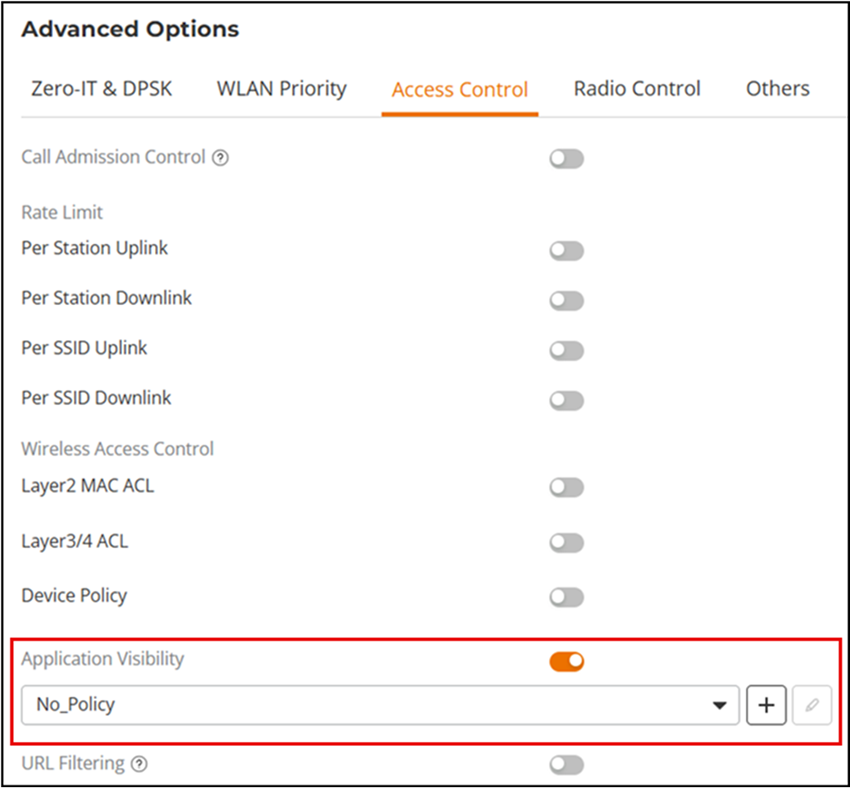
- Click the Access Control tab.
- For Application
Visibility, toggle the button to enable this feature and select
an application policy from the drop-down list or click
 to
add a new application policy.
to
add a new application policy.
- In the Add page, enter a name and description (optional) for the policy.
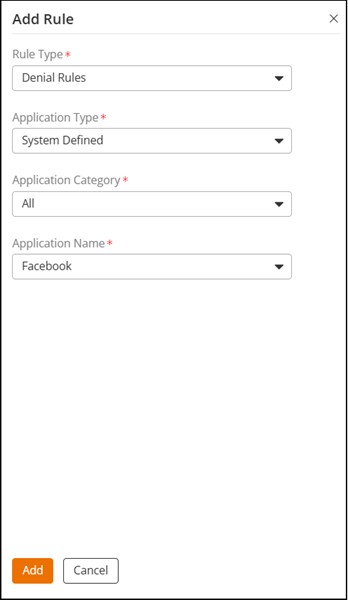
- Under Rules, click Add Rule to create a new rule for this policy.
- Under Rule Type, select whether this will be a denial policy, a rate limiting policy, or a QoS policy.
- Under Application Type, select System Defined or one of the user-defined application types (IP-based, port-based, or application name-based).
- Under Application, select the user-defined application from the list, or select the application category and application name from the list of system-defined applications.
- If the Rule Type you selected was Rate Limiting or QoS, enter the uplink and downlink speeds at which to limit this application, or the QoS traffic shaping rules to enforce if it is a QoS rule.
- Click Add to save the rule, and click Add to save the policy.