Adding User Accounts to the Internal User Database
Difference in UI label for
Unleashed and RUCKUS Blue
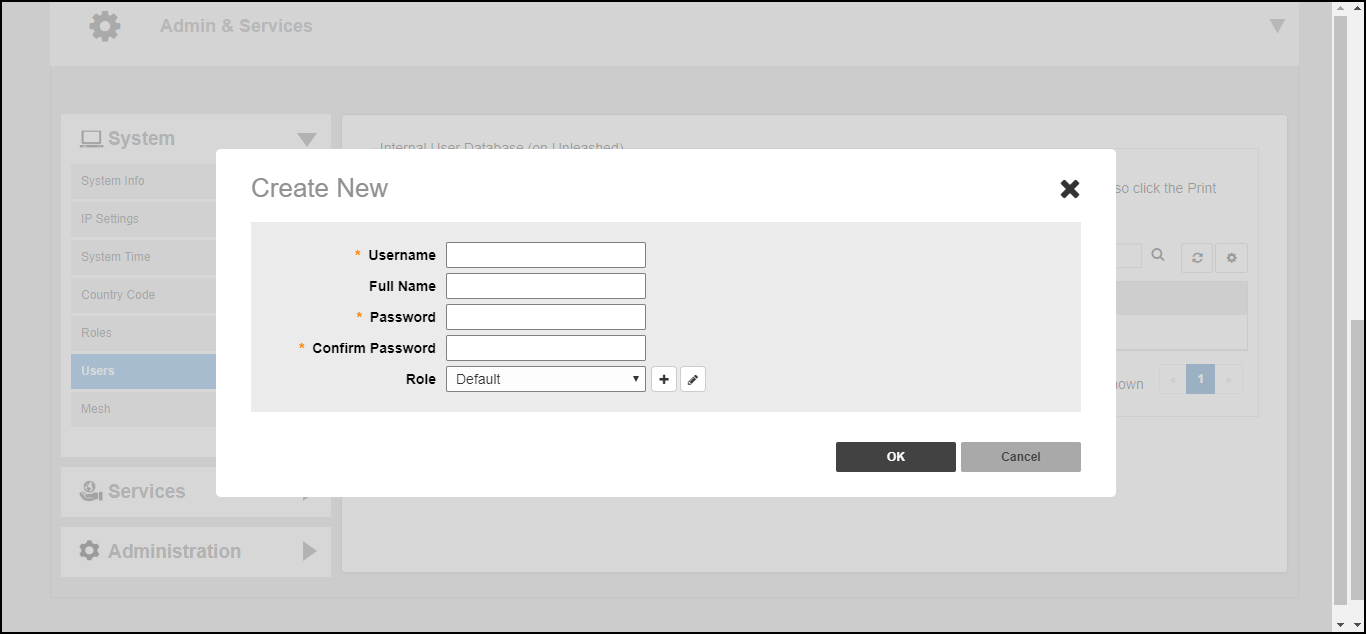
- From the dashboard, select Admin & Services > System > Users and click Create New.
- Under Internal User Database, click Create New.
- On the Create New page, enter a username, the full name of the user (optional), a password, and re-enter the password.
- Under Role, select a role for the user from the list.
- Click OK to create the new user on the internal user database.