Modifying a port VLAN
To modify a port VLAN, perform the following steps.
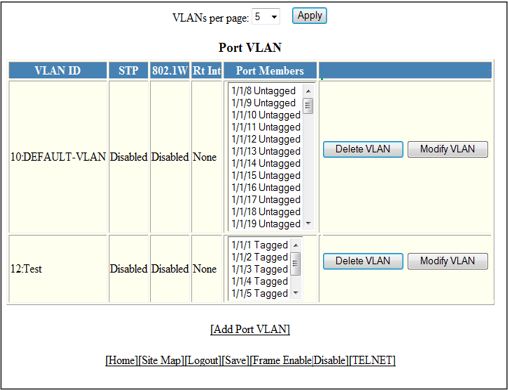
- Click Configure on the left pane and select VLAN .
- Click Port .
- Click Modify .
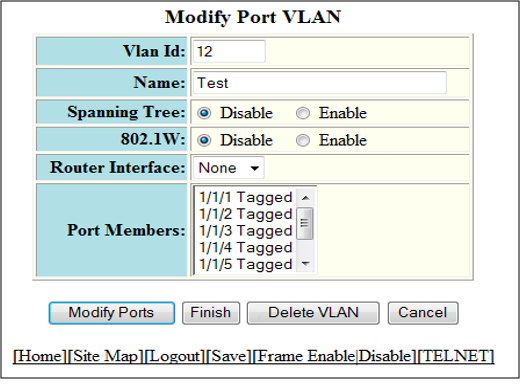
- Type the VLAN identifier of the port in the Vlan Id field.
- Type the port VLAN name in the Name field.
- Click Disable or Enable for Spanning Tree .
- Click Disable or Enable for 802.1W .
- Select the VLAN ports in the Port Members list.
- To delete the configured port VLAN, click Delete VLAN . To undo your changes and go back to the Port VLAN window, click Cancel .
- Click Modify Ports to modify VLAN ports.
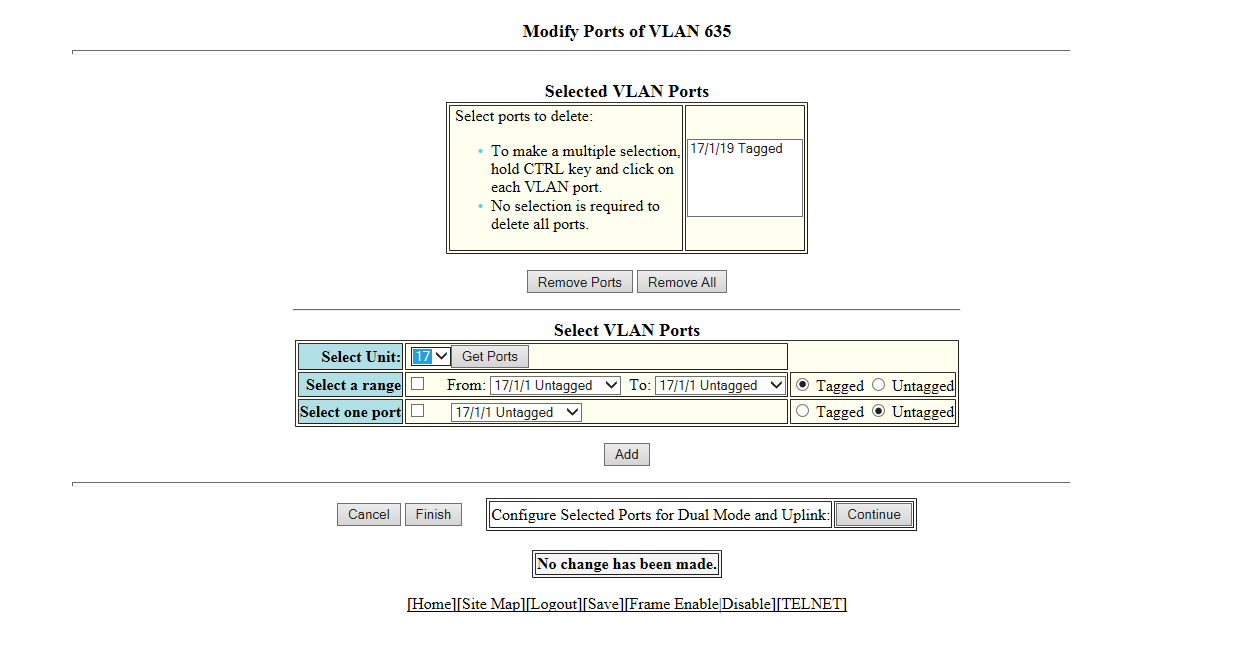
- The selected VLAN ports are displayed in the
Selected VLAN Ports list. Click
Remove Ports or
Remove All to delete the VLAN ports.
Note: The VLAN configuration is retained even if the last port member is deleted.
- You can add more VLAN ports from the Select VLAN Ports pane.
- Select a Unit ID from the
Select Unit list and click
Get Ports to retrieve the list of ports corresponding to the selected Unit ID.
A message is displayed to indicate that the operation does not change the running configuration.
- To select the VLAN ports, select the Select a range check box, select the range of VLAN ports in the From and To lists, and click Tagged or Untagged , or select the Select one port check box, select a port-based VLAN in the list, and click Tagged or Untagged .
- Click Add to add more VLAN ports.
- Click Finish to return to the Modify Port VLAN window with the configured port-based VLAN displayed, or click Continue to configure selected ports for dual mode and uplink.
- Click Finish to complete the port modifying operation.