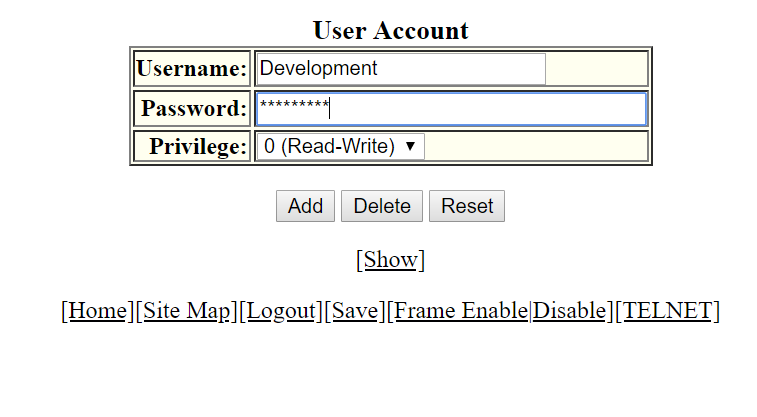
Configuring a management user account To configure a management user account, perform the following steps. Click Configure on the left pane and select System. Click Management and select User Account. The User Account window is displayed as shown in the figure below. Configuring a management user account Type the user identifier in the Username field. Type the login password in the Password field. Select one of the following options in the Privilege list: 0 (Read-Write) 4 (Port-Config) 5 (Read-Only) Click Add. The message The change has been made is displayed. To view the configured user account, click Show. To delete the configured user account, click Delete. To reset the data entered in the configuration pane, click Reset. Parent topic: Configuring System Components