Configuring an Ethernet port

To configure an Ethernet port, perform the following steps.

  1. Click Configure on the left pane and select Port.
  2. Click Ethernet.

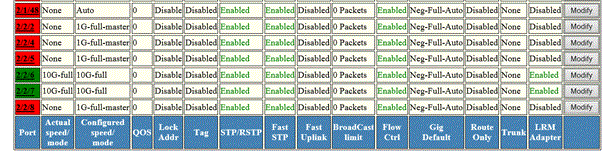
    The ETHERNET Port Configuration window is displayed as shown in the figure below.

    Configuring an Ethernet port

    If LRM adapter is present, the status is displayed as Enabled.
  3. Select a unit ID in the Select Unit ID list and click Display to display the information about a specific stack unit.
  4. Click Modify to modify the respective Ethernet port.

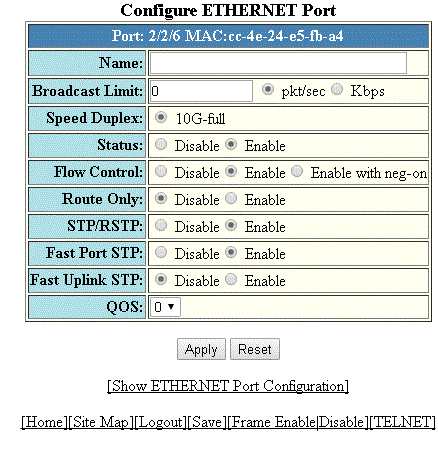
    The Configure ETHERNET Port window is displayed as shown in the figure below. The following window is of an Ethernet port for which LRM adapter is enabled.

    Modifying the port settings of port with LRM adapter

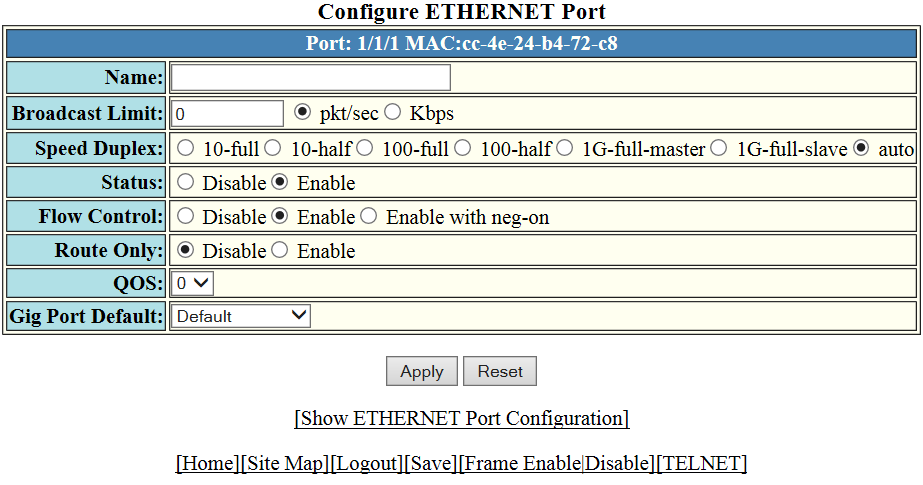
    For other interfaces, the following window is displayed.

    Modifying the port settings of an Ethernet port without LRM adapter

  5. Type the name of the Ethernet port in the Name field.
  6. Select the type of the port speed for Speed Duplex, which can be one of the following:
    Note: Only 10G-full is supported for Ethernet interface with LRM adapter.
    • 10-full --10 Mbps, full duplex
    • 10-half --10 Mbps, half duplex
    • 100-full --100 Mbps, full duplex
    • 100-half --100 Mbps, half duplex
    • 1G-full-master --1 Gbps, full duplex master
    • 1G-full-slave --1 Gbps, full duplex slave
    • auto --Auto-negotiation
  7. Click Disable or Enable for Status to disable or enable an Ethernet port.
  8. Click Disable or Enable or Enable with neg-on for Flow Control . By default, flow control is enabled.
  9. Click Disable or Enable for Lock Address . If you click Enable , type the number of devices that can have access to a specific port in the Addr-count field.
  10. Click Disable or Enable for Route Only. If you click Enable , Layer 2 switching is disabled globally.
  11. Click Disable or Enable to disable/enable STP/RSTP.
  12. Click Disable or Enable to disable/enable Fast Port STP.
  13. Click Disable or Enable to disable/enable Fast Uplink STP.
  14. Select the QoS priority for the port in the QOS list.
  15. Click Apply.

    The message The change has been made is displayed. To reset the data entered in the configuration pane, click Reset.

    To display the ETHERNET Port Configuration window, click Show ETHERNET Port Configuration .