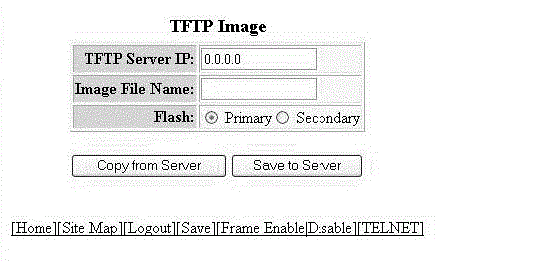
Configuring a TFTP image
To access a TFTP image, perform the following steps.
- Click Command on the left pane and select TFTP .
- Click Image .
- Type the IP address of the most recently contacted TFTP server (if the switch has contacted a TFTP server since the last time the software was reloaded or the switch was rebooted) in the TFTP Server IP field.
- Type the name of the Layer 2 switch or Layer 3 switch flash image (system software file) that was uploaded or downloaded during the most recent TFTP access in the Image File Name field.
- Click one of the following for Flash :
- You can perform one of the following tasks with the TFTP image:
Note: HTTPS config download or config upload takes some time to establish connection to the HTTPs server before starting the config download or config upload. During the HTTPs connection establishment time, if you try to download the image from the web, unexpected behavior is observed because of the race condition between the HTTPS and Web; which is expected.
Web clearly says flash access in-progress. If you perform the parallel image download from web, HTTPS startup config download starts in CLI .
Perform the web image/config upload or download after HTTPs config download/upload is completed. HTTPs Startup config download may not take much time to download; and you can wait till HTTPs config download/upload is completed and then perform the web image/config download/upload.