Configuring TFTP
When the device reboots, or the auto-configuration feature has been disabled and then re-enabled, the device uses information from the Dynamic Host Configuration Protocol (DHCP) server to contact the Trivial File Transfer Protocol (TFTP) server to update the running configuration file. If the DHCP server provides a TFTP server name or IP address, the device uses this information to request files from the TFTP server. If the DHCP server does not provide a TFTP server name or IP address, the device requests the configuration files from the DHCP server.
The device requests the configuration files from the TFTP server in the following order:
- Boot file name provided by the DHCP server (if configured)
- Host name MAC address configuration file
- RUCKUS configuration file
If the device is successful in contacting the TFTP server and the server has the configuration files, the files are merged. If there is a conflict, the server file takes precedence. If the device is unable to contact the TFTP server or if the files are not found on the server, the TFTP part of the configuration download process ends.
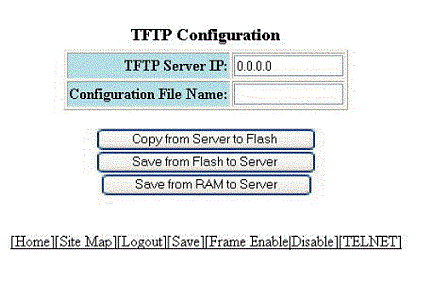
To access the TFTP configuration, perform the following steps.
- Click Command on the left pane and select TFTP .
- Click Configuration .
- Type the IP address of the most recently contacted TFTP server (if the switch has contacted a TFTP server since the last time the software was reloaded or the switch was rebooted) in the TFTP Server IP field.
- Type the name under which the startup-config file of the Layer 2 switch or Layer 3 switch was uploaded or downloaded during the most recent TFTP access in the Configuration File Name field.
- You can perform one of the following tasks with the configuration file: