Displaying stack neighbors
To display information of the stack member neighbors, perform the following steps.
- Click Monitor on the left pane and select Stack.
- Click
Neighbors.
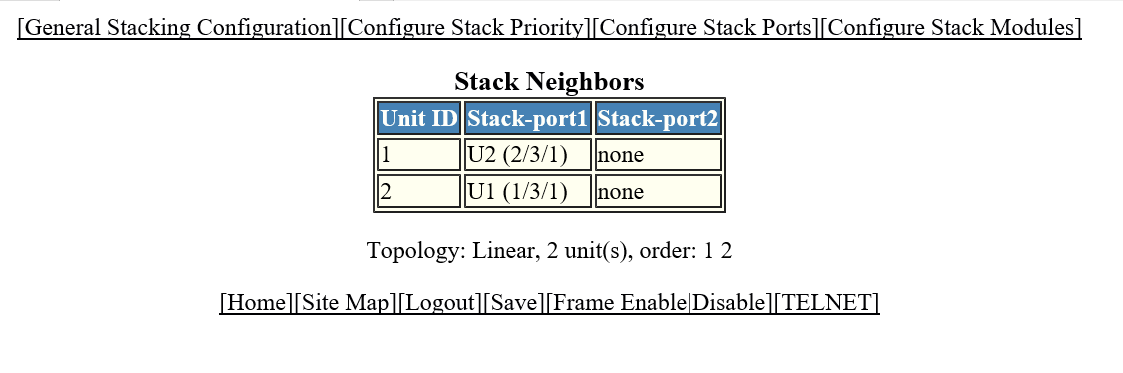
The Stack Neighbors window is displayed as shown in the figure below.
Description of the fields in the Stack Neighbors window
The Stack Neighbors window provides links to configure the stack components:
- To change the stack settings, click General Stacking Configuration . For more information, refer to Configuring the general settings for a traditional stack.
- To configure the priority of units within a stack, click Configure Stack Priority . For more information, refer to the “Modifying a stack priority” section.
- To configure a stack module, click Configure Stack Modules . For more information, refer to “Configuring a stack module” section.