Changing STP port parameters
The table below lists the default STP port parameters.
Default STP port parameters
|
Parameter |
Default value |
|---|---|
|
Priority |
128 |
|
Path Cost |
The default path cost depends on the port type. |
To change the default STP port values, perform the following steps.
- Click Configure on the left pane and select STP.
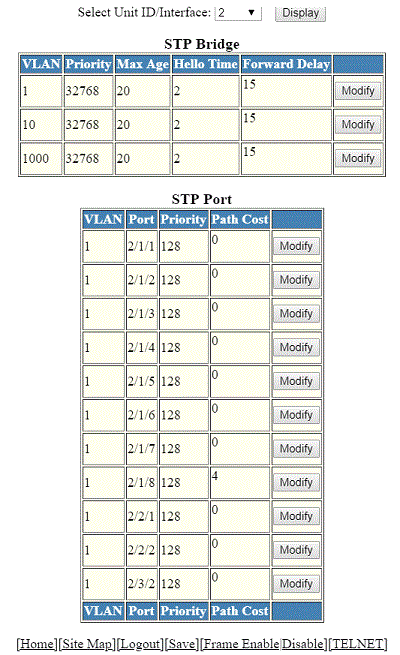
- Select a unit ID in the Select Stack Unit ID list and click Display to display the information about a specific stack unit.
- Click Modify to change the default values of individual STP ports.
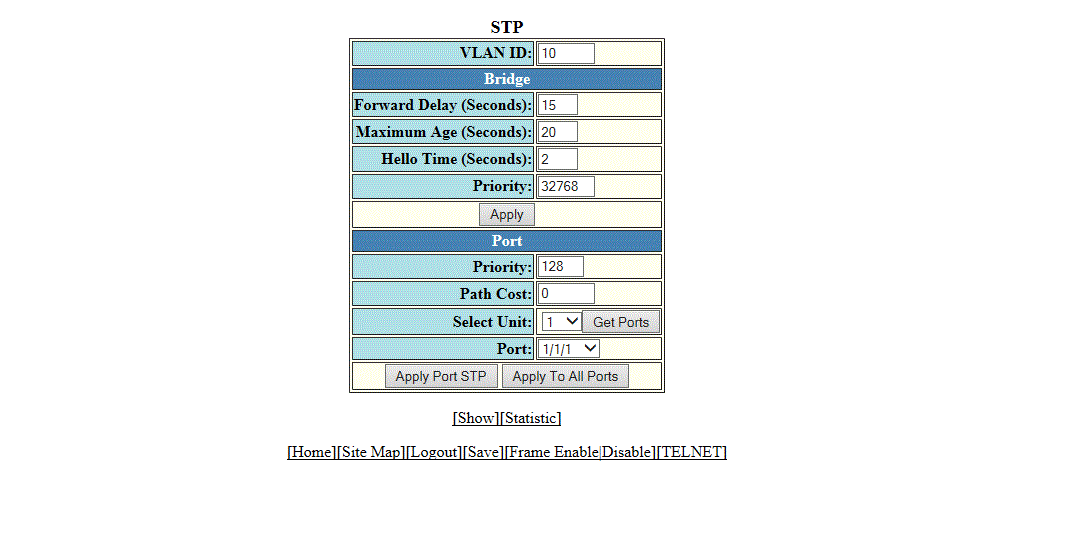
- Type the VLAN identifier of the port in the VLAN ID field.
- Type the preference that STP should give to this port relative to other ports for forwarding traffic out of the spanning tree in the Priority field. The range is from 0 through 240.
- Type the cost of using the port to reach the root bridge in the Path Cost field. The range is from 0 through 65535.
- Select a Unit ID from the
Select Unit list and click
Get Ports to retrieve the list of ports corresponding to the selected Unit ID.
A message is displayed to indicate that the operation does not change the running configuration.
- Select a port number in the Port list.
- Click
Apply Port STP to configure the entered values only to the specified port. Click
Apply To All Ports to configure the entered values to all the ports.
The message The change has been made is displayed and the configured values are displayed in the STP Port window. To display the STP Port window, click Show.
To display STP information, click Statistic. For more information on the field descriptions, refer to the “Displaying STP information” section.