Configuring a management system log
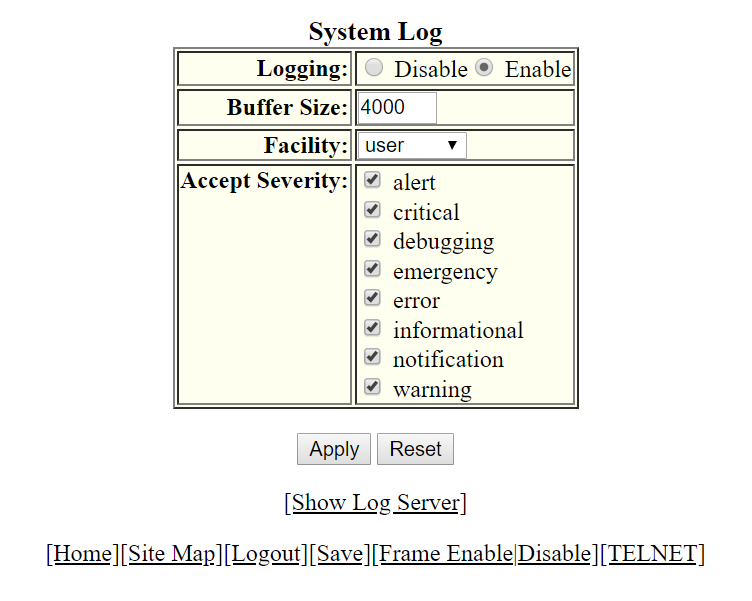
To configure a management system log, perform the following steps.
- Click Configure on the left pane and select System.
- Click Management and select System Log.
- Click Disable or Enable for Logging. By default, the syslog buffer is enabled.
- Type the number of messages in the Buffer Size field.
- Select a facility in the Facility list.
- Select one of the following severity levels for Accept Severity:
- Click
Apply .
The message The change has been made is displayed. To display log server entries, click Show Log Server. To reset the data entered in the configuration pane, click Reset.
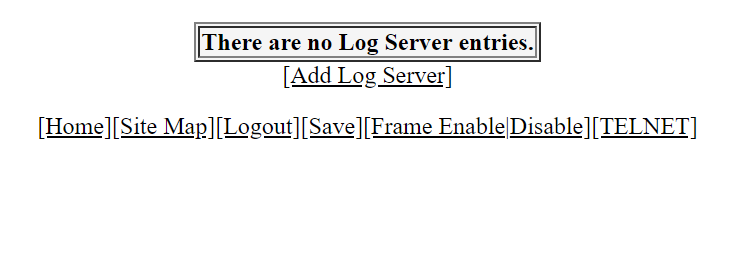
If there are no log servers, the message There are no Log Server entries is displayed as shown in the figure below.
To add extra log servers to your system log configuration, perform the following steps.