Configuring a Cluster for Active-Active High Availability Deployment without a LAG Interface
Configure a multi-node RUCKUS Edge cluster without a LAG as follows:
- Log in to the RUCKUS One web user interface with your credentials.
- On the RUCKUS One navigation
bar, click .This displays the RUCKUS Edge page.
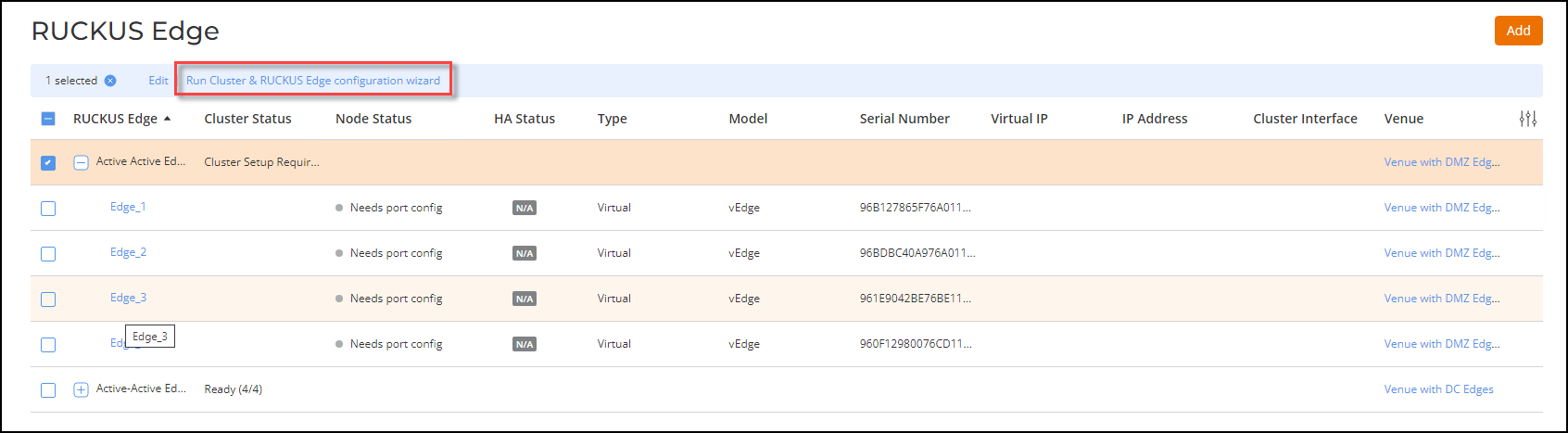
- Select the checkbox adjacent to the RUCKUS Edge cluster name. This highlights the Edit and Run Cluster & RUCKUS Edge configuration wizard options.
- Click the Run Cluster & RUCKUS Edge configuration wizard option.
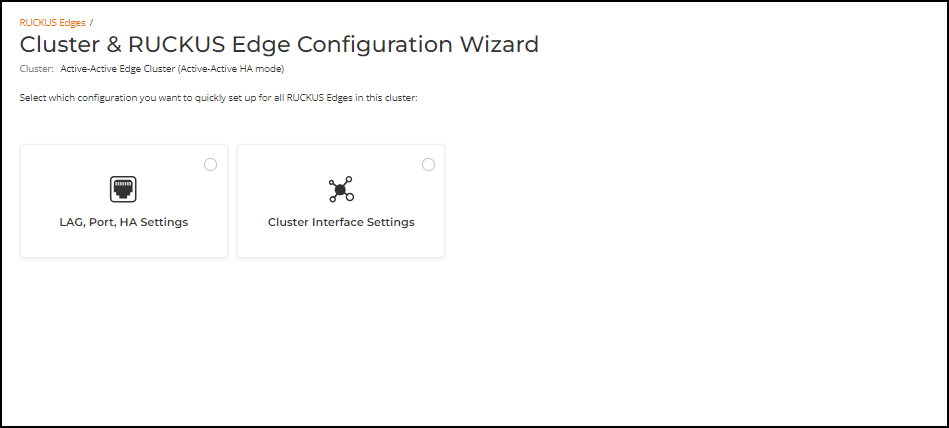
- Select the LAG, Port, & HA Settings checkbox and click Next to start the configuration.
Link Aggregation Group (LAG), Port, and HA Settings
- LAG Settings: To configure a cluster without a LAG interface, click Next.
- Port General
Settings: Configure the port general settings for all RUCKUS
Edge devices.
- Description: Enter a meaningful description for the port settings.
- Port
Type: Select a port type from the drop-down menu.
Because a LAG is not configured, it is necessary to configure at
least one port to function as a LAN port or core port in order to
form a cluster. To configure one port as core port, follow these
steps:
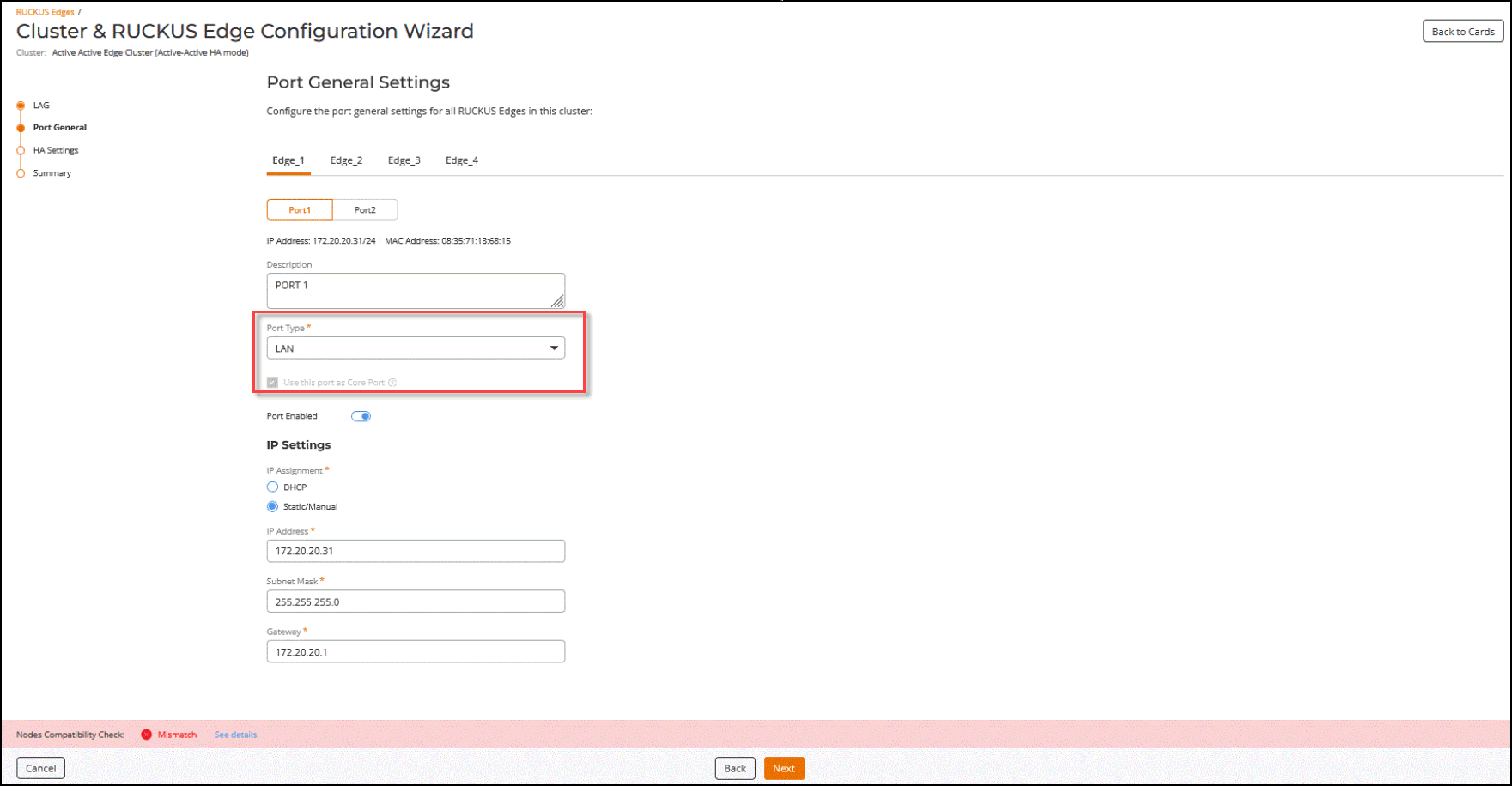
- In the sub-tab for one RUCKUS Edge device (node), select the Port1 sub-tab and enter the description.
- In the Port Type drop-down menu, select LAN and select the checkbox Use this port as Core Port. By default, the Port Enabled option is enabled.
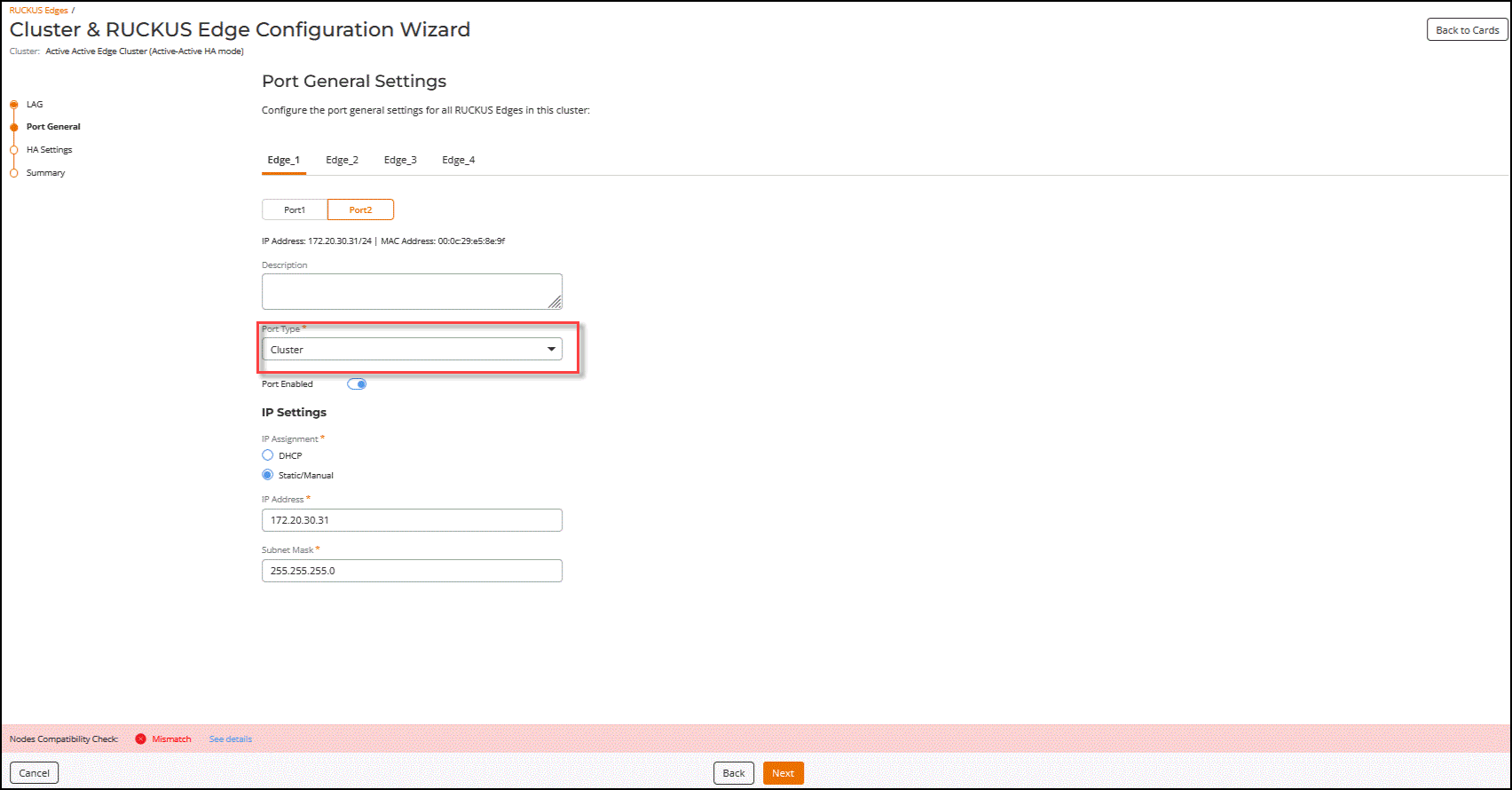
- Remain in the same device (node) sub-tab, then select the Port2 sub-tab and enter the description.
- In the Port Type drop-down menu, select Cluster. By default, the Port Enabled option is enabled.
- Repeat steps through to configure ports for the other RUCKUS Edge devices (nodes) in the cluster, then click Next.
- IP Settings: Configure the IP settings for the cluster ports:
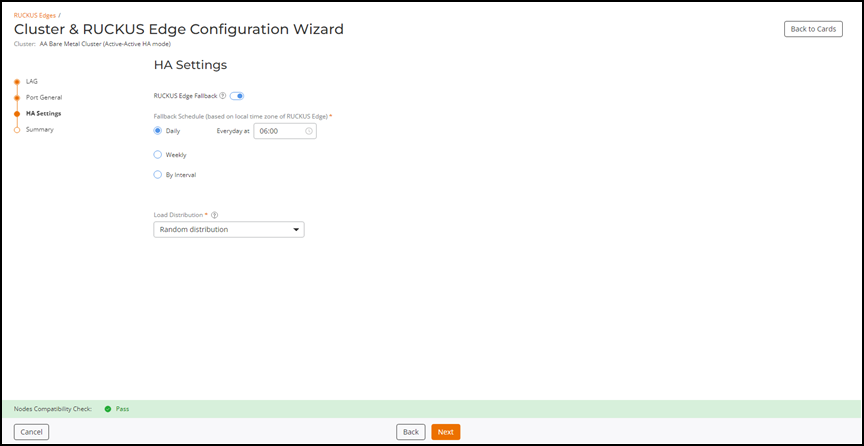
- After port settings have been configured for all nodes in the cluster, click Next. The HA Settings page is displayed.
- (Optional) Toggle the
RUCKUS Edge
Fallback option off to disable the feature.Note: For DMZ tunneling, Fallback schedule configuration for DC cluster need to be configured under DMZ cluster HA setting.
- Choose one the following
Fallback Schedule option.
- Daily: Sets the fallback schedule for the specified time each day.
- Weekly: Sets the fallback schedule for the chosen day at the specified time.
- By Interval: Sets the fallback schedule for the designated interval.
Note: The scheduled fallback time will align with the local time zone of the venue, ensuring the fallback operations occur at the correct local time. - Select the Load Distribution required from the following drop-down options:
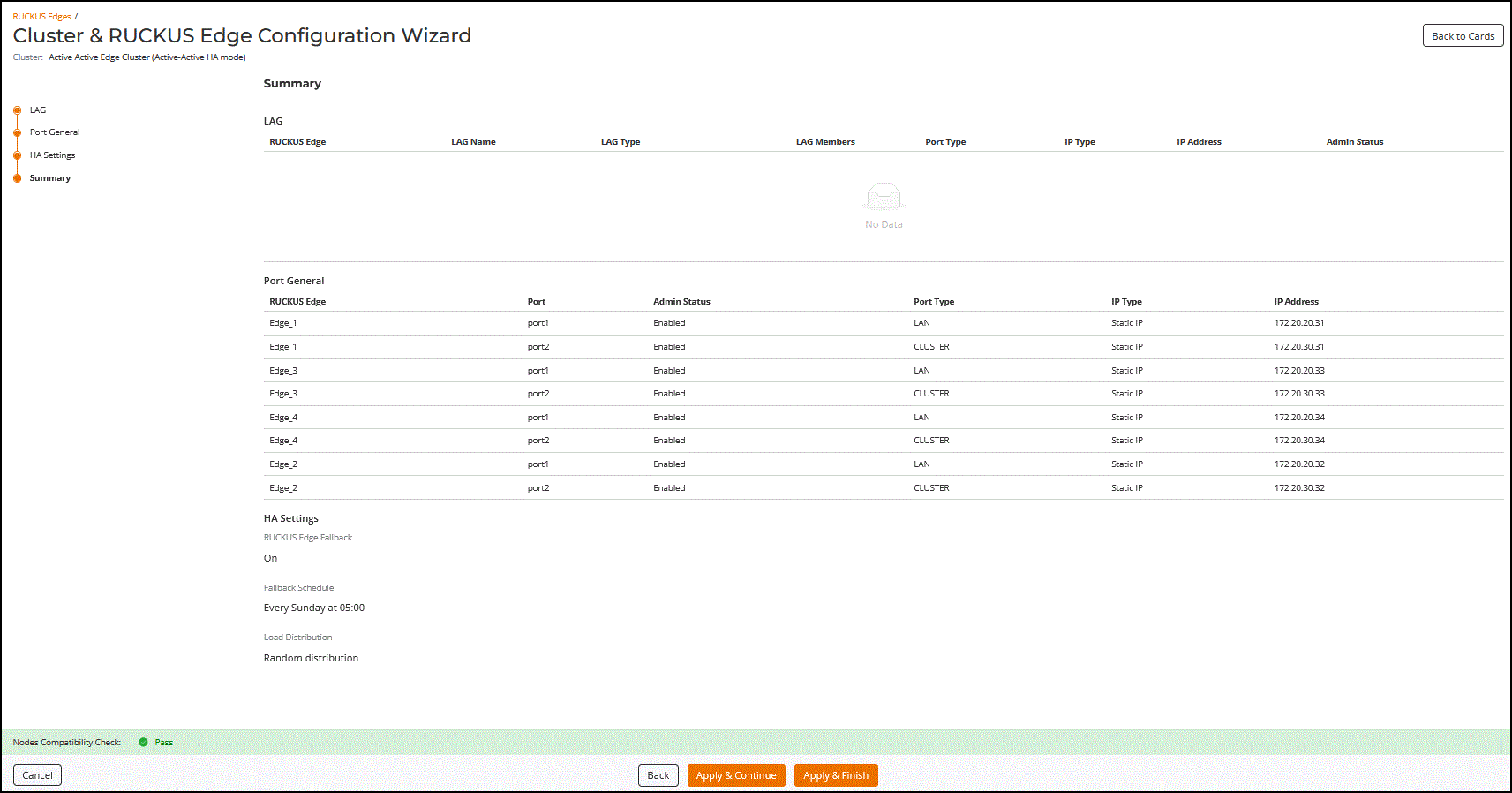
- Click Next.The configuration Summary page is displayed, reflecting configuration settings for the cluster.
- View and verify the configuration details and click Apply & Continue to proceed to the Cluster Interface Settings configuration, or click Apply & Finish to complete the LAG, Port, and HA Settings configuration without proceeding to the Cluster Interface Settings configuration.
Configuring Cluster Interface Settings
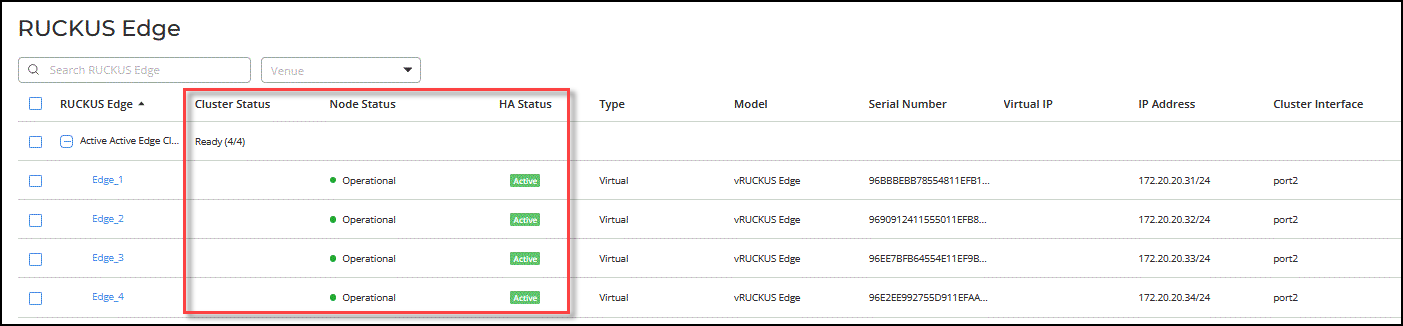
After configuring the LAG, Port and HA Settings and clicking Apply & Continue (as described in Link Aggregation Group (LAG), Port, and HA Settings), select the Cluster Interface checkbox and click Next. This displays Cluster Interface page containing a tab for each RUCKUS Edge device in the cluster.