Onboarding a Single Edge for SD-LAN Service
To use a single‑node Edge cluster for the SD‑LAN service, you must select High Availability mode as Active‑Active. This ensures that the single RUCKUS Edge operates as a single‑node cluster in Active‑Active HA mode.
A single‑node Edge cluster does not support conversion between Active‑Active and Active‑Standby modes. To use SD‑LAN, delete the Active‑Standby cluster and re‑onboard the RUCKUS Edge in Active‑Active HA mode.
To onboard a single RUCKUS Edge:
- Log in to the RUCKUS One web user interface with your credentials.
- On the RUCKUS One navigation
bar, select .This displays the RUCKUS Edge page.
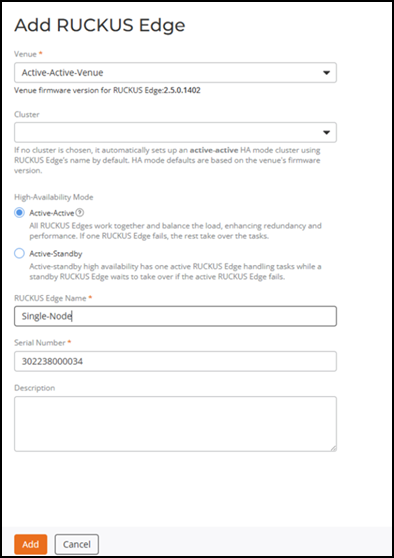
- Click Add and select RUCKUS Edge. This displays the Add RUCKUS Edge page.
- In the Add RUCKUS
Edge page, enter the following details:
- Venue: Click the drop-down arrow to select a site for the new cluster.
- High-Availability Mode: Select either the Active-Active or the Active-Standby option. For a single node, HA mode is not significant. However, since the HA mode for the cluster cannot be changed, you may choose to set the HA mode for a single-node cluster, considering future requirements.
- RUCKUS Edge Name: Enter a meaningful name for the node.
- Serial Number: Enter the serial number of the RUCKUS Edge device. You can obtain the serial number by logging in to the RUCKUS Edge CLI or by looking at the label on the physical RUCKUS Edge device.
- Description: Enter a purposeful statement for the device.
- Click Add.