Configuring External DHCP RUCKUS Edge
- On the RUCKUS One navigation
bar, select . This displays the Service Catalog page.
- Click Add in the
DHCP tile.This displays the Add DHCP Service page.
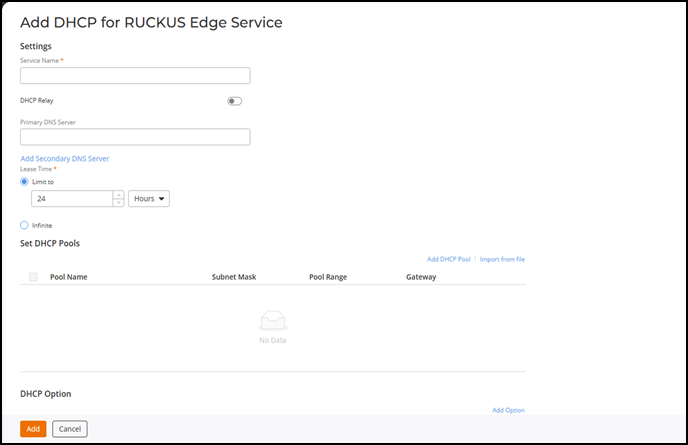
- Select RUCKUS Edge as the service type, then click Next. The Add DHCP for RUCKUS Edge Service page is displayed.
- Configure the following:
- Service Name - Enter service name.
-
DHCP Relay - By default, this option is disabled; enable DHCP Relay to set up external DHCP.
- FQDN Name or IP Address - Fully Qualified Name or Address of the internet host.
- Use for Personal Identity Network - By default, this option is disabled; enable this option to use in PIN.
- Set DHCP Pools - Use the Add DHCP Pool option to configure DHCP pools. Refer to Configure Internal DHCP RUCKUS Edge.