Adding an SD-LAN Service

To add an SD-LAN service, follow these steps.
  1. On the RUCKUS One navigation bar, select Network Control > Service Catalog.
    The Service Catalog page is displayed.
  2. Find the SD-LAN tile and click Add.
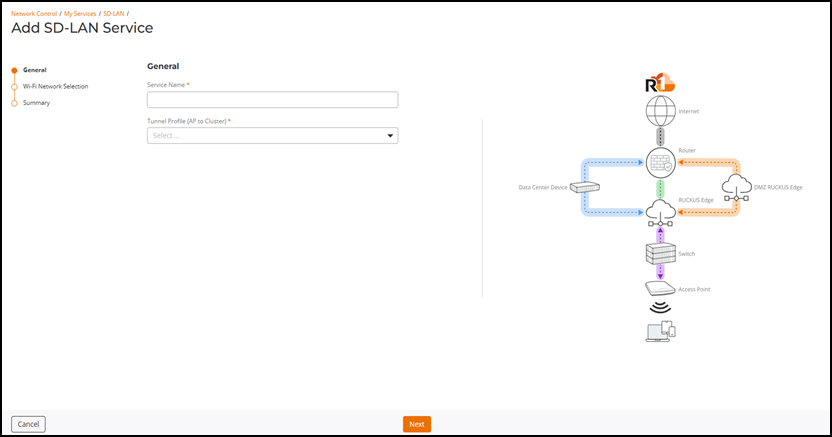
    This displays the Add SD-LAN Service page.
  3. In the Add SD-LAN Service page, configure the following:
    1. General: In this section, enter the following details:
      • Service Name: Enter a meaningful name for the SD-LAN service.
      • Tunnel Profile (AP to Cluster): Select the tunnel profile from the drop-down list that is to be used between the AP and the Data Center RUCKUS Edge.

        Adding an SD-LAN Service

    2. Click Next.
      The Wi-Fi Network Selection page is displayed.