Creating Tunnel Profile for the PIN Service
A tunnel profile is essential for managing
and optimizing the behavior of tunnels between APs and the RUCKUS Edge device. Each
Tunnel
Profile is linked to a single cluster, and each cluster is confined to a specific
venue. APs
use tunnel keep-alive request messages to verify the reachability of the RUCKUS Edge
device
before establishing AP data tunnel and broadcasting WLANs enabled with an SD-LAN service.
Once the tunnel is established, APs continue to send periodic keep-alive request messages
to
monitor the reachability of the Edge device. If the AP does not receive responses
for the
maximum number of consecutive keep-alive requests, it assumes the Edge is unreachable,
brings down the tunnel, and stops broadcasting the WLANs. The AP continues to send
periodic
keep-alive requests and will reestablish the tunnel and resume broadcasting WLANs
upon
receiving responses.
- On the RUCKUS One navigation
bar, select . This displays the Service Catalog page.
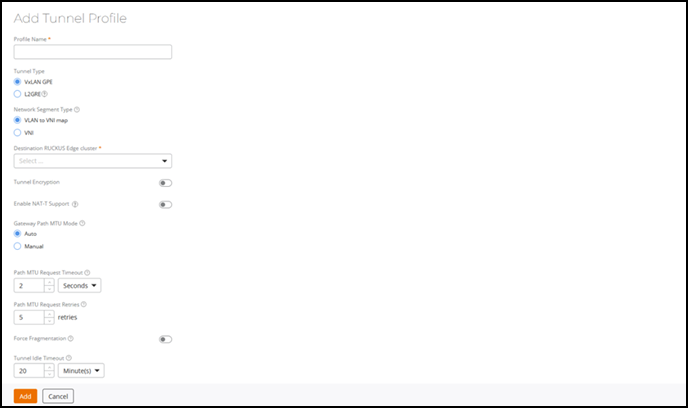
- In the Service Catalog page, click Add in the Tunnel Profile tile. The Add Tunnel Profile page is displayed.
- Complete the following fields:
- Profile Name: Enter the name for the tunnel profile.
- Tunnel Type: Select VxLAN GPE. It establishes tunnels between RUCKUS Access Points and RUCKUS Edge devices.
- Network Segmentation Type: The VLAN to VNI map option is selected by default. Select the VNI option if the tunnel will be used by a Personal Identity Network (PIN). Selecting the VNI option disables the Enable NAT-T Support option.
- Destination RUCKUS Edge cluster: Destination Edge cluster name, which is used for AP to cluster or DMZ tunnels. A Tunnel Profile which is intended to be used for an AP to cluster configuration must have an Edge cluster already configured. Select the destination cluster from the drop-down.
- Tunnel Encryption: Enable IPSec/IKE-based
encryption for VxLAN-GPE tunnels between APs and Edge devices. If
enabled, the tunnel traffic between the AP and Edge device is secured
using IKEv2 and IPSec protocols, ensuring data confidentiality and
integrity across public or untrusted networks. Once enabled, additional
configuration fields appear for selecting or adding an IPSec
profile.Note: Tunnel encryption is supported only for VxLAN-GPE tunnels. Enabling or disabling tunnel encryption is a disruptive operation as the existing tunnels are deleted and re-established during the change. It is recommended to perform this action during maintenance windows to avoid service interruptions.
- IPSec
Profile: Specifies the IPSec profile that defines the
encryption and authentication parameters used for the tunnel. Select a
preconfigured IPSec profile from the drop-down list. The selected
profile’s details such as Pre-Shared Key, IKE proposal, and ESP proposal
are automatically displayed for reference. If an IPsec profile is not
available, click Add to open the Add IPSec
Profile sidebar, where you can create and add a new
IPSec profile. Refer to Adding an IPsec
Profile - VxLAN-GPE.Note: Only one IPSec profile can be associated per tunnel profile. Multiple IPSec profiles per tunnel are not supported.
- When tunnel encryption is enabled, NAT Traversal (NAT-T) is
automatically activated for the VxLAN-GPE tunnel. In addition, Dead Peer
Detection (DPD) is enabled by default to monitor peer availability and
automatically recover from link failures. If encryption is disabled on a
tunnel profile, NAT-T remains enabled. Disabling encryption does not
deactivate NAT-T.
- Enable NAT-T Support: Establish and maintain device connections. Even if the AP and Data Center (DC) are separated by a NAT server, which masks the private IP of the AP, VxLAN still facilitates support between the AP and the Edge device. This option is disabled by default. Toggle the switch to enable. When the VNI option in Network Segmentation Type is selected, this option will not be available for selection.
- Gateway Path MTU Mode: Controls how the gateway handles the Path Maximum Transmission Unit Discovery (PMTUD). When configuring a VxLAN-GPE tunnel profile between an AP and a data center Edge device, the Gateway Path MTU mode can be configured as Auto or Manual. When configuring a VxLAN-GPE tunnel profile between a data center Edge device and a DMZ Edge device, the Gateway Path MTU mode should be configured as Manual because automatic PMTUD is not supported between two Edge devices. Select one of following options:
-
- Auto: The system will attempt to automatically discover the optimal Maximum Transmission Unit (MTU) for the tunnel path.
- Manual: Enter the value in
bytes (allowed values are 1280 through 1450). The value
must be less than the Ethernet MTU on the AP.
Note: Check the Ethernet MTU on the AP; Tunnel MTU gets applied only if it is less than the Ethernet MTU.
- Path MTU Request Timeout: The maximum wait time for a response to a path MTU request. Range: 10 milliseconds through 10 seconds; default is 2 seconds.
- Path MTU Request Retries: The maximum number of Path MTU requests sent to test one MTU value. Range: 3 through 64; default is 5 retries.
- Force Fragmentation: When enabled, the AP or Edge device will automatically fragment packets, ignoring the Don't Fragment (DF) bit in the IP header of the packets. Forced packet fragmentation can reduce congestion and improve network throughout, but it may lead to fragment loss, packet reassembly issues, and memory exhaustion. This option is disabled by default. Toggle the switch to enable.
- Tunnel Idle Timeout: The amount of time a tunnel is allowed to remain active without any traffic. Select Minutes, Days, or Week from the drop-down and then enter the duration or use the up/down arrows to set the value. Range: 5 through 10080 minutes, 1 through 7 days, or 1 week; default is 20 minutes.
- Tunnel Keep Alive Interval: Defines the interval between two consecutive keep-alive request messages. Range: 1 through 5 seconds, with a default value of 2 seconds.
- Tunnel Keep Alive Retries: Defines the maximum number of consecutive keep-alive requests that can fail before the AP determines the Edge device is unreachable. Range: 3 through 10 retries, with a default value of 5.
- Click Add.The Tunnel Profile is created and is displayed on the Tunnel Profile page.