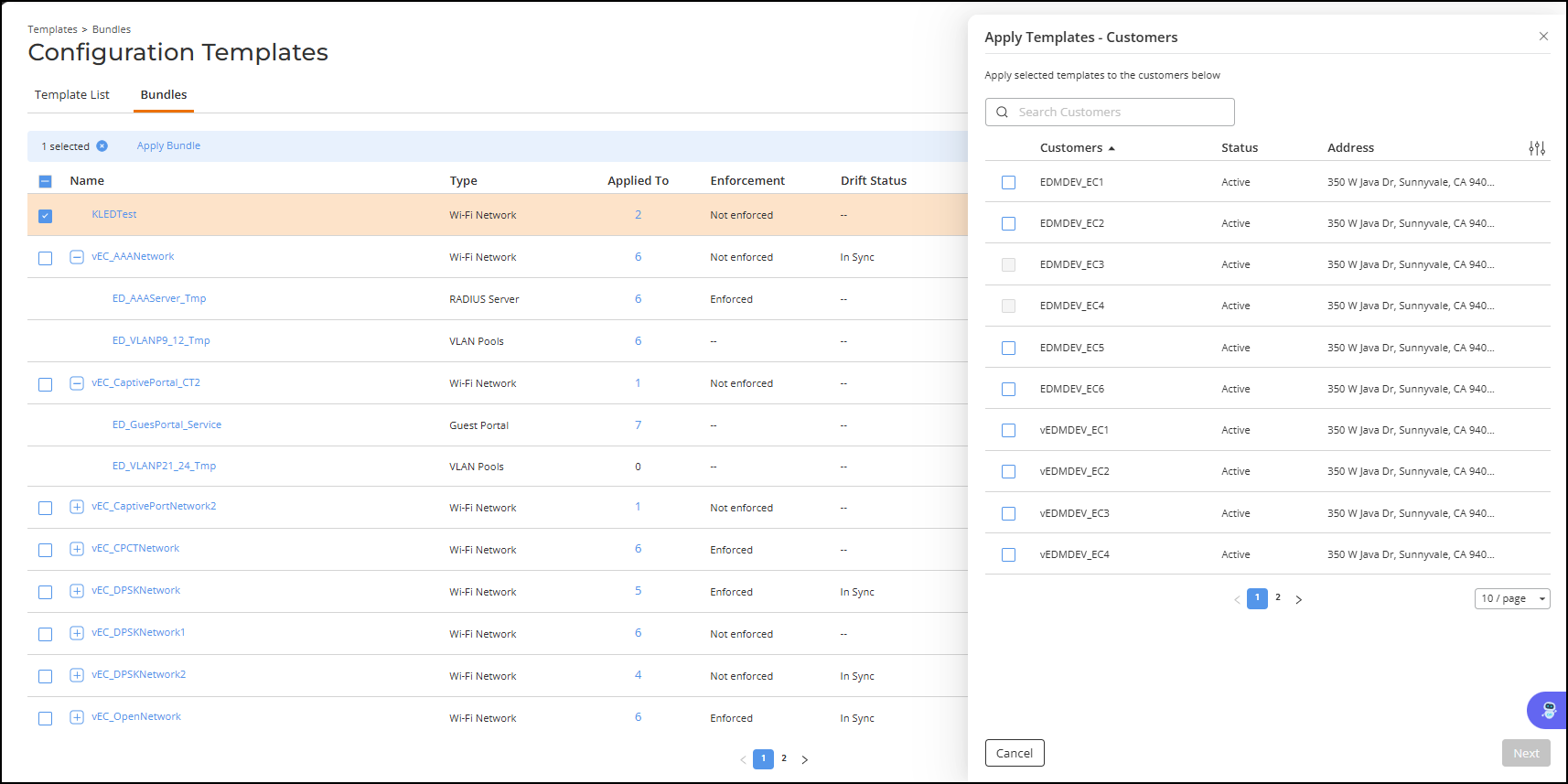
Applying a Configuration Template Bundle to an End Customer
The template bundle allows MSP
administrators to package multiple configuration templates—such as Venue, Wi-Fi Network,
and
all dependent service templates—into a single unified configuration object. This ensures
that End Customer (EC) tenants receive every required element consistently and without
missing dependencies.
- Venue Template
- Wi-Fi Network Template(s)
- IPSec Profile Template
- Identity Group Template
- VLAN Pool Template
- DPSK Service Template
- RADIUS Server Template
- Any additional network services referenced by the WLAN
Sorting and Filtering Bundles – To help administrators quickly locate the correct Bundle template, the list can be sorted or filtered by View by Venue Type or View by Network Type.
- Go to and select Templates.
- Click Bundles tab.
- (Optional) Use View by Venue Type (default) or View by Network Type sorting to quickly identify the correct bundle.
- Select the Bundle and expand to review the Template Structure (Venue, WLANs, IPSec, VLAN Pools, DPSK, Identity Group, RADIUS Server, and other dependencies).
- Click Apply Bundle to deploy the Bundle in a single operation
- Select one or more customers from the list and click Next.
- Click Apply Template.The selected bundle template is applied to the selected customers.