Creating an Identity Group
An identity group stores user-related
data.
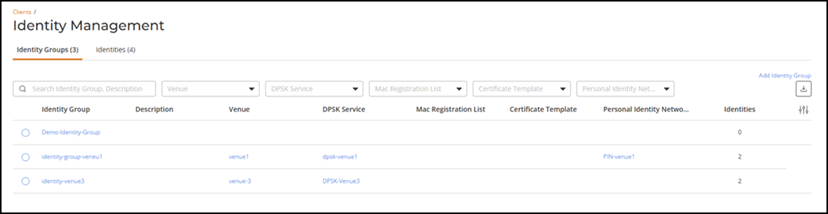
- On the RUCKUS One navigation
bar, select tab. This displays the Identity Management page.
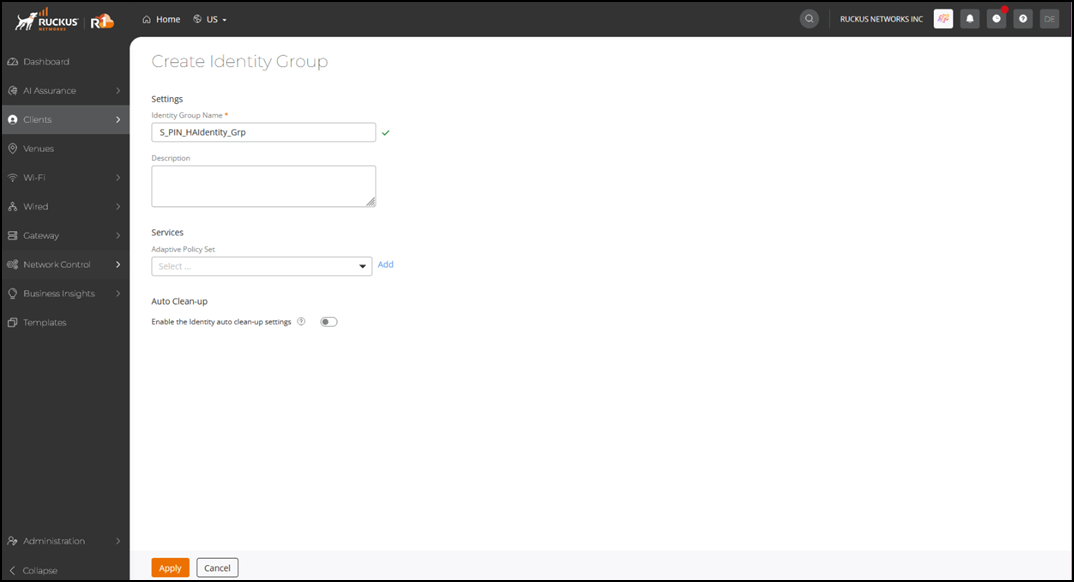
- Click Add Identity
Group on the Identity Groups tab.This displays the Create Identity Group page.
- Complete the following
fields:
- Identity Group Name - Select identity group name from the drop-down.
- Description - Enter a meaningful description for the identity group.
Under Services, complete the following:
- Adaptive Policy Set - Enter a name for the identity group. If an adaptive policy is not available or has not been defined, you can create a new one. Click Add, and complete the necessary fields. Refer to the RUCKUS One User Guide for more information on creating an adaptive policy.
- Auto Clean-up - Toggle the Enable the Identity auto clean-up settings switch on to remove identities whose last associated device has been inactive for more than 30 days.
- After entering all the details, click Apply.