Adding a Hierarchical QoS Bandwidth Profile
From the RUCKUS One web interface, you can
add a Hierarchical QoS (HQoS) bandwidth profile to prioritize traffic and allocate
bandwidth.
Note: For your convenience, the system provides a Default Profile, configured with
optimal settings. This profile cannot be edited nor deleted.
- On the navigation bar, select
.The Polices & Profiles is displayed.
- Select HQoS
Bandwidth.The HQoS Bandwidth page is displayed with the list of existing profiles (including the Default Profile provided by the system). The Default Profile cannot be edited. You can view the following information:
- Name: Name of the profile.
- Description: A brief description of the profile (if provided during profile configuration).
- HQoS Bandwidth
Control: Hover your cursor over the
 icon to view the guaranteed and maximum
bandwidth for each traffic class in that profile,
- Clusters: Displays the number of clusters associated with that profile. Hover your cursor over the number to see the cluster names.
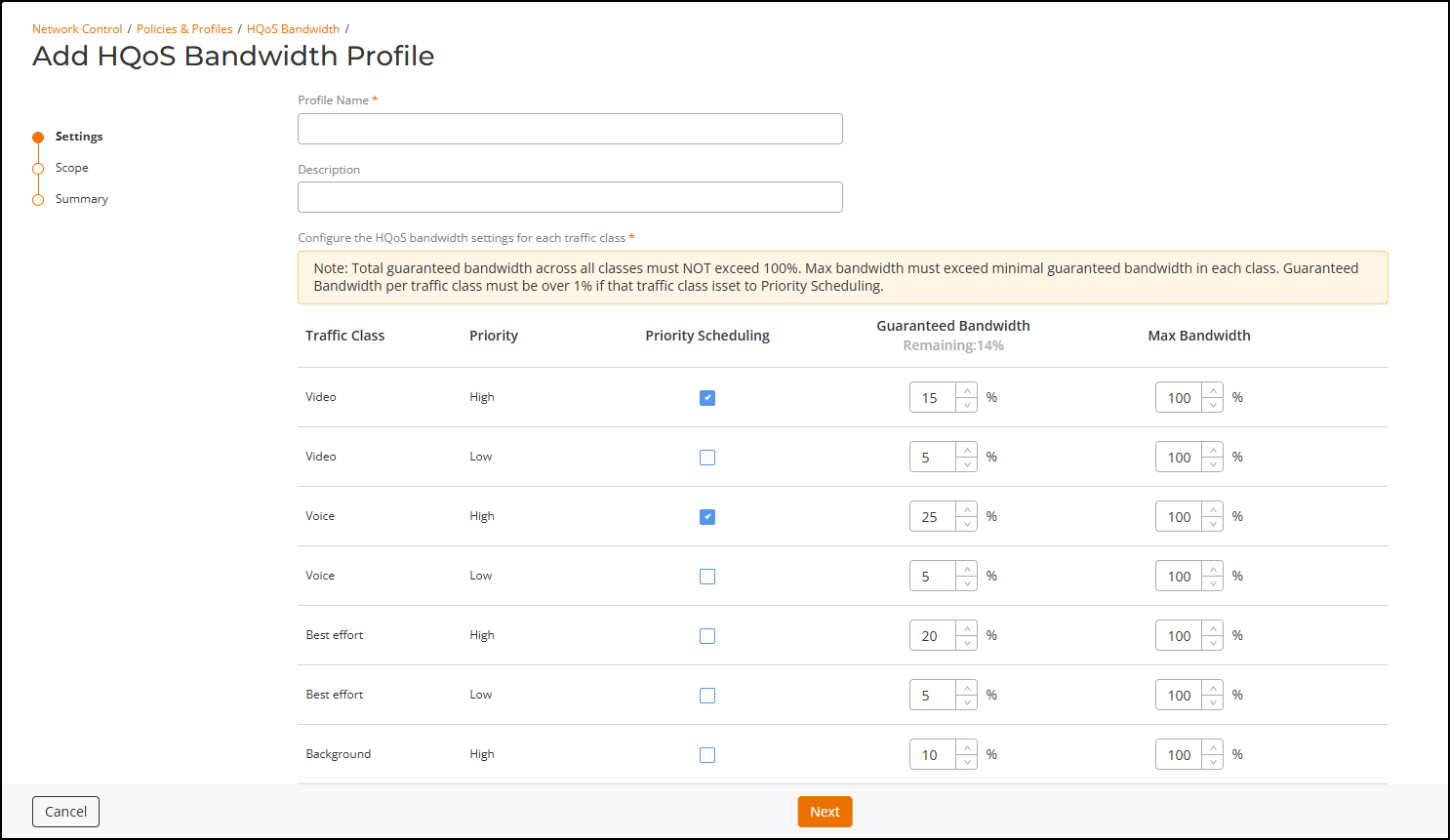
- Click Add HQoS Bandwidth Profile. The Add HQoS Bandwidth Profile page is displayed.
- Complete the
Settings page and click Next.
- Profile Name: Enter a profile name. The field must contain a minimum of 2 and a maximum of 32 characters. Avoid spaces at the beginning or end. The following three characters are not allowed: ` $ (.
- Description: (optional) Enter a brief description of the profile.
- Priority Scheduling: Select this checkbox to designate the profile as a low latency queue, ideal for latency-sensitive traffic like voice or interactive video.
- Guaranteed Bandwidth: Enter the minimum percentage of bandwidth reserved for each traffic class, as per your network needs. The total guaranteed bandwidth across all traffic classes in the profile must not exceed 100%. The guaranteed bandwidth for each traffic class must exceed 1% if that traffic class is set to Priority Scheduling.
- Max Bandwidth: Enter the maximum bandwidth for each traffic class. This must be greater than the minimum guaranteed bandwidth in each class. The default setting is 100% for each of the classes, meaning that if no other traffic class is in the queue, 100% of the bandwidth can be used.
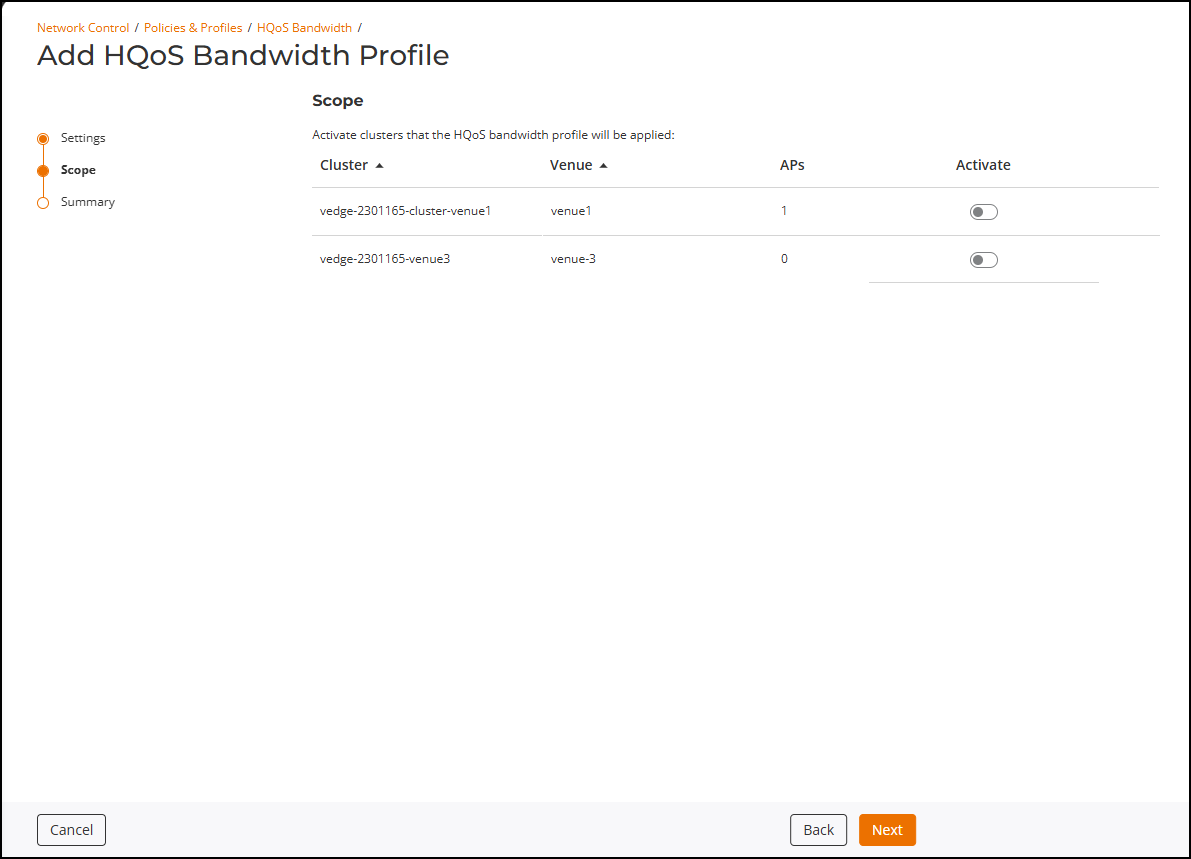
- In the Scope page, click the Activate toggle for the respective cluster to which the HQoS profile must be applied, then click Next. Optionally, do not activate the profile for any cluster to just keep the profile for later activation in an Edge cluster. Refer to Configuring Hierarchical QoS for a Cluster for instructions to add an existing profile to an Edge Cluster.
- Review the Summary page and click Add.