Adding an SD-LAN Service for an MSP Account
You can add an SD-LAN service to manage
how end-user traffic is tunneled in a Wi-Fi network that includes RUCKUS Edge devices.
- All configurations must originate from MSP Templates.
- EC tenants receive read‑only instances of these configurations.
- EC tenants cannot modify SD‑LAN settings.
- EC tenants cannot modify Tunnel Profile settings unless Template Enforcement is disabled at the MSP.
- This approach ensures consistency, control, and predictable behavior across MSP and EC tenants.
- On the RUCKUS One navigation bar, select .
- Click the
Add button in the SD-LAN tile. This displays the Add SD-LAN Service page.
- In the Add SD-LAN
Service page, configure the following:
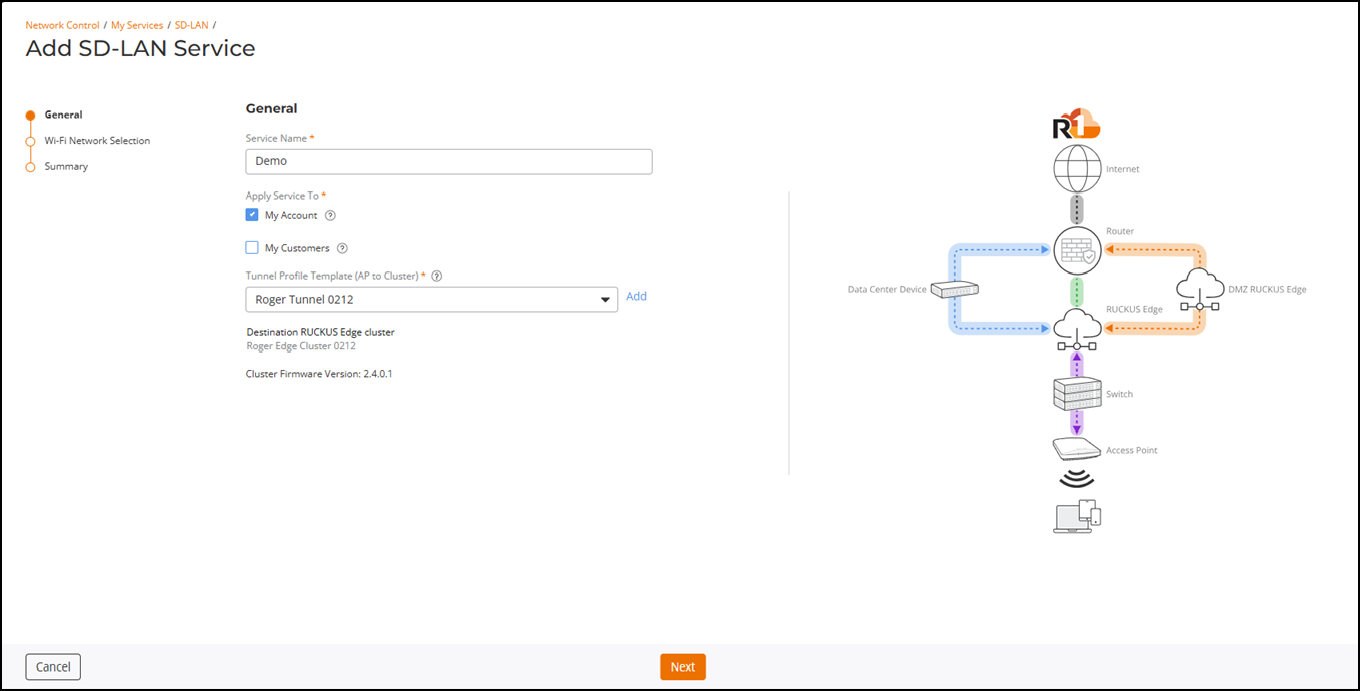
- General:
In this section, enter the following details:
- Service Name: Enter a meaningful name for the SD-LAN service.
- Apply Service
To: Specifies where the SD-LAN service must be
applied.
- My Account: Applies the SD_LAN service to your organization’s network.
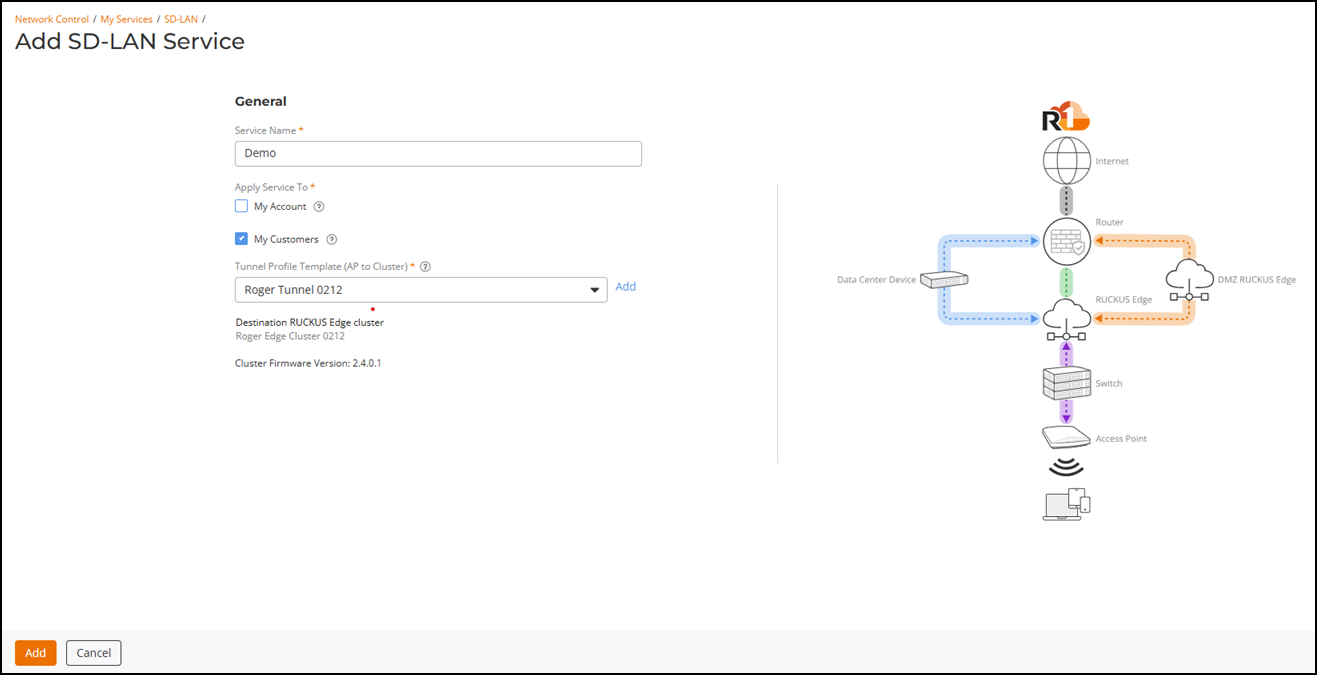
- My Customers: This option is selected by default. It applies the service to selected customer networks you manage. WLAN configuration is not available with this option. After selecting the Tunnel Profile Template (AP to Cluster), proceed to .
- Tunnel Profile Template (AP to Cluster): Select the tunnel template from the drop-down list that is to be used between the AP and the Data Center RUCKUS Edge.
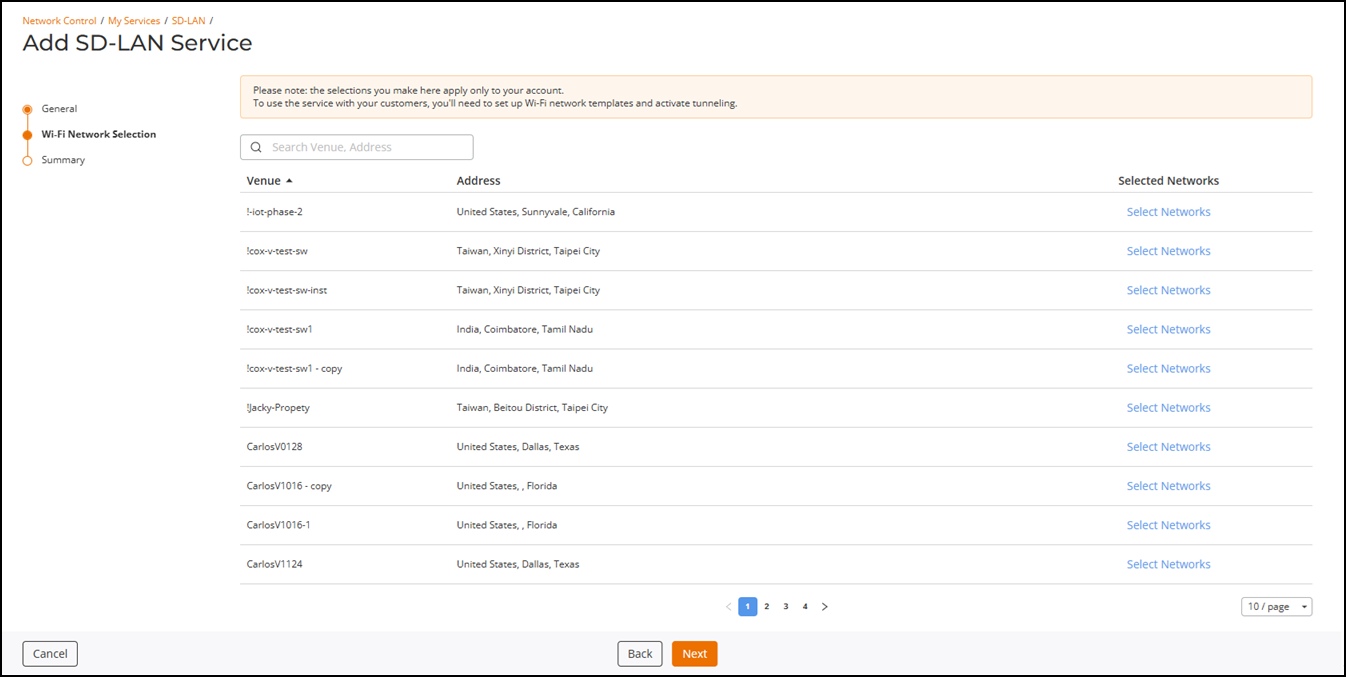
- In the Apply Service To option, if you select:
- Click Select Networks for the respective venue.
- Toggle the Enable Tunnel option and select the Forward Destination option for the active network.
- Click OK.
- Click Next. The Summary page is displayed.
- General:
In this section, enter the following details:
- Click Add.The SD-LAN service is configured with an AP-to-Cluster tunnel profile and the service is applied to the selected Wi-Fi network.