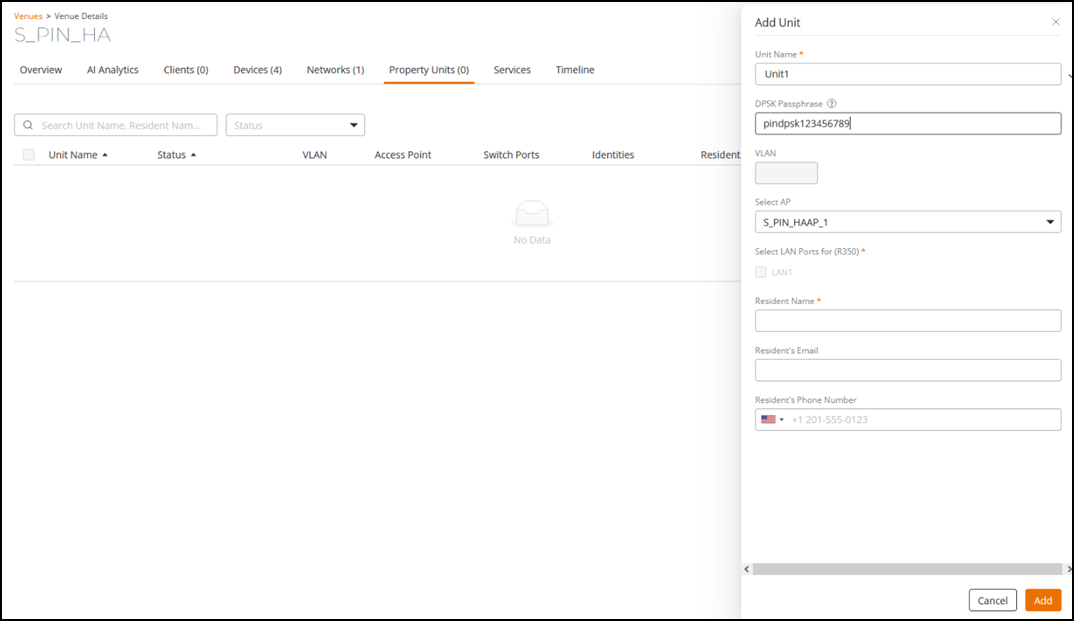
Adding a Property Unit
A property unit is a Personal Area Network
(PAN). PAN is described as a computer network that connects devices within meters.
Property
unit can be added manually as well as imported from the local system through a .CSV
file.
- On the RUCKUS One navigation bar, select Venues. This displays the Venues page with the list of venues.
- Click a specific Venue name to view detailed information about it. The selected venue page opens, displaying the Overview tab by default.
- Select the Property Units tab.
- Click Add Unit to manually add a unit. The Add Unit sidebar is displayed.
- Complete the following
fields:
- Unit Name: Add a unit name for the property units.
- DPSK Passphrase: Enter a passphrase (minimum eight characters) that you want users to provide before they can access the network.
- VLAN: Enter a VLAN ID (ranging from 1 through 4094).
- Resident Name: Enter the resident name.
- Resident's Email: Enter the resident email address.
- Resident's Phone Number: Enter the resident phone number.
- Click Add. This displays the unit details.
- If you want to add multiple
units, click Import
from File. The Import Units From File
sidebar is displayed.You can import multiple units at once; however, it is not mandatory to import units in bulk. Complete the following steps to import the units from a file.
- A CSV format of the file is available for download.
- Drag and drop a .CSV file or click Browse to locate the .CSV file, and click Open to upload it.
- (Optional) Click Download template to download the template or use file latest import.
- Using a spreadsheet application, open the .CSV file.
- Complete the following fields to identify the Unit:
- Unit Name: Add a unit name for the property units DPSK
- Secret: Enter a passphrase minimum eight characters that you want users to provide before they can access the network. Unit VLAN: Enter a VLAN ID (ranging from 1 through 4094).
- Resident Name: Enter a resident name.
- Email: Enter a resident email.
- Phone Number: Enter a resident phone number.
- Save the .CSV file.
- Click Import.
- Click Add. The personal units are added to the property.