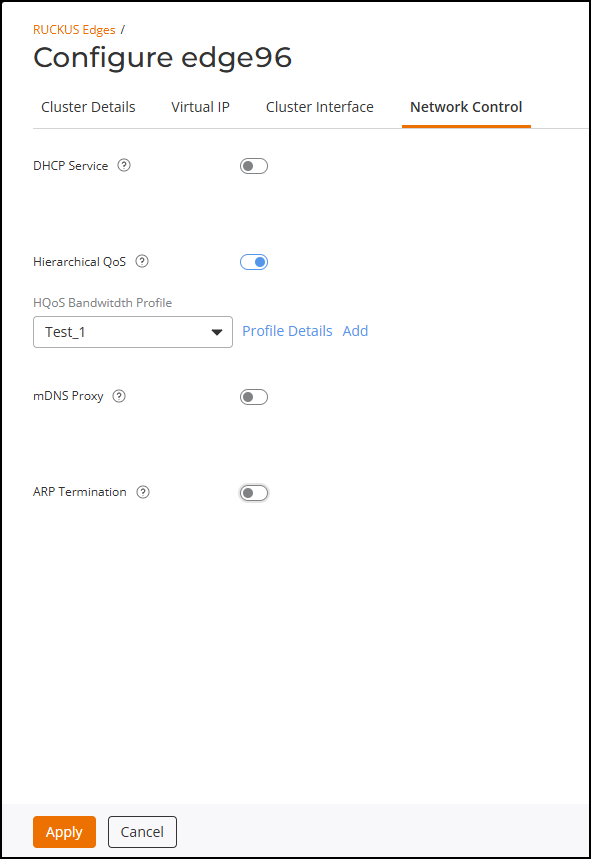
Configuring Hierarchical QoS for a Cluster
Configuring Hierarchical QoS is essential
for efficient network performance. It helps in multiple levels of scheduling, enhances
traffic differentiation, and improves performance. By default, RUCKUS Edge trusts
the DSCP
value in the tunnel payload from the APs. This means that RUCKUS Edge uses the DSCP
value in
the packets to manage and prioritize network traffic for Quality of Service (QoS).
As a
result, traffic is handled according to its priority, optimizing network performance
and
reliability.
- On the RUCKUS One navigation bar, select .
- Click the checkbox for the necessary RUCKUS Edge cluster from the list, then click Edit.
- Click the Network Control tab.
- Click the Hierarchical QoS
toggle to enable this feature. Click the
 icon next to Hierarchical QoS to view the feature synopsis and the minimum
required firmware version. Click See the compatibility
requirements to view the minimum required RUCKUS Edge firmware
version.
- Select the HQoS Bandwidth
Profile from the drop-down list.Note: For your convenience, the system provides a Default Profile, configured with optimal settings. This profile cannot be edited, but you may add your own profile if necessary.You can click Profile Details to view the profile summary. The HQoS Bandwidth Profile Details sidebar displays the profile summary.
Alternatively, click Add to create a new profile; the Add HQoS Bandwidth Profile page is displayed. If adding a new profile, refer to Adding a Hierarchical QoS Bandwidth Profile for more information regarding profile settings and scope.
- Click Apply to save the network control settings.