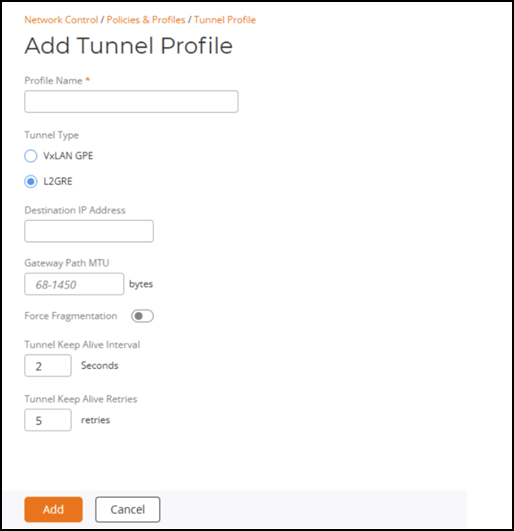
Adding a Tunnel Profile for L2GRE Tunnel Destination
L2GRE tunnels from the DC Edge cluster to L2GRE tunnel endpoints forward client traffic to third‑party devices using L2GRE encapsulation as part of the SD‑LAN service. This mechanism encapsulates Layer 2 Ethernet frames within GRE packets, allowing them to be transported over an IP network and enabling Layer 2 network extension across Layer 3 boundaries.
Complete the following steps to create a Tunnel Profile:
- From the navigation bar, select
.The Service Catalog page is displayed.
- Click Add in the Tunnel Profile tile.
- Complete the following
fields:
- Profile Name: Enter the name for the tunnel profile.
- Tunnel Type: Select L2GRE.
- Destination IP Address: Enter the IPv4 address of the third-party, external, upstream device to which the DC cluster will establish a tunnel.
- Gateway Path MTU: Enter the value in bytes (allowed values are 1280 through 1450).
- Force Fragmentation: When enabled, the Edge device will automatically fragment packets, ignoring the Don't Fragment (DF) bit in the IP header of the packets. Forced packet fragmentation can reduce congestion and improve network throughout, but it may lead to fragment loss, packet reassembly issues, and memory exhaustion. This option is disabled by default. Toggle the switch to enable.
- Tunnel Keep Alive Interval: Defines the interval between two consecutive keepalive request messages. Range: 1 through 5 seconds, with a default value of 2 seconds.
- Tunnel Keep Alive Retries: Defines the maximum number of consecutive keepalive requests that can fail before the Edge determines the L2GRE server is unreachable. Range: 3 through 5 retries, with a default value of 5.
- Click Add. The Tunnel Profile is created and is displayed on the Tunnel Profile page.