Validating Certificates
- From the main menu, navigate to
.This displays the Intra system (AP/DP) Trusted CA Certs/Chain (internal) screen.
- In the Intra system (AP/DP) Trusted CA Certs/Chain
(internal) screen, enable the Validate SZ server
Certificate toggle button. This option is disabled by
default.This setting ensures that the AP or DP verifies and validates the SmartZone controller’s server certificate using the uploaded trusted CA chain. During validation, the AP/DP checks whether the controller’s FQDN matches the DNS Name or Common Name (CN) in the server certificate. Enabling this option enhances security by preventing unauthorized or spoofed controller connections.Warning: Enabling the certificate validation may cause AP/DP to lose connection with SmartZone if the trusted CA certificates are improperly configured. AP/DP that lose configuration may need manually reset and loaded with new certificates or need RMA in some cases. Please proceed with caution.
- From Intra system
(AP/DP) Trusted CA Certs/Chain (internal) List section, click
Import.This displays Import CA Certs (Chain) window. Enter the following -
- Name - Enter the name of the certificate chain.
- Description - Enter a short description for the imported certificate.
- Intermediate CA Certificates - Browse and select the CA certificate. Up to four certificates can be uploaded.
- Root CA Certificate - Browse and select the root certificate that is used to verify the trust chain of the server certificate.
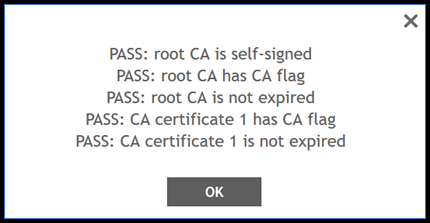
- Click Validate. The application validates the server certificates and displays a PASS message.
- Click
OK.
Note: An event is triggered if an error occurs during the upload of any certificate or key to the following profiles:
- SZ as Server Certificate
- SZ as Client Certificate
- SZ Trusted CA Certificates/Chain (external)
- Intra System (AP/DP) Trusted CA Certs/Chain (internal)
Applying the certificate configurations to the AP may take some time. To proceed, power off the AP, move it to the production controller, and then power it back on. The AP must be rediscovered by the controller before it can establish a connection. By default, the discovery time is set to 30 minutes. After this duration, the AP attempts to connect to the controller. This discovery time can be reconfigured to two hours through the controller interface by navigating to and select the Zone and navigate to Advanced Options and locate AP Reboot Timeout field and select timeout option from the drop-down menu.