Upgrading the vSZ-D Software
This process involves updating the Data
Plane (vSZ-D) component to ensure compatibility with the controller version, receive
performance improvements, and apply security or stability fixes. The upgrade is
typically
performed after the controller (vSZ) is upgraded.
Select the vSZ-D node(s) and apply the upgrade. The upgrade progress can be monitored through the user interface.
To upgrade the vSZ-D software, perform the following -
- From the main menu, navigate to
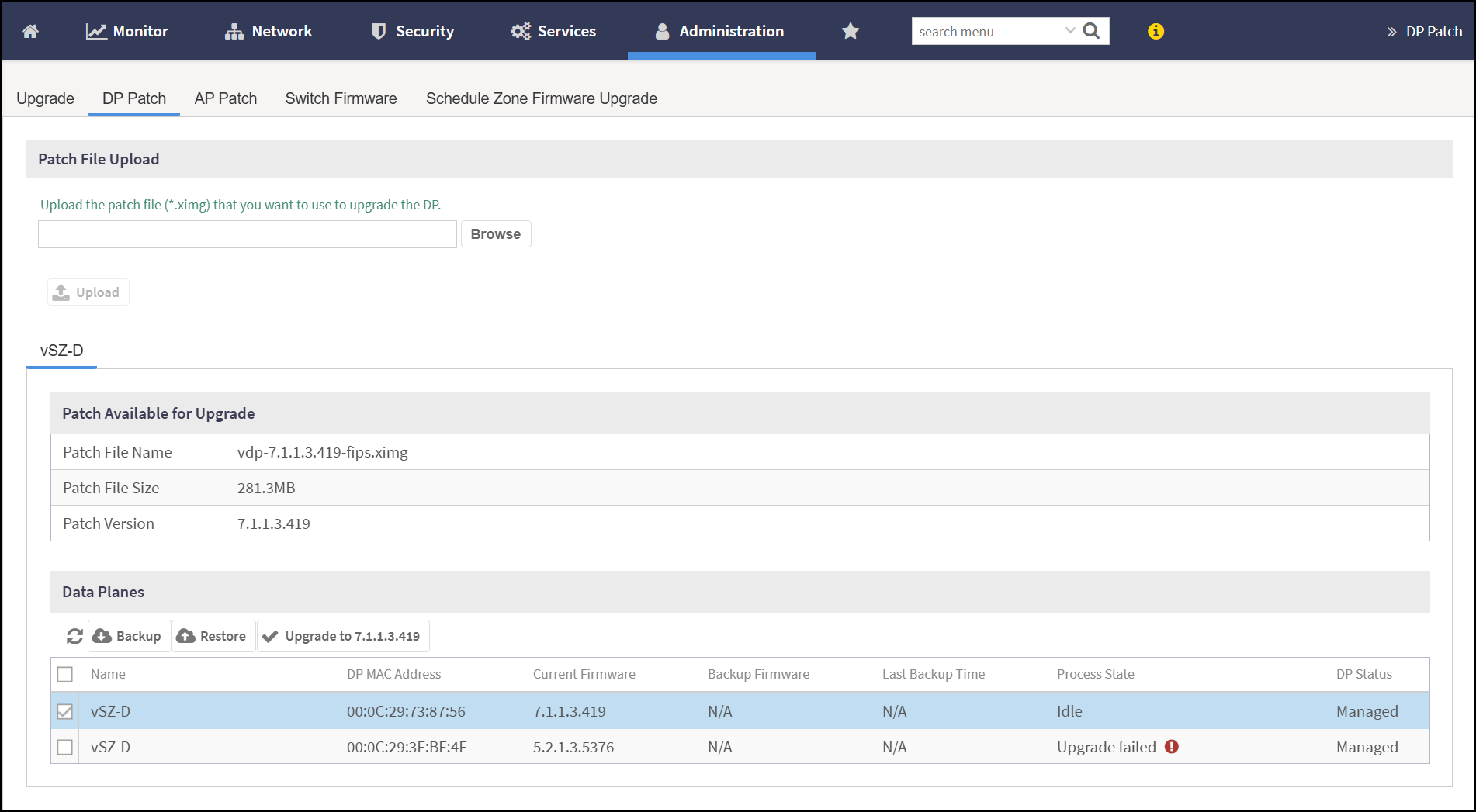
. This displays the DP Patch screen.Note: The upgrade patch contains the upgrade software/firmware, signatures and the certificates of the signature signers. When the upgrade package is uploaded to the (v)SZ, (v)SZ will validate the certificate chain first. If the certificate of signature signer passes the chain validation, the (v)SZ then verifies the signatures of the upgrade software/firmware.) If signature validation succeeds, the installation of the update proceeds as expected. When the upgrade package signature signer certificate chain validation error or the signature verification error occur, the GUI shows a package decryption error.
- In the DP
Patch screen, enter the following -
- Patch File Upload - Click on
Browse and select the
*.ximgfile from the local device and click Upload. - Patch Available for Upload - Displays the option to upload a patch file to the controller. This displays the Patch File Name, Patch File Size and Patch Version.
- Data Planes - Select the vSZ-D node from the Data Planes list to Upgrade, Restore and Backup. Choose the corresponding patch file version.
Caution: Upgrading the (v)SZ-D software can force a restart and therefore, cause a temporary interruption in all the functionalities. - Patch File Upload - Click on
Browse and select the