Configuring SoftGRE Profile
Configures a SoftGRE profile to define
tunneling parameters for forwarding wireless client traffic from APs to the data
plane in
distributed deployments.
- From the main menu, navigate to .This displays the SoftGRE screen.
- In the SoftGRE screen, click
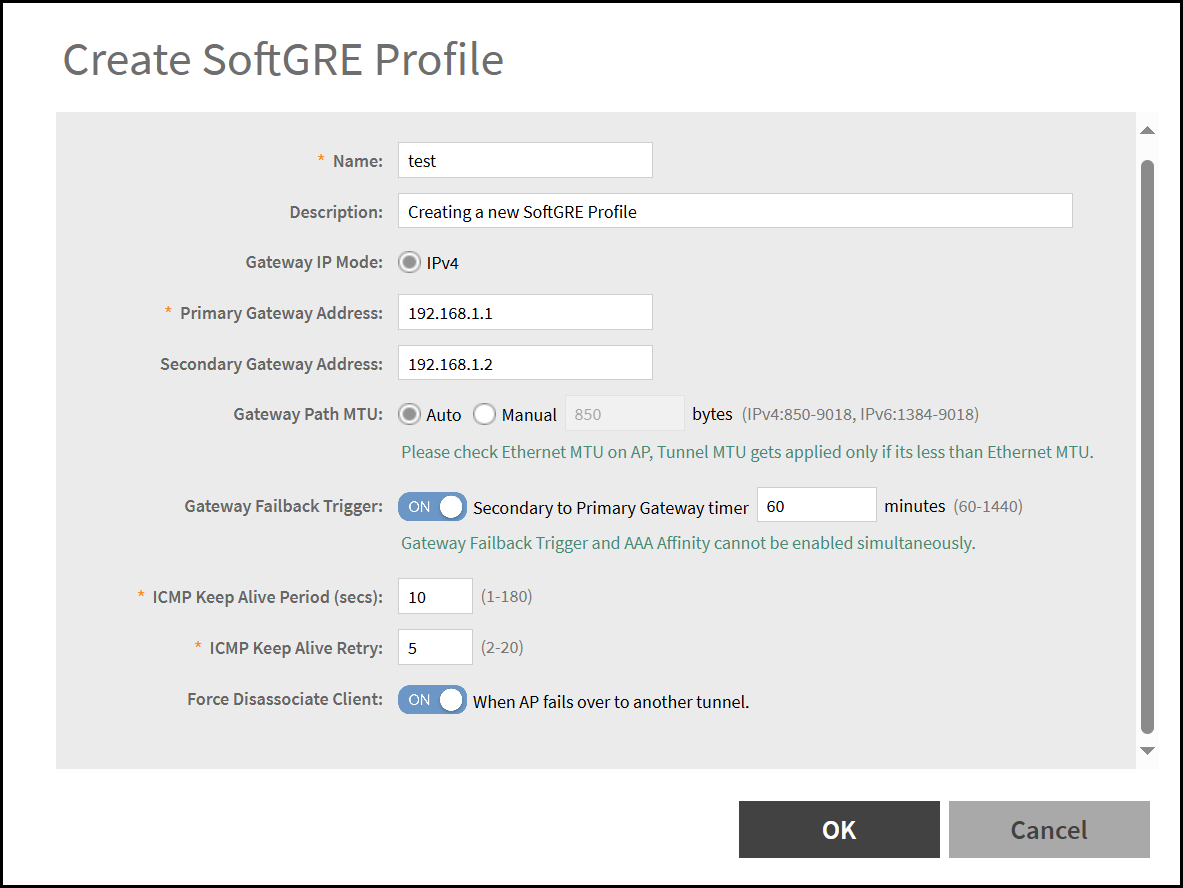
Create.The displays the Create SoftGRE Profile window.
- In the Create SoftGRE Profile window, enter the following
-
- Name - Enter a unique name to identify the SoftGRE profile.
- Description - Enter a brief description to provide additional context about the SoftGRE profile.
- Gateway IP Mode - Specifies the IP version used for the gateway in the SoftGRE tunnel. By default, IPv4 is selected.
- Primary Gateway Address - Specifies the IPv4 address of the primary gateway used by the SoftGRE tunnel to reach the data plane or tunnel endpoint. This is a mandatory field.
- Secondary Gateway Address - Specifies the IPv4 address of the secondary gateway used if the primary gateway becomes unreachable. This is an optiona field.
- Gateway Path MTU - Select the Maximum Transmission Unit (MTU) size, in bytes, for the path between the AP and the gateway. This value helps optimize packet fragmentation and transmission efficiency over the SoftGRE tunnel. By default, Auto is selected. If Manual is selected enter a value within the valid range: 850-1500 bytes for IPv4, and 1384-1500 bytes for IPv6.
- Gateway Failback Trigger - By default, this option is disabled. When enabled, allows the AP to switch back to the primary gateway after a specified duration. Enter the time in minutes.Valid Range is 60–1440 minutes.
- ICMP Keep Alive Period (in seconds) - Specifies the time interval between ICMP echo requests sent by the AP to verify the availability of the gateway.
- ICMP Keep Alive Retry - Specifies the number of consecutive missed ICMP responses after which the gateway is considered unreachable.
- Force Disassociate Client - By default this option is disable, When enabled, forces disconnection of wireless clients if the SoftGRE tunnel becomes unavailable, ensuring that client traffic is not dropped.
- After entering the details, click OK to create a SoftGRE.