FIPS AP Behavior
A FIPS SKU Access Point (AP) joining a SmartZone controller licensed with a FIPS SKU automatically adopts the controller's FIPS mode. If the AP is in FIPS mode and the controller has FIPS mode disabled, the AP’s FIPS mode is also disabled. Similarly, if the controller is in FIPS mode and the AP is not, the AP switches to FIPS mode. If both the AP and the controller operate in the same mode, the AP's mode remains unchanged.
This behavior ensures that only a FIPS SKU AP can join a FIPS SKU controller. In addition, an AP with FIPS mode disabled requires manual approval through the SmartZone UI, regardless of the auto-approval setting.
To manually approve an Access Points in the SmartZone controller, perform the following -
- From the main menu, navigate to .
- In the Access Points screen, select the Zone.
This displays the list of APs associated with Zone.
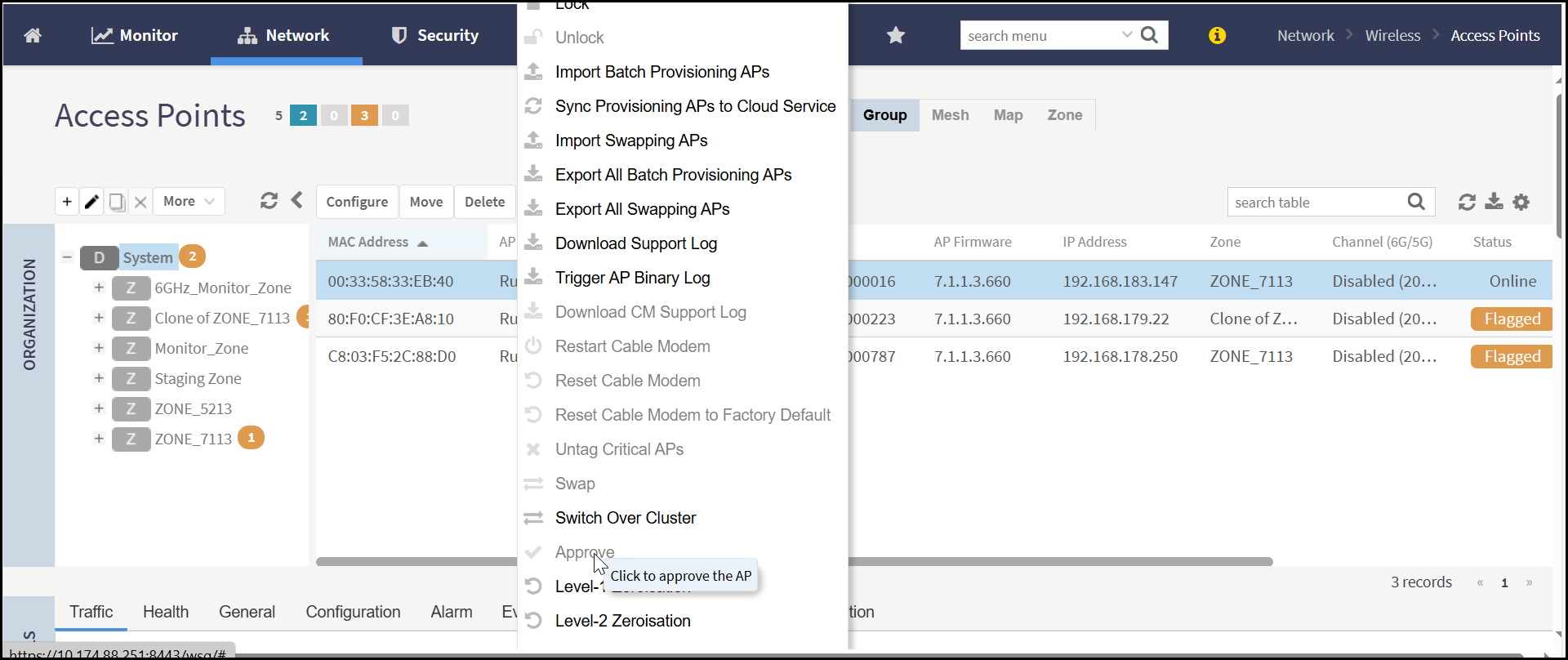
- Select the AP from the list that requires manual approval and click More.
- In the More action menu, click Approve to manually approve the AP.
A FIPS AP with FIPS mode enabled is automatically registered with SmartZone and appears in the Staging Zone or Default Zone, without requiring manual approval.
A non-FIPS AP cannot join a SmartZone controller operating in FIPS mode. It does not appear in the Default or Staging Zone and is rejected during the join process.
set
               				ap2ap_dormant 1
on the AP. Alternatively, execute the command
rclient -d <ap-mac> -c "set ap2ap_dormant 1" from the
controller. This configuration ensures the AP operates in accordance with CSfC
security
requirements.