Creating a Monitoring Zone
A Monitoring Zone allows centralized
observation of network devices and traffic. Creating a Monitoring Zone involves defining
the
devices and parameters to be monitored.
To create a monitoring zone, perform the following -
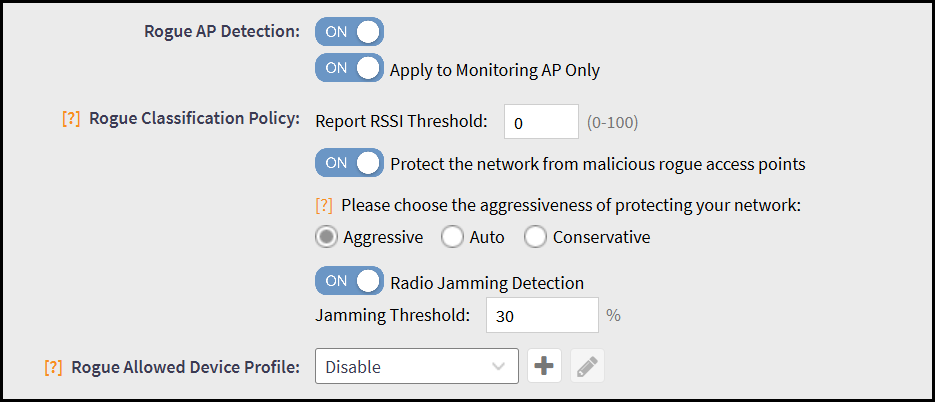
- To create a Monitoring Zone, follow the standard steps for creating a zone, but ensure the following settings are enabled in the Advanced Options.
- Enable the following settings in
the Advanced
Options tab.
- Rogue AP Detection - Rogue AP Detection identifies unauthorized access points on the network to enhance security. It continuously monitors the wireless environment and alerts when rogue devices are detected. By default, this option is disabled.
- Rogue Classification
Policy - The Rogue Classification Policy defines how
detected rogue access points are categorized and handled. It allows
administrators to assign severity levels, apply specific actions, and
manage unauthorized devices. By default, this option is disabled.
- Report RSSI Threshold - Enter a value between 0-100 to set the minimum received signal strength (RSSI) for access points to be included in the reports. By default, this option is disabled.
- Protect the Network from Malicious Rogue Access Points - Safeguards the network by detecting and mitigating malicious or unauthorized access points. By default, this option is disabled.
- Please choose the aggressiveness of protecting your network - Choose the protection level to determine how aggressively the system detects and mitigates unauthorized or malicious access points.
- Radio Jamming Detection - Detects interference affecting wireless communications to ensure network stability and performance. By default, this option is disabled.
- Jamming Threshold - Enter the jamming threshold percentage to set the signal level that triggers alerts for radio interference, ensuring stable network operation.
- Rogue Allowed Device Profile - Specifies trusted rogue devices that are allowed on the network, supporting controlled exceptions. Click the drop-down menu and select Disable from the list.
- After creating a monitoring zone. Navigate to .
- Select a Zone from the list and click + (Create Domain/Zone/Group icon.
- Create a AP Monitoring Group and move an AP to the
selected monitoring zone. After an AP is moved to a Monitoring Zone → Monitoring Group, it reboots and resumes monitoring rogue devices.
- To view monitor APs, navigate to .