Terminating Administrator Sessions

Terminate active administrator sessions manually or automatically according to configured session timeout settings to maintain system security.
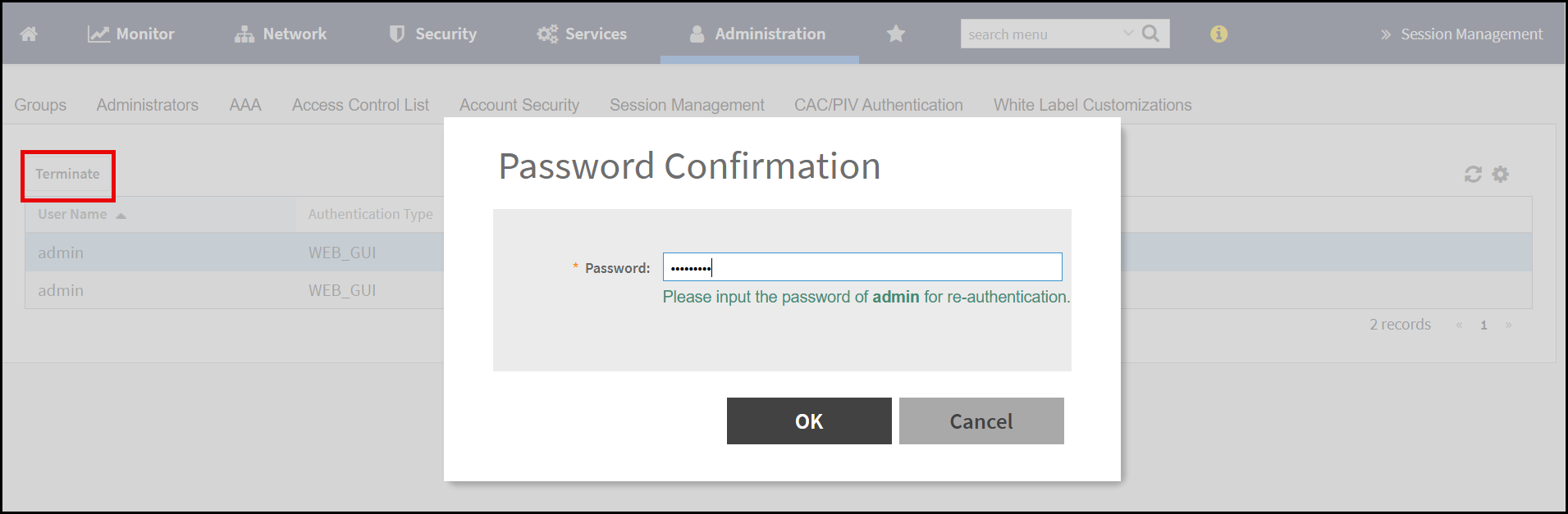
Complete the following steps to terminate administrator sessions.
  1. In the web UI, select Administration > Administration > Admin and Roles > Session Management.
    The Session Management screen appears.
  2. In the Session Management screen, select the administrator session to terminate, and click Terminate.
    The Password Confirmation window opens.
  3. Enter the administrator password to confirm, and click OK.
    The selected administrator session is terminated across all connected devices.

    Terminating Administrator Sessions

Logging Out from the Web User Interface

Logging out of the web user interface securely terminates the current session and prevents unauthorized access to the system.
Complete the following steps to log out from the web user interface.
  1. In the web UI, click the Admin tab.
    The Admin tab displays available options.
  2. Click Log off. When the confirmation message, Are you sure you want to log off?, appears, click Yes to proceed.
    The system logs you out of all active sessions.

Logging Out Using the Command Prompt

Use Command Line Interface (CLI) commands to securely terminate the current login session.
Complete the following steps to log out using the command prompt.
  1. In the active CLI session, complete and save any configuration changes.
  2. At the command prompt, type exit or logout.
    The system ends the active session and returns control to the local terminal or closes the remote connection.
    Note: The same logout commands are applicable to Secure Shell (SSH) sessions.