Password Management
To enhance security, use passwords that contain a combination of uppercase letters, lowercase letters, numbers, and special characters: ! @ # $ % ^ & * ( ) - _ = + [ ] {}; : ' " , <> / ?. (No other special characters are allowed). Avoid dictionary words, common phrases, personal information, predictable character sequences, and password reuse across multiple systems or accounts. The password length ranges from minimum 15 to 64 characters.
The administrator login password of the AP zones is pushed from the controller. Therefore, the controller validates the administrator login password of AP zones before pushing it into the APs. The administrator login password of the dataplane is identical to that of the controller, so it need not be validated.
The administrator login password of the AP zones are pushed from the controller. Therefore, controller validates the admin login passwords length of AP zones before pushing them into APs. The administrator login password of the dataplane is identical to the controller so it need not be validated.
To modify the administrators password through web interface, perform the following -
- From the main menu, navigate to to change the administrator password.
This displays the Change Password window.
Note: The password change can also be initiated from the zone level. To change the password, select a zone from the system tree and click the Edit icon. This displays the Edit Zone screen. Navigate to General Options and change the password in the AP Admin Logon field. - After the password is successfully changed, select to view the activity log.
- The account activity can be verified in the
controller CLI by using the command
show admin-activity.To configure the AP admin login password, perform the following -
- From the main menu, navigate to .
This displays the Access Points screen.
- In the Access Points
screen, select a zone from the system hierarchy, then select an Access Point
and
click Configure.
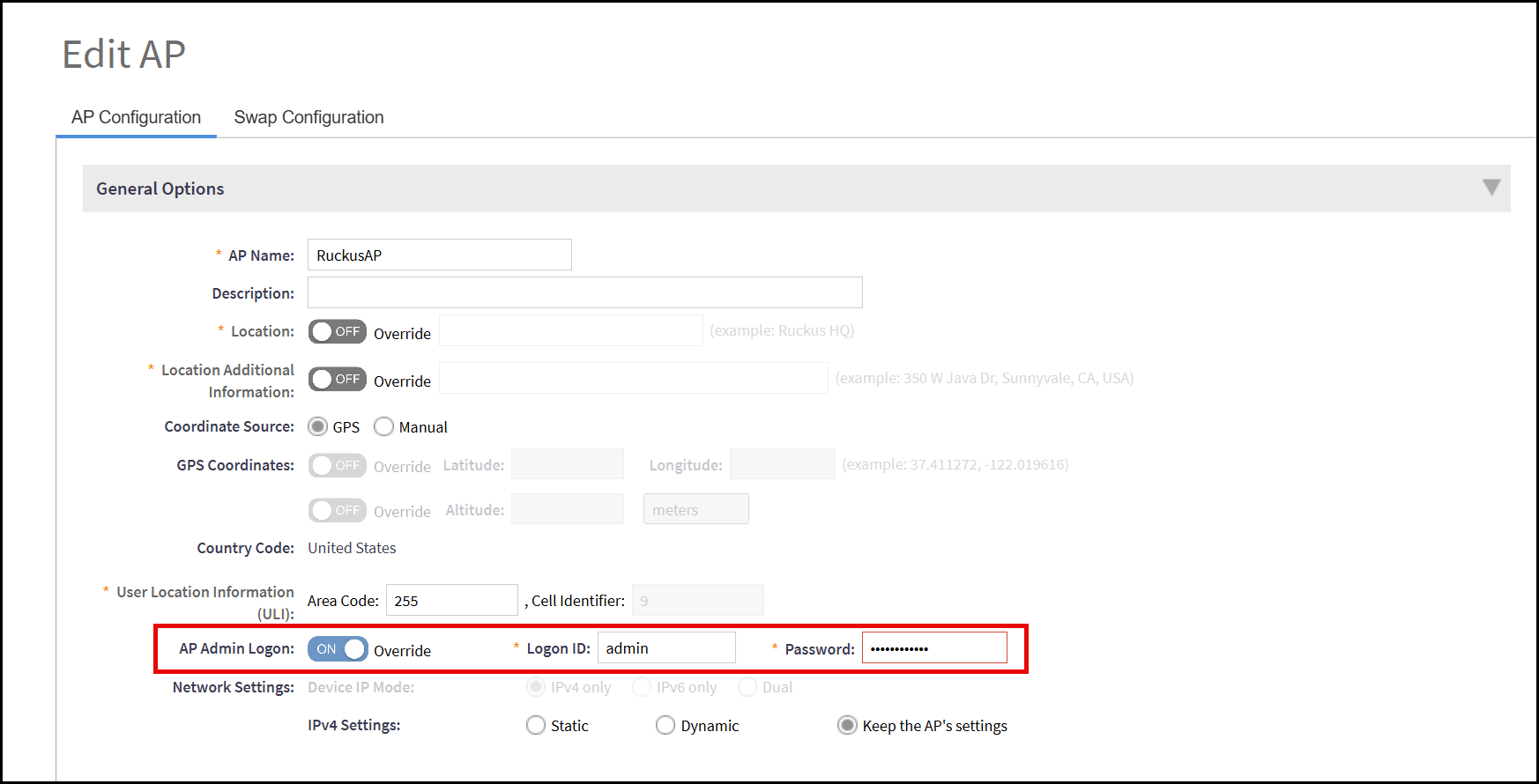
This displays the Edit AP screen with the details of AP Configuration.
- In the General Options section, locate AP Admin Logon and enable the Override toggle button to enter the new password for the administrators.
- The password changes to the data plane can also be viewed from .
This displays the Cluster screen.
- In the Cluster screen, navigate to Data Planes section and select the data plane and click on Event tab.