IPsec-based SmartZone Cluster Formation through Web Interface
IPsec support for SmartZone clustering can
be configured through the web interface or the command line interface.
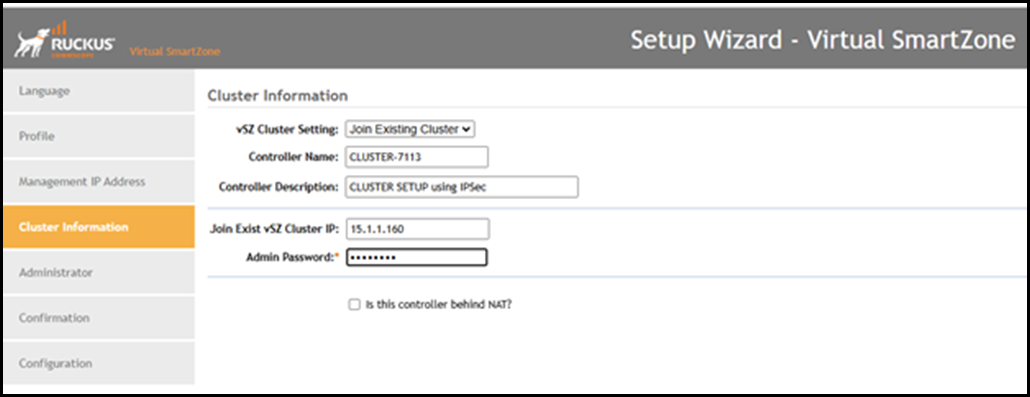
- Log in to the SmartZone web
interface of the follower node. Click the Cluster
Formation tab.This displays Cluster Information screen. Enter the details
- vSZ Cluster Setting: Select the follower node from the drop-down list.
- Cluster Name: Enter a meaningful name for the follower node.
- Description: Enter a short description for the follower node.
- Join Exist vSZ Cluster IP: Provide the IP address of the leader node.
- Admin Password: Enter the admin
password.
Select the checkbox Is this controller behind NAT, if the controller is deployed on a private network with a private IP address.
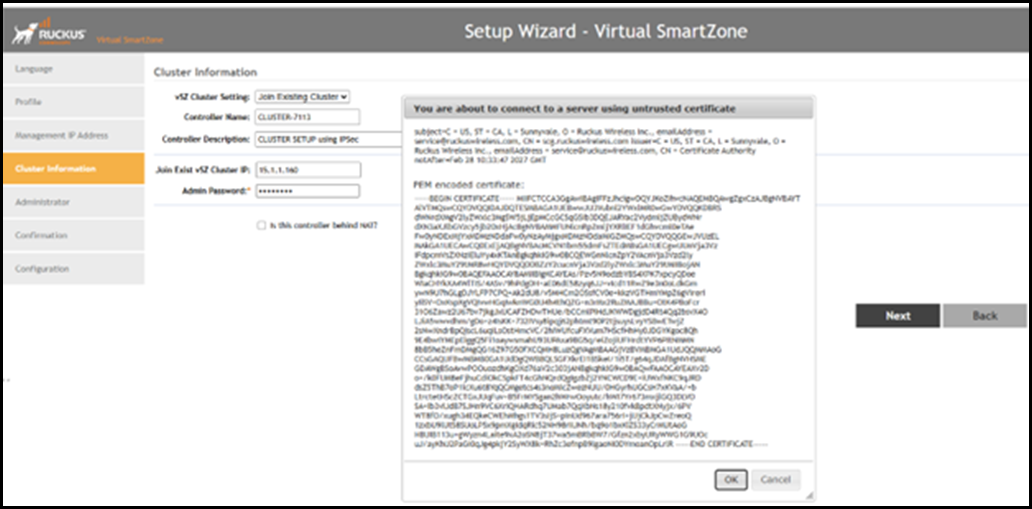
After entering all the details, click Next. This displays the Untrusted Certificate dialog box. Click OK to accept the certificate, then click Next.
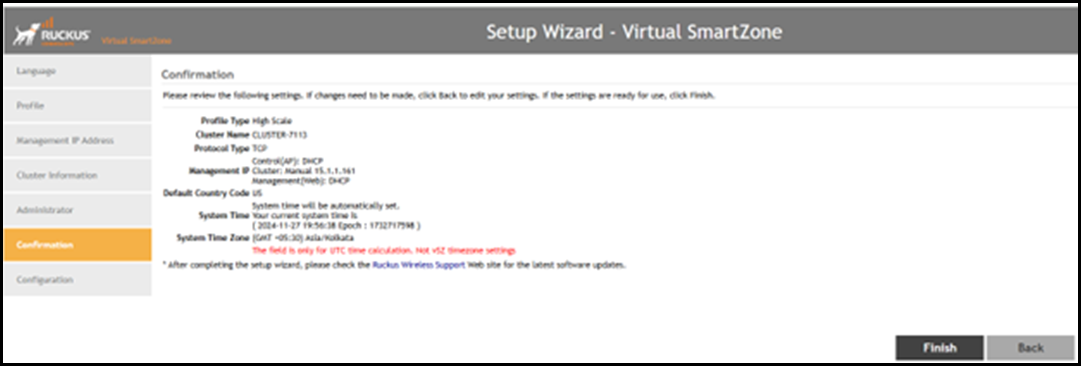
- The application navigates to the Confirmation tab, displays a confirmation message, prompts the user to review the details and click Next to trust the SZ node.
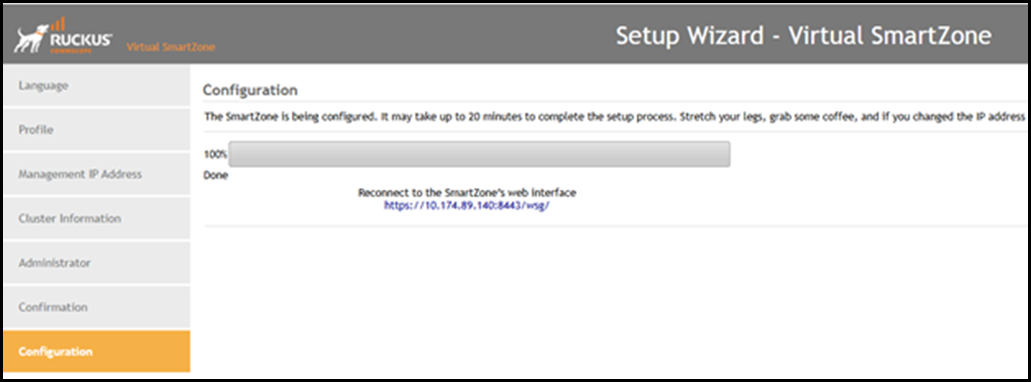
- The setup starts the configuration and displays the estimated completion time and completion status.
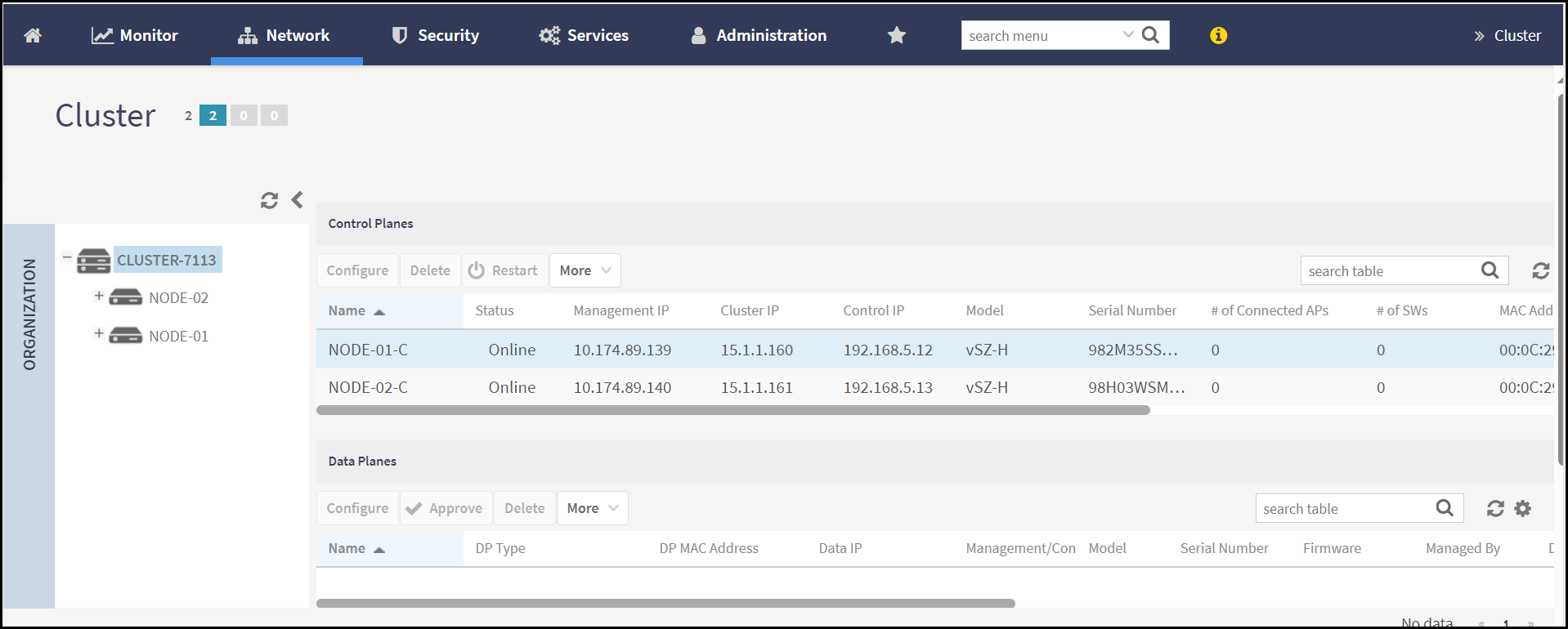
IPSec based SmartZone Cluster Formation through CLI
- Log in to the SmartZone device using SSH or Console Connection.
- Enter the configuration mode to initate the cluster setup.
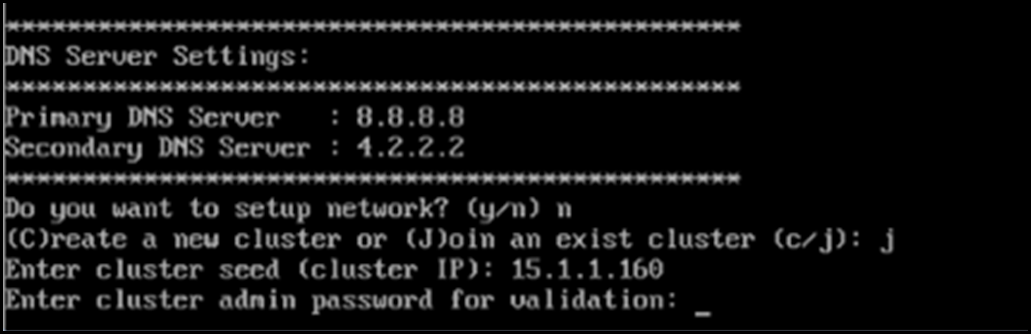
- Start the cluster setup command. Specify the role (follower) for the node. Enter the following in the command line interface:
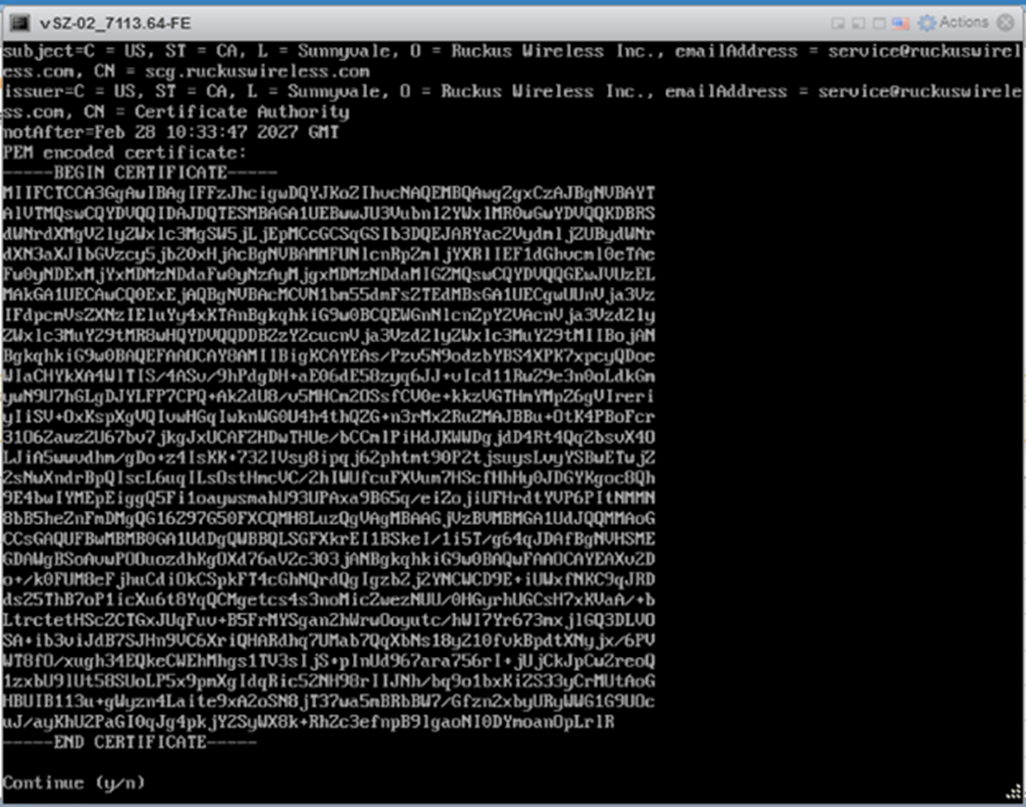
- After entering the above details the command prompt displays the
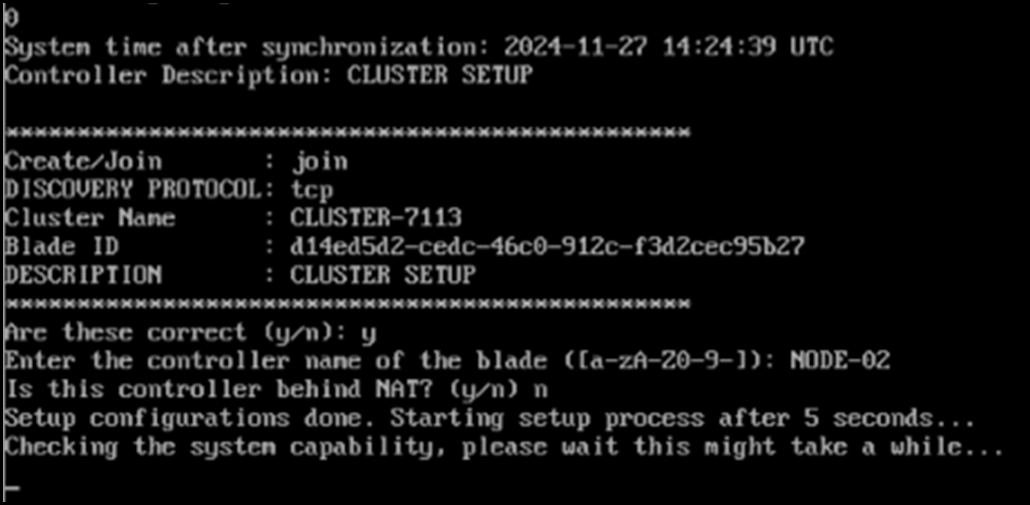
PEM encoded certificate, enteryto continue. - Verify the details of the cluster setup and enter the following answers:
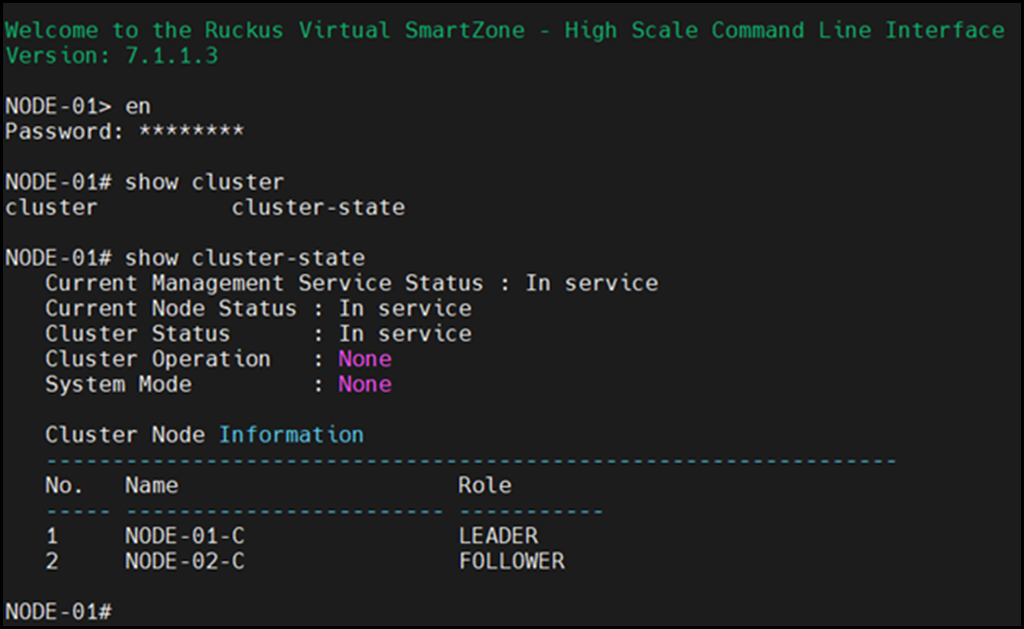
- Log in to the SSH or Console Connection and verify the
cluster formation by using the command
show
                        cluster
.