Configuring RadSec - TLS Encrypted RADIUS Protocol
To Configure RadSec - TLS Encrypted RADIUS Protocol, perform the following -
- From the main menu, navigate to
. This displays Proxy (SZ Authenticator) screen.
- In the Proxy (SZ Authenticator) screen, click
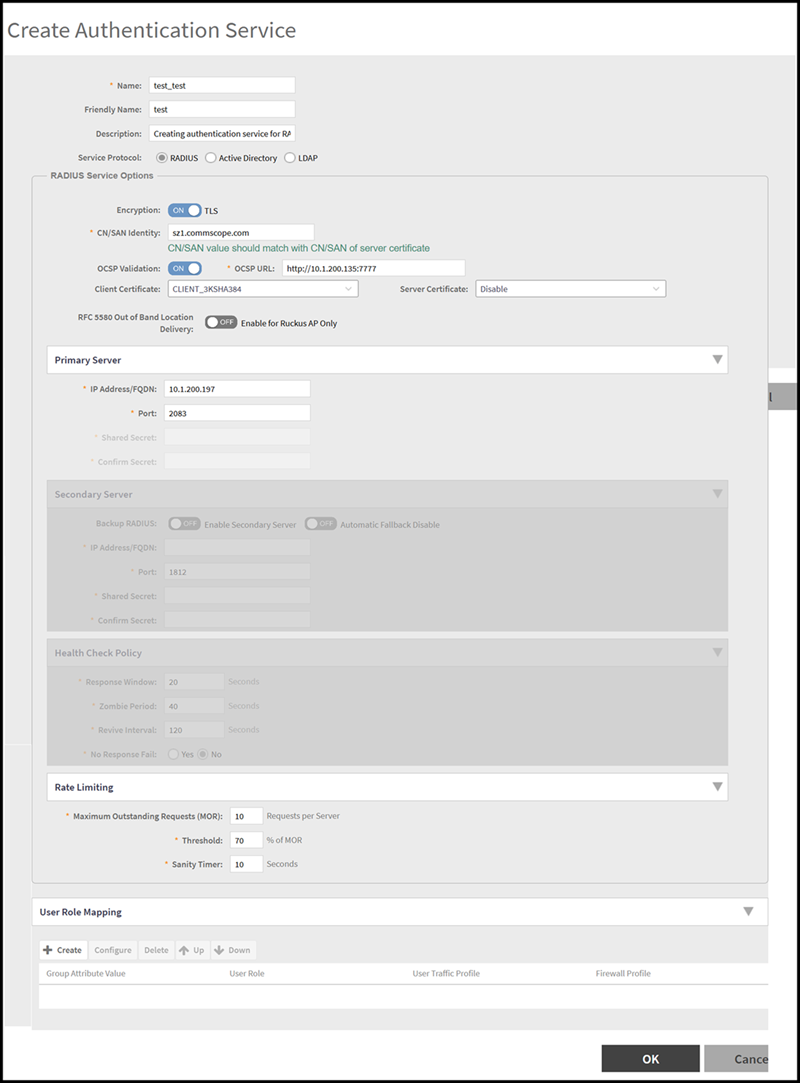
Create.This displays the Create Authentication Service window. Enter the following -
- Name - Enter a unique name to identify the authentication service configuration.
- Friendly Name - Enter a descriptive, user-friendly name to identify the authentication service.
- Description - Enter additionial details or purpose of this authentication service.
- Service Protocol - Select RADIUS as the service protocol.
- In the RADIUS Service Options section, enter the following
details -
- Encryption - By default, this option is disabled. Enable the TLS option as RADIUS is configured on TLS encryption.
- CN/SAN
Identity - Enter a hostname that matches the Common Name
(CN) or one of the Subject Alternative Names (SANs) in the TLS
certificate presented by the RADIUS server. The maximum length for the
hostname is 1024 characters. Validation is performed against the
configured identity. Use the correct pattern as shown in the table below
to ensure a successful TLS connection.
Correct Pattern for TLS Connection
Wildcard (*.commscope.com) in the SAN of RadSec server certificate Example Result Asterisk (*) is used other than at the beginning of the URL bdc.*.commscope.com FAIL If configured as bdc.commscope.com PASS If configured as commscope.com FAIL If configured as BRL.bdc.commscope.com FAIL CN and SAN are the fields in the TLS Certificate used to verify the identity of the server during a secure connection like RadSec. Use the appropriate CN/SAN combination for a successful TLS connection.
- OCSP
Validation - By default, this option is disabled. Click
the OCSP
Validation toggle button to enable this option and enter
the OCSP
URL. The Online Certification Status Protocol checks the
revocation status of the server’s TLS certificate.
OCSP Details
Scenario Priority Description OCSP configured in SZ and not present in Server Cert OCSP configured in SZ OCSP configured in SZ and present in Server Cert Server Cert OCSP configured in SZ and present in Server Cert and not reachable Server Cert if OCSP url is present in the server. Cert and is not reachable then it will not retry with OCSP configured in SmartZone. OCSP NOT configured in SZ and present in Server Cert No OCSP check OCSP NOT configured in SZ and NOT present in Server Cert No OCSP check - Client Certificate - Select the appropriate client certficate from the drop-down menu. The client certificate is used to authenticate a client to a server during the mutual TLS handshake.
- Server
Certificate - Select the appropriate server certificate
from the drop-down menu. The server certificate is presented by a server
to prove its identity to the client during a TLS handshake.
Note: The signature algorithm is not configurable. The system supports the full set of claimable signature algorithms. The supported algorithms include:
- ecdsa_secp256r1_sha256(0x0403)
- ecdsa_secp384r1_sha384(0x0503)
- ecdsa_secp521r1_sha512(0x0603)
- rsa_pkcs1_sha256(0x0401)
- rsa_pkcs1_sha384(0x0501)
- rsa_pkcs1_sha512(0x0601)
- rsa_pss_rsae with sha256(0x0804)
- rsa_pss_rsae with sha384(0x0805)
- rsa_pss_rsae with sha512(0x0806)
- rsa_pss_pss with sha256(0x0809)
- rsa_pss_pss with sha384(0x080a)
- rsa_pss_pss with sha512(0x080b)
If the imported CA-Chain certificates are expired, invalid or corrupted then the GUI throws an error, the GUI still allows the user to upload the certificate, but after uploading the TLS/IPSec tunnel formation fails to get established.
These algorithms are automatically negotiated during the TLS handshake.
The client advertises only the secp256r1 elliptic curve (group) in the TLS ClientHello. No other elliptic curves (groups) are supported or included.
- RFC 5580 Out of Band Location Delivery - Enable this option only for RUCKUS APs Only
- In the Primary Server section, enter the following -
- In the Rate Limiting section, enter the following -
- Maximum Outstanding Requests (MOR) - Enter the maximum number of requests that can be allowed at any given time. Requests beyond this limit may be rejected or delayed.
- Threshold - Automatically populated based on the entered MOR value.
- Sanity Timer - Automatically populated based on the entered MOR value.
- In the User Role Mapping section, users are assigned to specific roles based on predefined criteria, such as attributes received during authentication, including RADIUS attributes, LDAP groups, or SAML assertions.