Upgrading the (v)SZ Software
Upgrading the software involves uploading a new software image to the SmartZone
controller and initiating the upgrade process. The upgrade preserves existing configurations
and requires a system reboot. It is recommended to back up the configuration before
proceeding.
RUCKUS regularly releases software updates that include new feature enhancements and fixes for known issues. After uploading the software image to the vSZ controller, verify the image details, then proceed with the upgrade. It is recommended to back up the current configuration before initiating the upgrade process.
To upgrade the (v)SZ software, perform the following -
- From the main menu, navigate to .
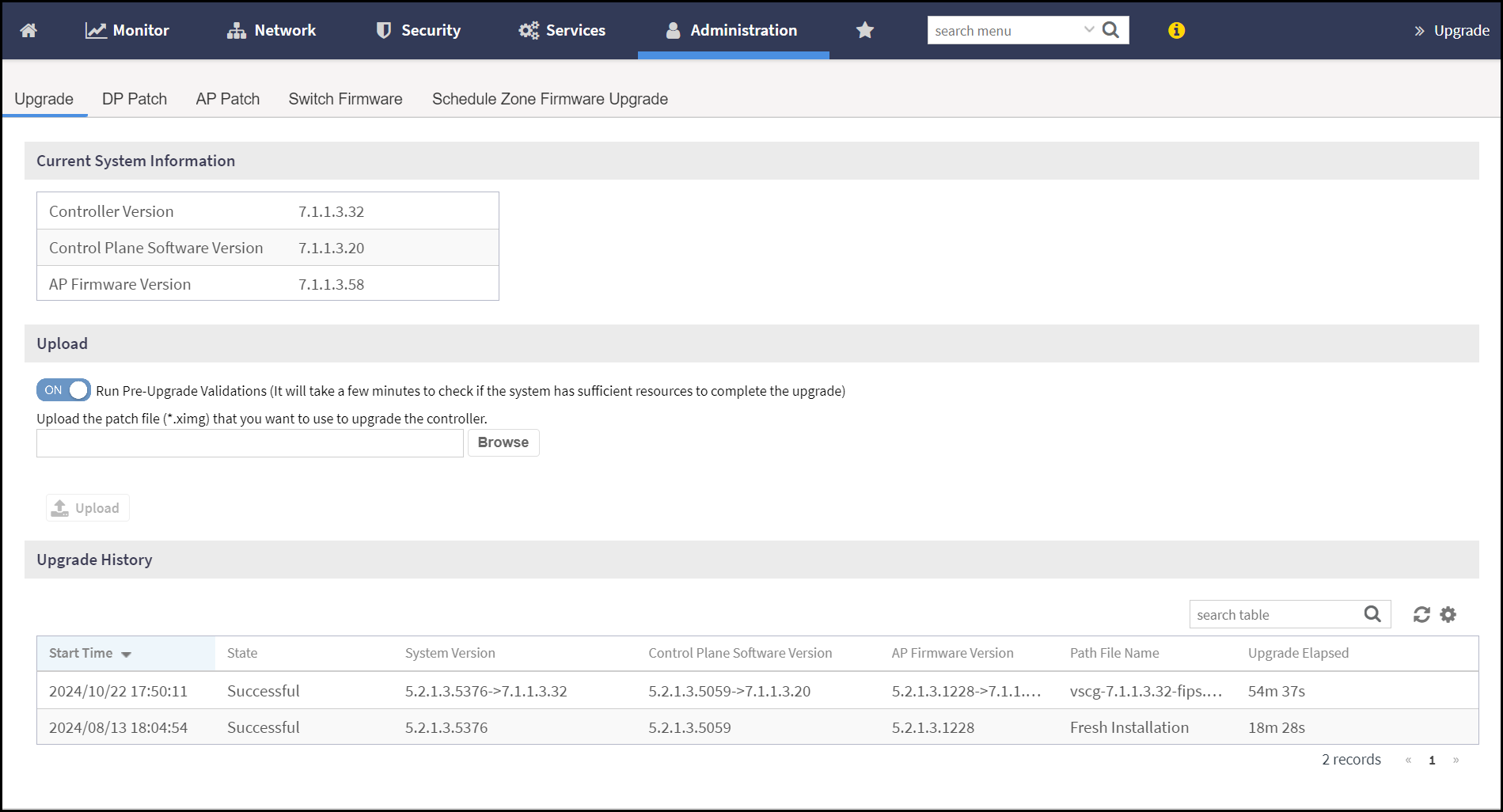
- The Upgrade screen displays the following information
-
- Current System Information - This section displays the key details about the existing vSZ system, such as -
- Upload - By default, the Run
Pre-Validations is enabled. To upgrade the controller
software, click on Browse and select the
fips.ximgfile from the device and click Upload. - Upgrade History - This section displays the details of all completed or in-progress upgrades, including Start Time, State, System Version, Control Plane Software Version, AP Firmware Version, Path File Name and Upgrade Elapsed. It helps track the upgrade activity and troubleshoot if needed.
Note: Upgrading from vSZ 5.2.1.3 to vSZ 7.1.1.3 in FIPS-enabled or FIPS-disabled mode using the fips.ximg is supported. The 11ax AP firmware upgrade is not supported. Only backward compatibility in vSZ 7.1.1.3 is supported.Note: The upgrade package contains the upgrade software/firmware, signatures, and certificates of the signature signers. After the upgrade package is uploaded to the controller, the certificate chain is validated. If the certificate of the signature signer passes the chain validation, the signatures of the upgrade software/firmware are verified. If signature validation succeeds, the installation of the update proceeds as expected. If an error occurs during the signature signer certificate chain validation or signature verification, the application will display a package decryption error. In such cases, use 'Validate Upgrade Package' to continue the system upgrade.Caution: Upgrading the (v)SZ software can force a restart and therefore, cause a temporary interruption in all the functionalities.