Joining vSZ-D to the vSZ Controller
Establishes a connection between the vSZ
Data Plane (vSZ-D) and the vSZ Controller, enabling traffic handling, tunnel termination,
and data path integration. This step is required for proper coordination and control
between
the management and data planes.
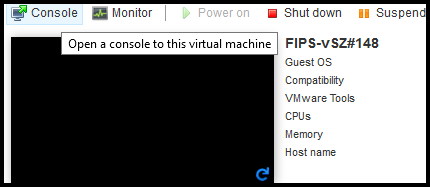
- After the VM is deployed, click Power On to start the vSZ-D.
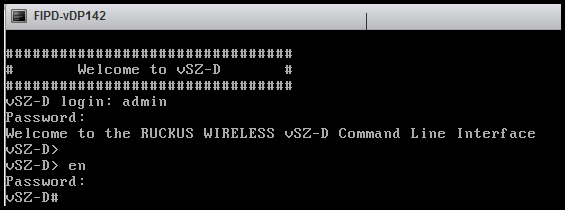
- Open a console window to log in to the vSZ-D CLI.
- At the login prompt, login as an Administrator with the username and password.
- At the > prompt, enter the
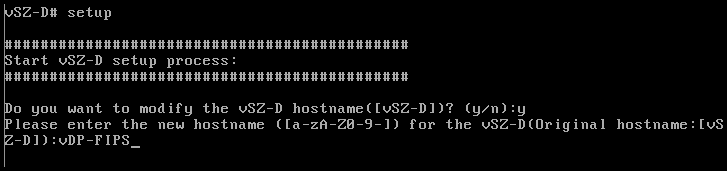
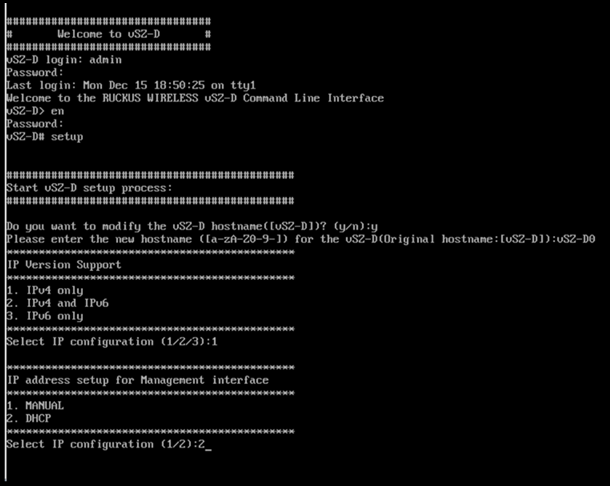
enablecommand and the admin password to access Privileged EXEC mode. - Use the
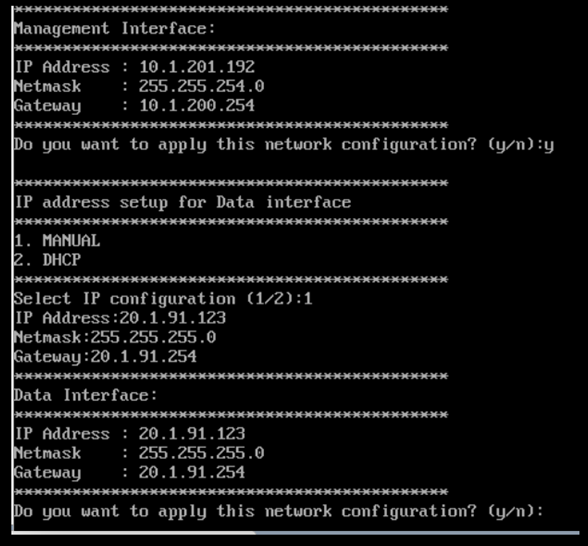
setupcommand to configure the IP address for the management and data interfaces. - Choose the IP address setup for the management and data interfaces by selecting either MANUAL or DHCP. After defining the IP configuration, the vSZ-D initiates the join process with the vSZ controller.
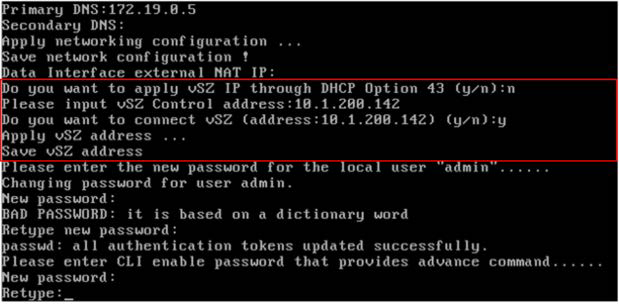
- Follow the sequence of steps shown in the following figure to join vSZ-D to the vSZ controller. The process changes the FIPS mode for vSZ-D according to the FIPS mode state of vSZ.
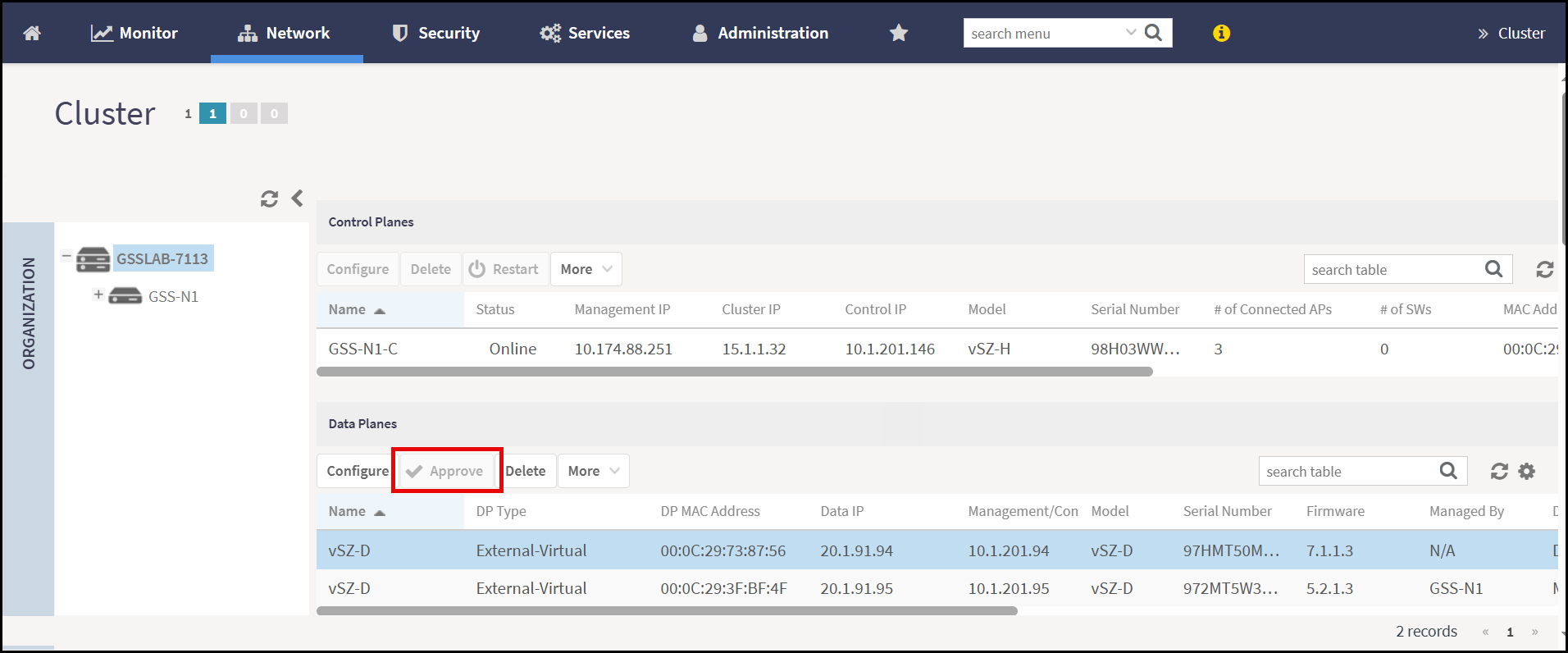
- To add the vSZ-D to vSZ controller, from the main menu, navigate to . Under Data Planes section, select the Data Plane and click Approve. Upon approval, the status of the data plane appears dimmed.
- To delete the vSZ-D in vSZ
controller, from the main menu, navigate to . Select the vSZ-D and click Delete. Upon approval,
the status of the data plane is removed from the Data Planes
section.Note: Deleting the vSZ-D from the controller prevents all other components from communicating with the vSZ-D.Note: While the registration of components is done over a secure TLS channel, this part has not been claimed in the CC evaluation due to limited certificate verification capabilities during the registration. The TOE requires the use of a dedicated channel for the AP and vSZ-D to register with a controller. The administrator must perform the registration of TOE components in a controlled environment in which there is a segregated network with only TOE components present. Further communication between AP/vSZ-D and (v)SZ is secured through the SSH connection.