Uploading X.509 Certificates on AP
Upload X.509 certificates to the AP using either the Web UI or CLI. These
certificates enable secure communication and certificate validation in production
deployments.
- From the main menu, navigate to
.This displays the Intra system (AP/DP) Trusted CA Certs/Chain (internal) screen.
- In the Intra system (AP/DP) Trusted CA Certs/Chain (internal) screen, enable the Validate SZ server Certificate toggle button and import the X.509 certificates.
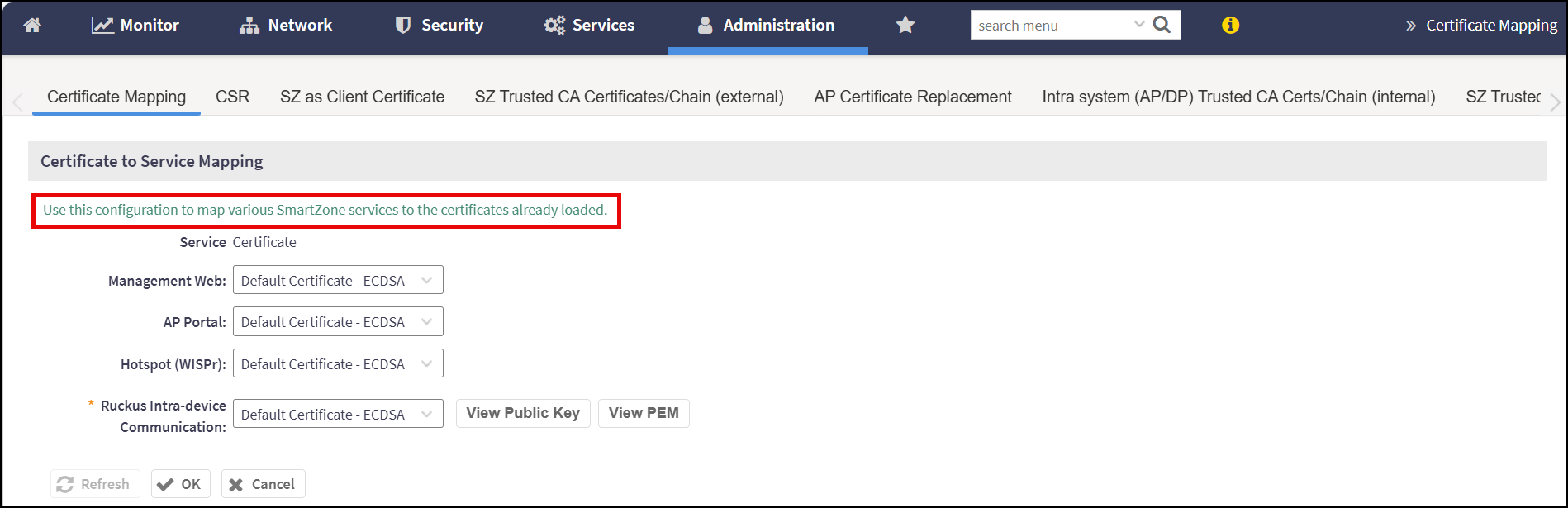
- After importing the certificates, return to the Certificate
Mapping screen and perform the following -
- Service - By default, it displays as Certificate.
- Management Web - Select a trusted server certificate from the drop-down list to secure Web UI access over HTTPS.
- AP Portal - Select a trusted server certificate from the drop-down list to secure the AP-hosted captive portal.
- Hotspot (WISPr) - Select a trusted server certificate from the drop-down list to secure the WISPr redirect and authentication traffic.
- Ruckus Intra-device Communication - Select a trusted server certificate from the drop-down list to secure communication between SmartZone components, such as controllers and data planes.
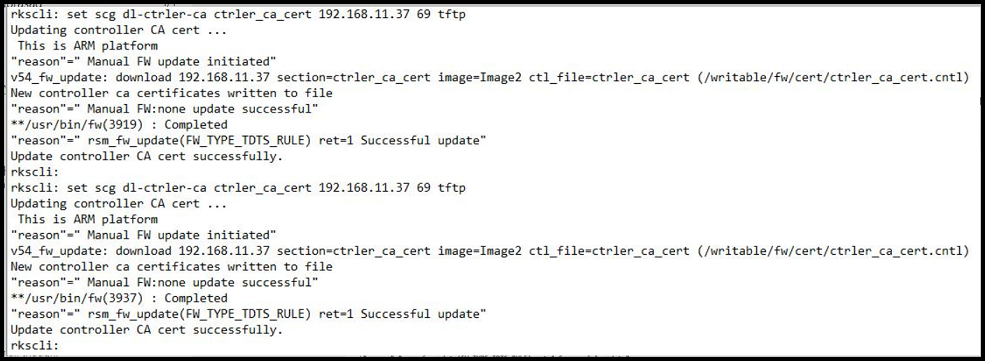
- To upload X.509 certificate using command line interface.