Configuring SZ Admin AAA Servers
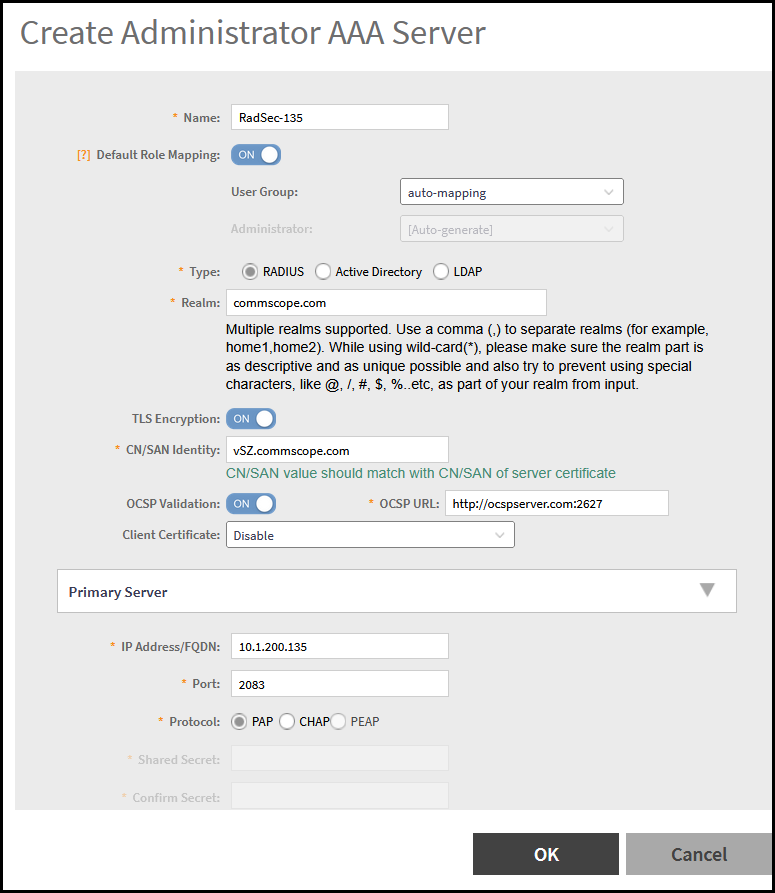
To add and manage AAA servers that the controller can use to authenticate users, complete the following steps.
- Select .
- From AP AAA Servers, click Create.
- Enter the AAA server name.
- For Type, select the type of AAA server to authenticate users:
-
5.1 Update - reused across platformsFor Realm, enter the realm or service.Multiple realms or services are supported. Separate multiple realms or services with a comma.Note: Because the user login format (User Account + @ + Realm) includes a special character, the at symbol (@), the user account must not include the at symbol (@) separately on the AAA server.
- Enable
Default Role Mapping.
You can select auto-mapping for the system to automatically map between the AAA and SZ accounts.
If Default Role Mapping is disabled, the AAA administrator must be mapped to a local SZ Admin user with matching AAA attributes for the RADIUS, Active Directory, or LDAP servers.
5.1.1 update - reused across platforms- On a RADIUS server, the user data can use the VSA Ruckus-WSG-User attribute with a value depending on the SZ users or permissions you want the RADIUS user to map.
- On an Active Directory or LDAP
server, the user data can belong to the group Ruckus-WSG-User-{SZUSER} (for example, Ruckus-WSG-User-{SZUSER}, depending on the SZ users or
permissions you want the Active Directory or LDAP user to map.
5.2 Update on the Active Directory bullet above.
- Under
Primary Server, configure the settings of the primary AAA server.
- IP Address: Enter the IP address of the AAA server.
- Port: Enter the UDP port that the RADIUS server is using. The default port is 1812.
- Protocol:
Select the PAP or CHAP
protocol.
Note: For the PAP protocol, configure the Trusted CA certificate to support EAP connection.
- Shared Secret: Enter the shared secret.
- Confirm Secret: Re-enter the shared secret to confirm.
- Windows Domain name: Enter the domain name for the Windows server.
- Base Domain Name: Enter the name of the base domain.
- Admin Domain Name: Enter the domain name for the administrator.
- Admin Password: Enter the administrator password.
- Confirm New Password: Re-enter the password to confirm.
- Key Attribute: Enter the key attribute, such as UID.
- Search Filter: Enter a filter by which you want to search, such as objectClass=*.
For Active Directory, configure the settings for the Proxy Agent.
- Click OK.