Restore to Factory Settings
In certain extreme conditions, you may want to re-initialize your Master AP and reset it to the factory default state. Once the Master has been reset to factory default state, all AP logs, client logs, application data and other records, wireless networks, user accounts, and any other configuration settings must be reconfigured.
Complete the following steps to reset your Master AP to factory default settings:
- Go to Admin & Services > Administer > Backup & Restore.
- Click Restore to Factory Settings.
- Click OK to confirm.
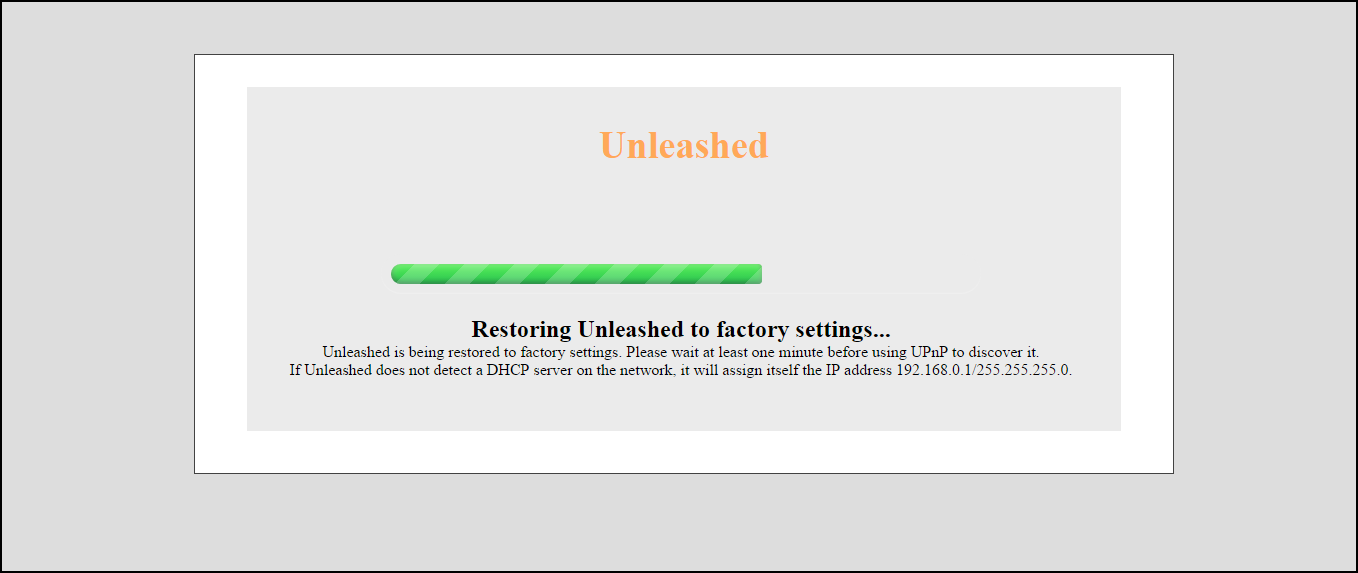
The Restoring Unleashed to factory settings progress screen appears. Wait for this progress screen to finish before attempting to login again.
- Repeat the initial setup and configuration procedures as described in Setting Up an Unleashed Wi-Fi Network.
Alternate Factory Default Reset Method
If you are unable to complete the software-based resetting of RUCKUS Unleashed to factory default, you can use the following "hard restore" method.
- Locate the Reset pin hole on the rear panel of the Master AP.
- Insert a straightened paper clip in the hole
and press for at least 6 seconds.
After the reset is complete, the PWR LED will initially be solid red, indicating bootup is in process. The LED then blinks green, indicating that the system is in the factory default state.
After you complete the Setup Wizard, the PWR LED will be steady green.