Modifying Model Specific Controls
The following settings can be applied to all APs of a particular model that are members
of the AP group:
Some options are available for specific AP models only.
To configure model-specific settings for the AP group, select the AP model from the Model Specific Control list.
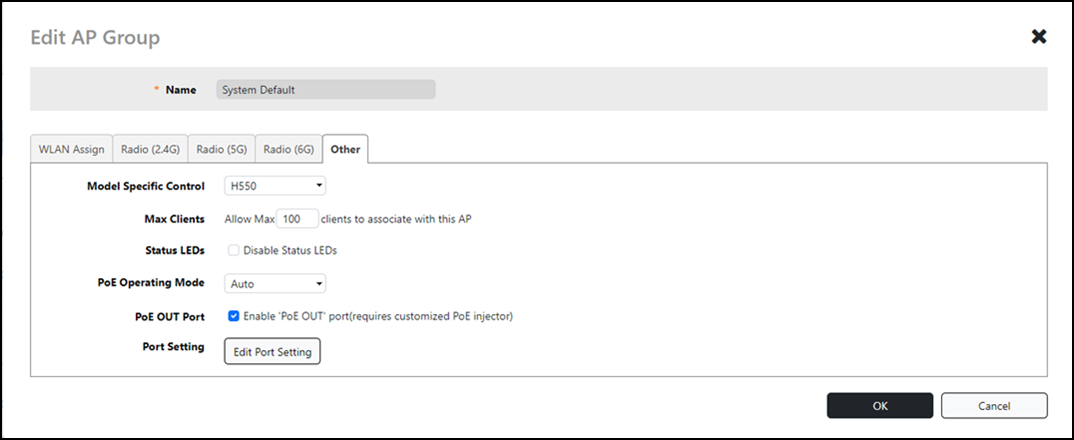
Configure any of the following settings for each model independently, and click Finish to save your changes:
- Max Clients: Set the maximum number of clients that can associate per AP. Note that different AP models have different maximum client limitations.
- PoE Out Ports: (For specific AP models only.) Enable PoE out ports.
- Status LEDs: Disable the external LEDs on certain AP models. This can be useful if your APs are installed in a public location and you do not want to draw attention to them.
- External Antenna: (For APs with external antennas only.) Enable the external antenna. When enabled, enter a gain value in the range from 0 through 90 dBi. The default value is 3 dBi.
- Port Settings: Refer to Configuring AP Ethernet Ports for more information on configuring AP-specific Ethernet port settings.
- PoE Operating Mode:
Select PoE operating mode, Auto, 802.3af or 802.3at PoE (specific AP models only).
Default is Auto. If 802.3af
PoE is selected, the AP will operate in 802.3af mode (not 802.3at mode), and will
consume less power than in 802.3at mode. However, when this option is selected,
some
AP features are disabled to reduce power consumption, such as the USB port and
one
of the Ethernet ports.
Note: On some APs, an additional mode - 802.3at+ PoE - is available. This mode enables all features on the AP but requires an Ethernet switch that supports the 802.3at+ standard due to the higher power draw from the port to which the AP is connected. For a list of PoE operating modes by AP model, refer to Unleashed Access Point Power Supply Considerations.