Creating a Certificate Request File
To create a certificate request file (CSR):
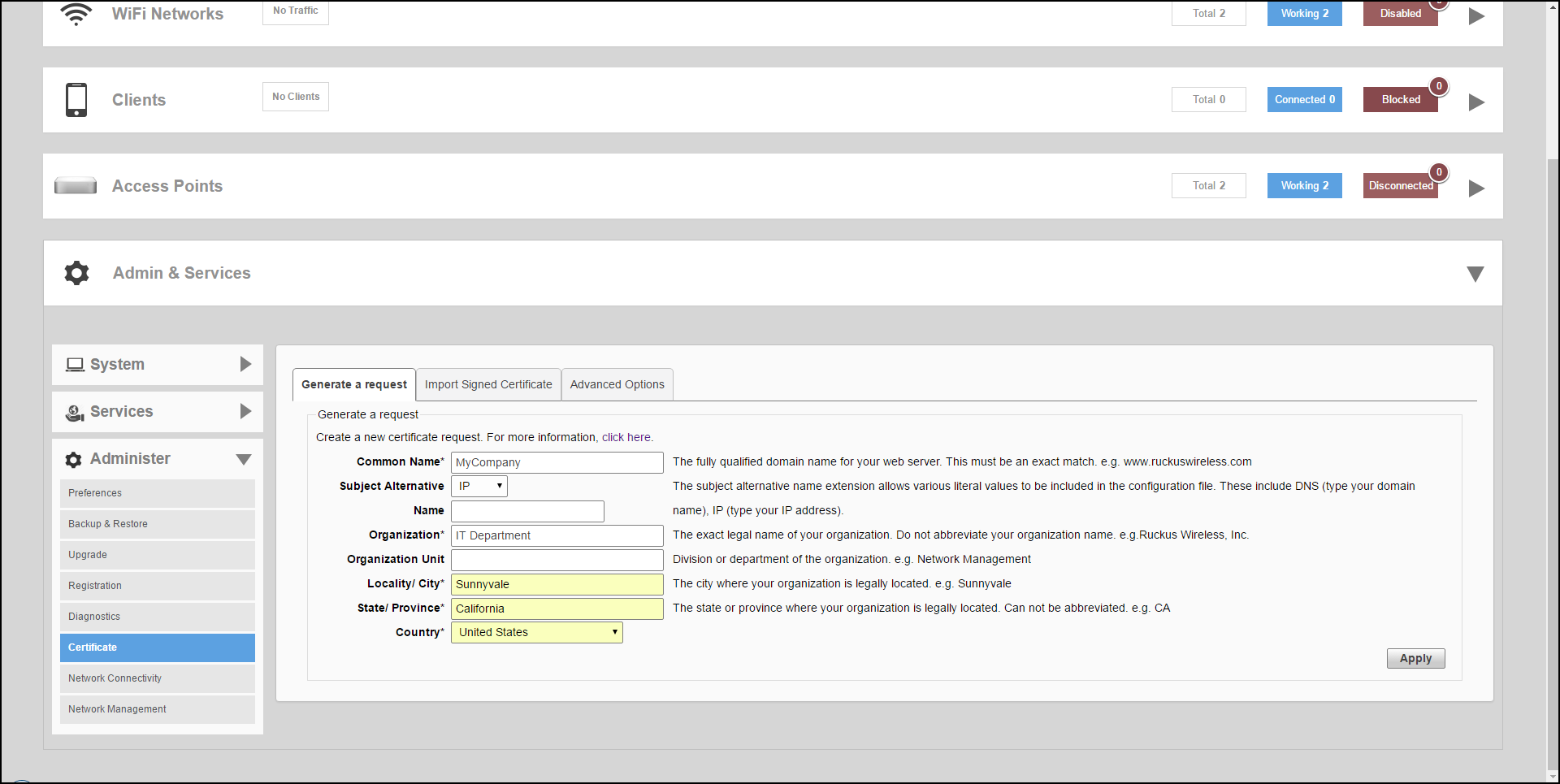
- Go to Admin & Services > Administer > Certificate.
- In the
Generate a Request form, complete the following options:
Common Name*: Enter your company's Fully Qualified Domain Name (FQDN). Typically, this will be "unleashed.[your company].com". You can also enter the Master AP's IP address (e.g., "192.168.0.2"), or a familiar name by which the web UI will be accessed in your browser (e.g., by device name such as "unleashed").
Note: RUCKUS recommends using the FQDN as the Common Name if possible. If your network does not have a DNS server, you may use the Master AP’s IP address instead. However, note that some CA’s may not allow this.- If you wish to access the web UI from a public network via the internet you must use a Fully Qualified Domain Name (FQDN).
- In all cases when using a familiar name there must be an appropriate private or public DNS entry to resolve the familiar name to the AP's IP address.
- If you use a familiar name, this name will be shown in the browser's URL whenever accessing the web interfaces (i.e., administrator interface, standard captive portal and guest access captive portal).
- Subject Alternative Name: (Optional) Select either IP or DNS from the menu and enter either alternative IP addresses or alternate DNS names.
- Organization*: Type the complete legal name of your organization. Do not abbreviate your organization name.
- Organization Unit: Division or department of the organization (for example, Network Management).
- Locality/City*: Type the city where your organization is legally located (for example, Sunnyvale).
- State/Province*: Type the state or province where your organization is legally located (for example, California). Do not abbreviate the state or province name.
- Country*: Select your country or region from the pull-down menu.
- Click Apply. A dialog box appears and prompts you to save the CSR file (myreq.csr) that you have just created.
- Save the file to your computer.
- Go to a certificate authority's web site and follow the instructions for purchasing an SSL certificate.
- When you are prompted for the certificate signing request, copy and paste the content
of the text file that you saved to your local computer, and then complete the certificate
purchase.
After the certificate authority approves your CSR, you will receive the SSL certificate via email. The following is an example of a signed certificate that you will receive from a certificate authority:
-----BEGIN CERTIFICATE-----
MIIFVjCCBD6gAwIBAgIQLfaGuqKukMumWhbVf5v4vDANBgkqhkiG9w0B
AQUFADCBsDELMAkGA1UEBhMCVVMxFzAVBgNVBAoTDlZlcmlTaWduLCBJ
bmMuMR8wHQYDVQQLBgEFBQcBAQRtMGswJAYIKwYBBQUHMAGGGGh0dHA6
Ly9vY3NwLnZlcmlzaWduLmNvbTBDBggrBgEFBQcwAoY3aHR0cDovL1NW
UlNlY3VyZS1haWEudmVyaXNpZ24uY29tL1NWUlNlY3VyZTIwMDUtYWlh
LmNlcjBuBggrBgEFBQcBDARiMGChXqBcMFowWDBWFglpbWFnZS9naWYw
ITAfMAcGBSsOAwIaBBRLa7kolgYMu9BSOJsprEsHiyEFGDAmFiRodHRw
Oi8vbG9nby52ZXJpc2lnbi5jb20vdnNsb2dvMS5naWYwDQYJKoZIhvcN
AQEFBQADggEBAI/S2dmm/kgPeVAlsIHmx-
751o4oq8+fwehRDBmQDaKiBvVXGZ5ZMnoc3DMyDjx0SrI9lkPsn223CV
3UVBZo385g1T4iKwXgcQ7WF6QcUYOE6HK+4ZGcHermFf3fv3C1-
FoCjq+zEu8ZboUf3fWbGprGRA+MR/dDI1dTPtSUG7/zWjXO5jC//
0pykSldW/q8hgO8kq30S8JzCwkqrXJfQ050N4TJtgb/
YC4gwH3BuB9wqpRjUahTiK1V1-
ju9bHB+bFkMWIIMIXc1Js62JClWzwFgaGUS2DLE8xICQ3wU1ez8RUPGn
wSxAYtZ2N7zDxYDP2tEiO5j2cXY7O8mR3ni0C30=
-----END CERTIFICATE-----
- Copy the content of the signed certificate, and then paste it into a text file. Save the file.
You may now import the signed certificate into RUCKUS Unleashed. Refer to Importing an SSL Certificate for instructions.