Configuring Client Isolation Allow Lists
When Wireless Client Isolation is enabled on a WLAN, all communication between clients
and other local devices is blocked at the Access Point.
To prevent clients from communicating with other nodes, the AP drops all ARP packets from stations on the WLAN where client isolation is enabled and which are destined to IP addresses that are not part of a per-WLAN allow list.
You can create exceptions to client isolation (such as allowing access to a local printer, for example) by creating Client Isolation Allow Lists.
To create a Client Isolation Allow List:
- Go to Admin & Services > Services > Access Control > Client Isolation Allow List.
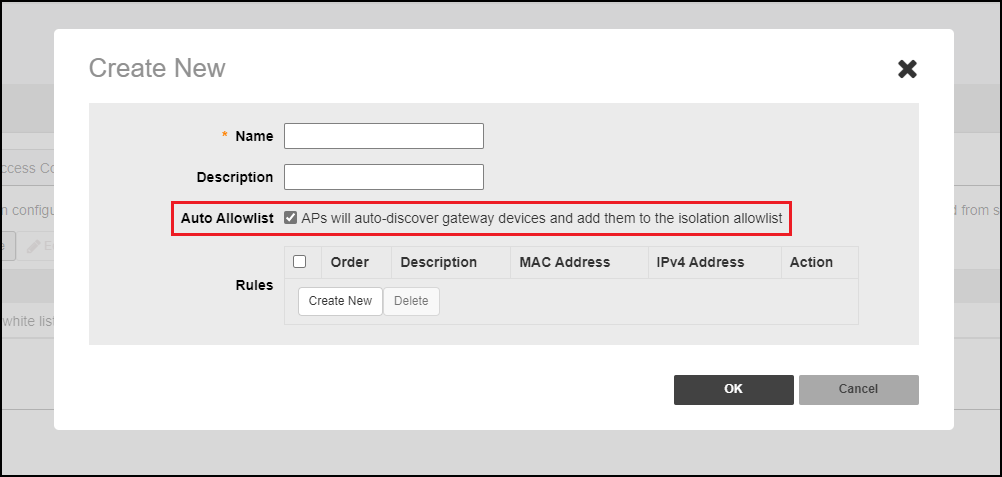
- Click Create New.
- Enter a Name and optionally a description for the allowlist policy.
- Auto Allowlist is enabled by Default, which allows the APs to auto-discover gateway devices and add them to the isolation allowlist.
- In Rules, you can create multiple device-specific rules for each device to be allow listed.
- Click Save to save the rule you created.
- To change the order in which rules are implemented, select the order from the drop-down menu in the Order column. You can also Edit or Clone rules from the Action column. To delete a rule, select the box next to the rule and click Delete.
- Click OK to save the allow list.