OAuth Setup Procedure for Microsoft Live Social Media Login
Complete the following steps to generate an OAuth 2.0 ID for Microsoft Live social media WLAN login.
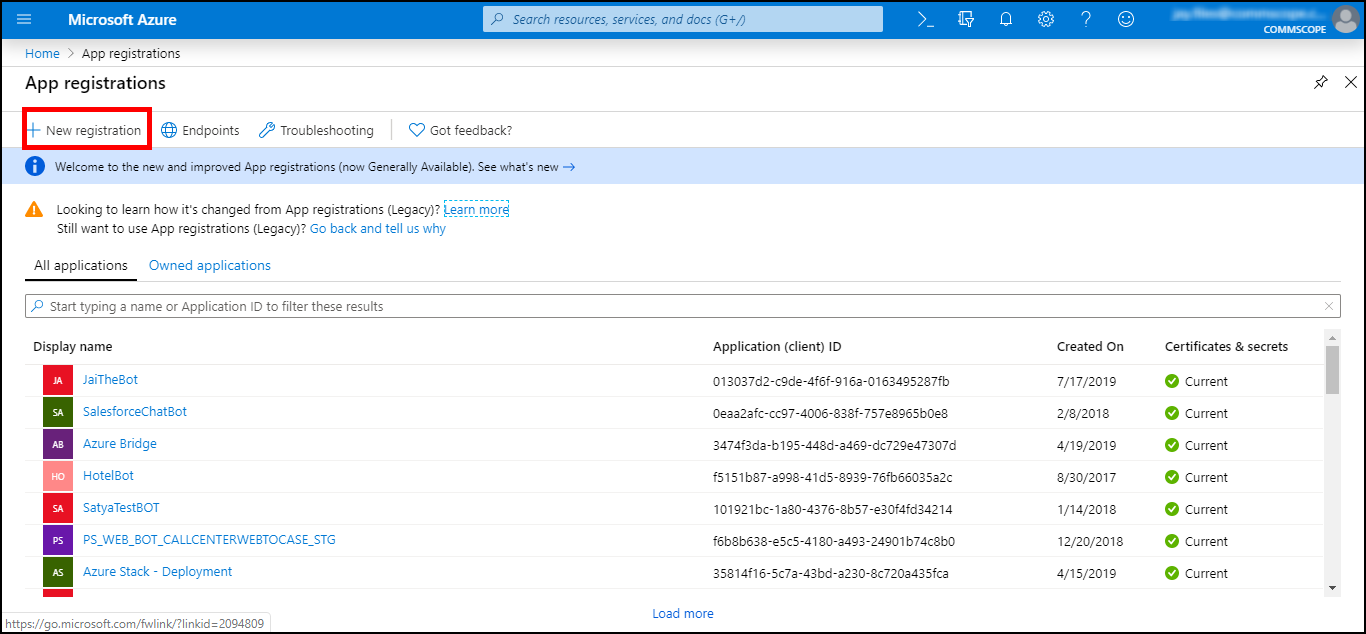
- Go to the Microsoft Live development dashboard (https://portal.azure.com/#blade/Microsoft_AAD_RegisteredApps/ApplicationsListBlade), and click New registration.
- Enter a name for the application.
-
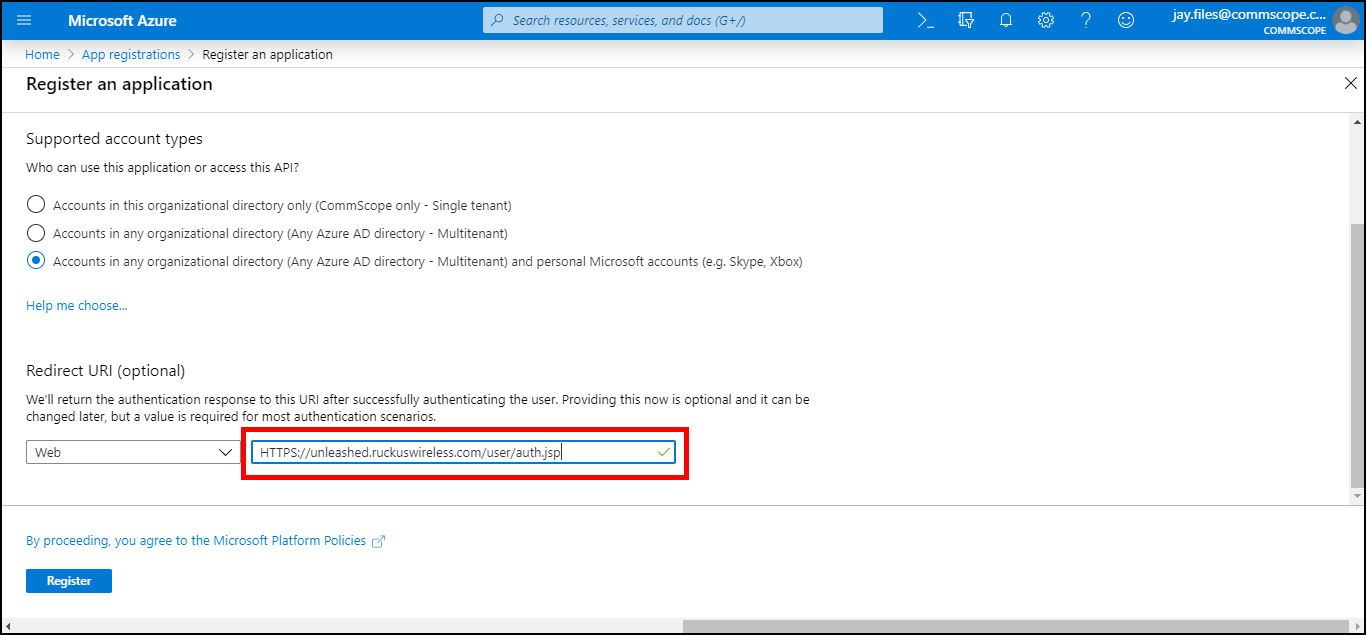
Content reuse for UnleashedFor Support Account Types, select Accounts in any organizational directory and personal Microsoft accounts (refer to Registering an Application: Configuration Settings).
-
Content reuse for UnleashedUnder Redirect URI:, enter a valid redirect callback URL.
- Click Register.
- Create a client secret using the following steps:
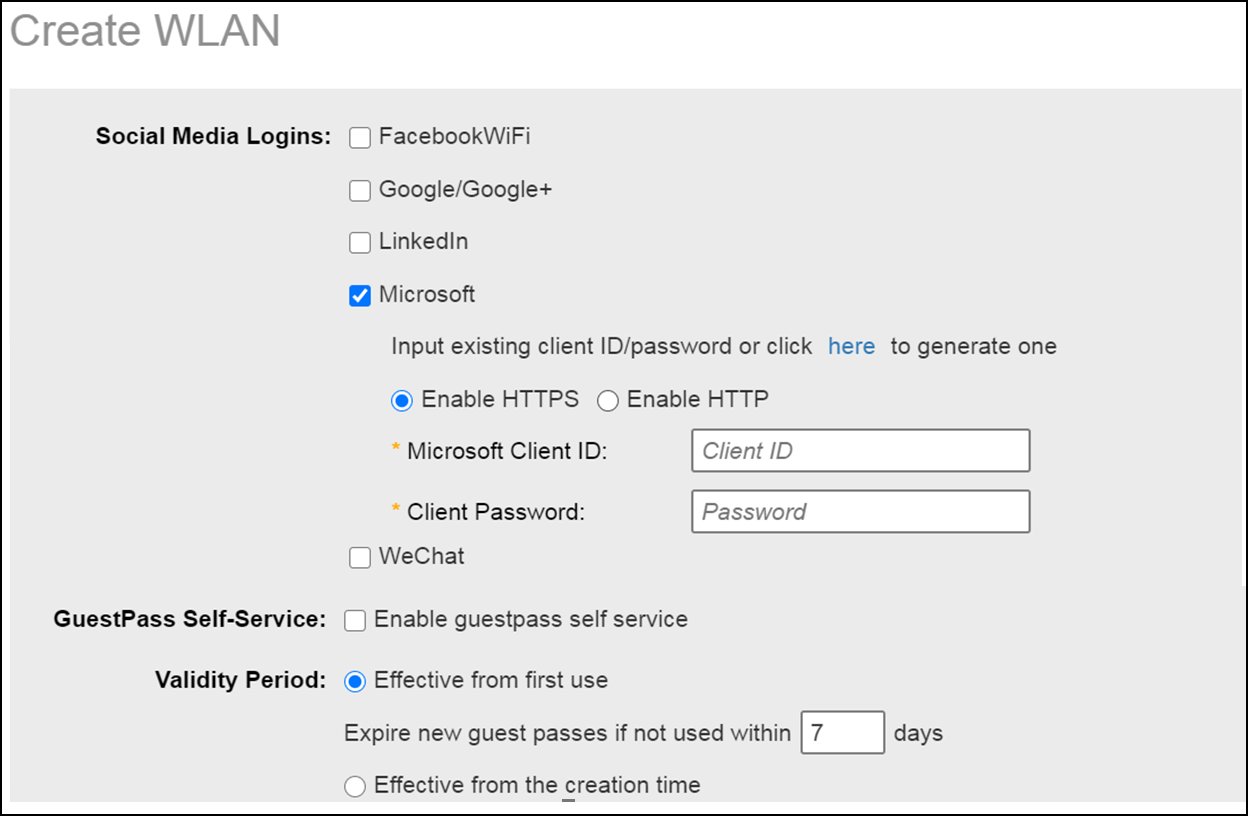
- In the web interface, use the
following settings on the Create WLAN configuration
screen:
- Under Social Media Logins, select Microsoft.
- Select Enable HTTPS.
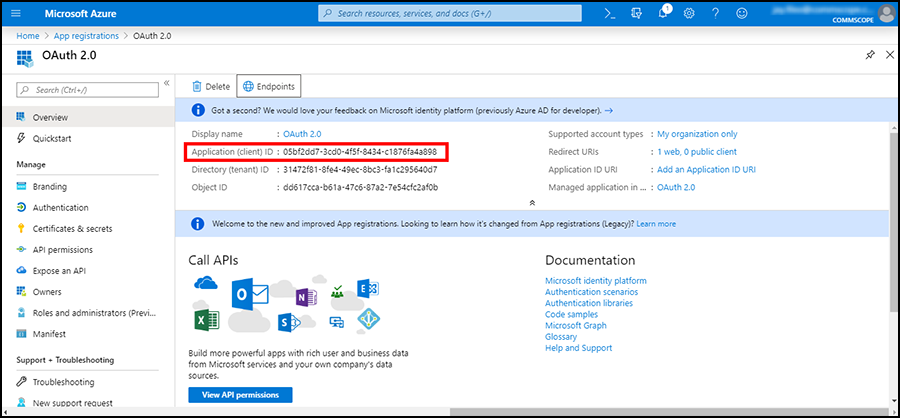
- Under Microsoft Client ID, enter the application (client) ID, as shown in Noting the Application (Client) ID.
- Under Client Password, the client secret, as shown in Noting the Client Secret.