Creating Separate WLANs for 2.4, 5, and 6 GHz Radios
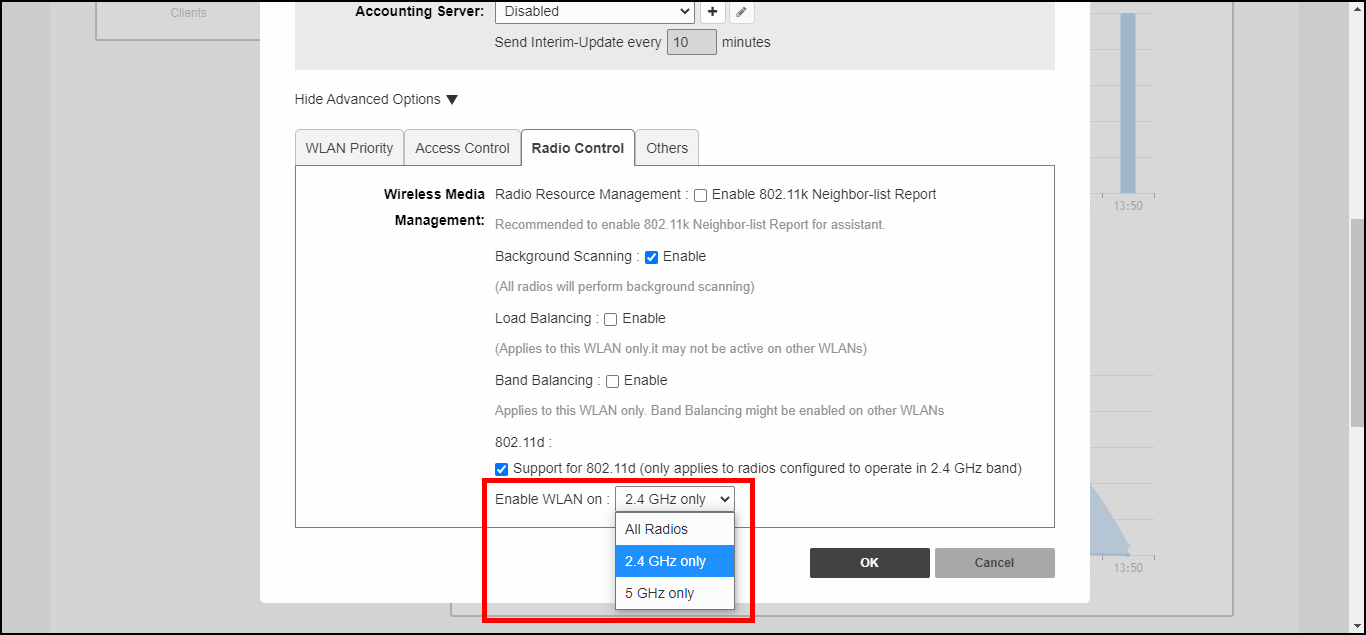
Use the Enable WLAN on option to
configure 2.4, 5, or 6 GHz radio service on or off for the WLAN. This allows you
to create
separate WLANs that each operates on one or the other of the 2.4, 5, or 6 GHz radios.
Complete the following steps to create a separate WLANs for 2.4, 5, and 6 GHz radios.
-
UI label slightly different for UnleashedWithin the WiFi Networks component, select the WLAN that you want to configure, and click Create to create a custom WLAN.
- Click the arrow next to Show Advanced Options to expand the advanced options section.
- Click the Radio Control tab.
- For Enable WLAN on, select one of the options: 2.5 GHz, 5 GHz, or 6 GHz.
- Click OK to save.
To verify that devices operating at 2.4 GHz are only connected to the 2.4 GHz WLAN, and similarly, devices operating at 5 GHz and 6 GHz are exclusively connected to the 5 GHz and 6 GHz WLANs, respectively, click the Clients component and view the list of connected wireless clients. Check the WLAN and Radio columns to view connection status.