Configuring Global AP Settings
Global AP settings are applied to all members of the RUCKUS Unleashed network, unless overridden by AP group or individual AP settings.
Complete the following steps to configure settings for all APs connected to the RUCKUS Unleashed network in the "System Default" AP group.
Difference in UI label for Unleashed and RUCKUS
Blue
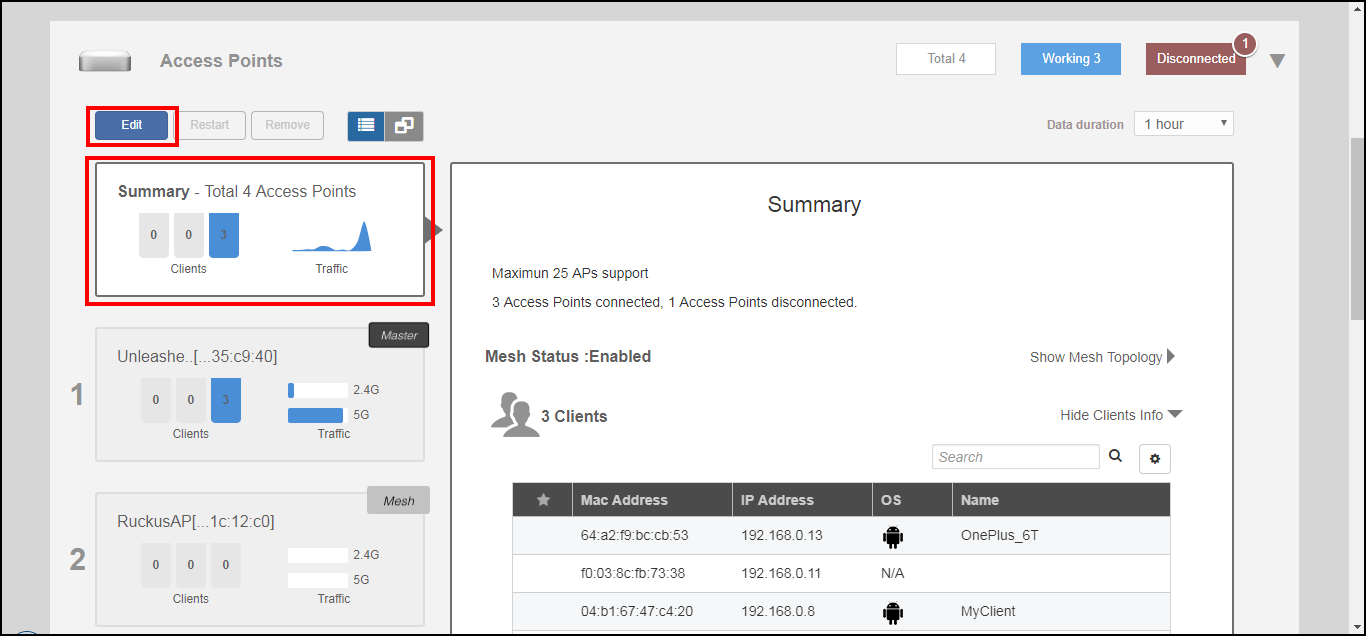
- From the dashboard, select Access Points.
- Select the Summary AP box and click the Edit button in the Access Points component.
- In the Edit AP Group dialog box, select System Default from the AP Group list and click OK.
- Configure the global AP settings
from the following tabs:
- WLAN Assign: Assign WLANs to or from the System Default AP group using the left and right arrows.
- Radio (2.4G): Configure options for the 2.4 GHz radio on all APs.
- Radio (5G): Configure options for the 5 GHz radio on all APs.
- Radio (6G): Configure options for the 6 GHz radio on all APs.
- Other: Configure model-specific controls, including the maximum number of clients by AP model and whether to disable status LEDs.
- Click OK to save your changes.