Monitoring an Individual AP
Click one of the AP boxes in the Access Points component to monitor and configure that specific AP individually.
You can edit, restart, or remove an AP from the network from the individual AP monitoring page. The individual AP monitoring page also includes graphs displaying signal quality and traffic statistics, and links to more detailed information on the AP and its connected clients.
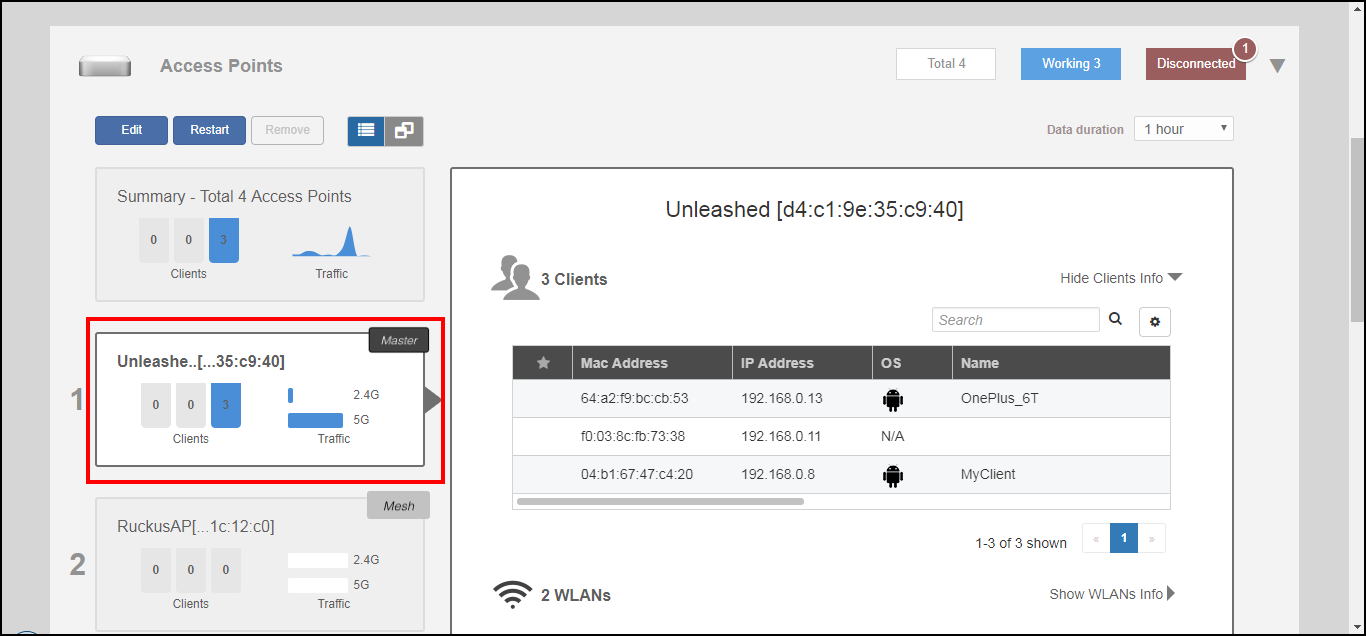
The individual AP monitoring screen contains the following elements:
- Edit: Click this button to configure an AP individually.
- Restart: Click this button to restart the AP.
- Approve: If auto-approval is disabled, click this button to approve the AP and allow it to join the network.
- Remove: Click this button to remove this AP from the network.
- Show Clients Info: Click this link to display a list of clients currently connected to the AP. Details for each client include MAC address, IP address, OS, Host Name, MAC address of the AP to which the client is currently connected, WLAN name, Signal Strength indicator, Auth status, and duration online.
- Show AP Info: Click this link to display AP-specific information including MAC address, IP address, external IP and port number, model name, serial number, and firmware version.
- Client Status: Displays a breakdown of client numbers by signal quality (Excellent, Moderate, or Poor) over time, in one-minute intervals.
- Traffic: Displays the total traffic (Tx + Rx) on the AP radio in one-minute intervals.