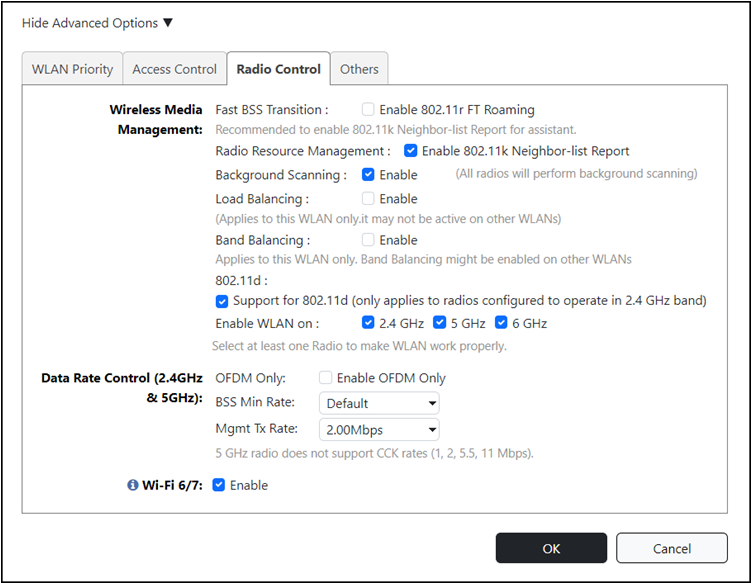
Radio Control Settings
The Radio Control tab provides options for configuring radio settings for the WLAN, such as load balancing, band balancing, fast BSS transition, and radio resource management.
The following options can be configured on a per-WLAN basis:
- Fast BSS Transition: (Disabled by default.) The Fast BSS Transition feature uses messages and procedures defined in 802.11r to allow continuous connectivity for wireless devices in motion, with fast and secure handoffs from one AP to another. A fast BSS transition is a BSS transition in the same mobility domain that establishes the state necessary for data connectivity before the re-association rather than after the re-association. In this way, clients that support the 11r standard (including iOS devices) can achieve significantly faster roaming between APs.
- Radio Resource Management: (Disabled by default.) Radio Resource Management utilizes 802.11k Neighbor Reports, which are sent by the AP to inform clients of the preferred roaming target AP. The client sends a neighbor report request to an AP, and the AP returns a neighbor report containing information about known neighbor APs that are candidates for a service set transition.
- Background Scanning: Background scanning regularly samples the activity in all Access Points to assess RF usage for automatic optimal channel selection, to detect rogue APs, and to determine which APs are near each other for radio resource management and load balancing. These scans sample one channel at a time in each AP so as not to interfere with network use.
- Load Balancing: Enabling load balancing can improve WLAN performance by helping to spread the client load between nearby access points. The load balancing feature can be controlled from within the web interface to balance the number of clients per radio on adjacent APs. "Adjacent APs" are determined by the Master AP by measuring the RSSI during channel scans. After startup, the Master AP uses subsequent scans to update the list of adjacent radios periodically and when a new AP sends its first scan report. When an AP leaves, the Master AP immediately updates the list of adjacent radios and refreshes the client limits at each affected AP. Once the Master AP is aware of which APs are adjacent to each other, it begins managing the client load by sending desired client limits to the APs. These limits are "soft values" that can be exceeded in several scenarios, including: (1) when a client’s signal is so weak that it may not be able to support a link with another AP, and (2) when a client's signal is so strong that it really belongs on this AP. The APs maintain these desired client limits and enforce them once they reach the limits by withholding probe responses and authentication responses on any radio that has reached its limit.
- Band Balancing: (Enabled by default.) Band balancing balances the client load on radios by distributing clients between the 2.4 GHz, 5 GHz, and 6 GHz radios. To balance the load on a radio, the AP encourages dual-band clients to connect to the 5 GHz band when the configured percentage threshold is reached.
- 802.11d: (Enabled by
default.) The 802.11d standard provides specifications for compliance with
additional regulatory domains (countries or regions) that were not defined in
the
original 802.11 standard. For optimal performance of Apple iOS devices, it is
recommended that you enable this option.
Note: Some legacy embedded devices (such as wireless barcode scanners) may not operate properly if the 802.11d option is enabled.
- Enable WLAN on:
(Enabled by default on both radios.) Manually enable or disable WLAN service per
radio. Select 2.4
GHz, 5
GHz, or 6
GHz. This option allows you to create separate WLANs on the three
radios independently.
For more information, refer to Creating Separate WLANs for 2.4, 5, and 6 GHz Radios.
- OFDM Only: Enable this option to disable CCK rates of 1, 2, 5.5, and 11 Mbps; therefore, 802.11b-only clients cannot connect to the WLAN. Beacons and probe responses are transmitted at 6 Mbps, and data frames at 6, 9, 18, 24, 36, 48, and 54 Mbps. Enforcing higher minimum data rates increases overall network throughput capacity, but reduces the distance at which clients are able to remain connected. OFDM Only is supported only on the 2.4 GHz and 5 GHz radios.
- BSS Min Rate: Use this option to configure the minimum transmission rate supported by the WLAN. When OFDM Only is enabled, BSS Min Rate offers three options: Default, 12 Mbps, and 24 Mbps. If set to Default, Mgmt Tx rate is fixed at 6 Mbps. This option can also be used to prevent 802.11b clients from connecting, and to allow greater client density with higher data rates. BSS Min Rate is supported only on the 2.4 GHz and 5 GHz radios.
- Mgmt Tx Rate: Use this setting to configure the rate at which management frames are sent. The default is 2 Mbps. This option is only available if both OFDM Only and BSS Min Rate are disabled. (Otherwise, Mgmt Tx Rate is defined by those settings.)
- Wi-Fi 6/7: Use this setting to allow some legacy Wi-Fi 5 clients with out-of-date drivers to interoperate with a Wi-Fi 6 or Wi-Fi 7 AP. By default, Wi-Fi 6/7 is enabled. Use this setting if you cannot ensure that all the client drivers on the network are up-to-date and free of bugs. Wi-Fi 6 or Wi-Fi 7 clients connecting to this WLAN on a Wi-Fi 6 or Wi-Fi 7 AP will not be able use Wi-Fi 6/7 features such as Orthogonal Frequency-Division Multiple Access (OFDMA), Target Wake Time (TWT), 6 GHz operation, Preamble puncturing, 320 MHz bandwidth, and Multi-Link Operation (MLO).