Application Policy
Application Policies can be configured to control access to applications or to control
traffic generated by applications.
Note: For more information on Application Policies, see
Application Policies.
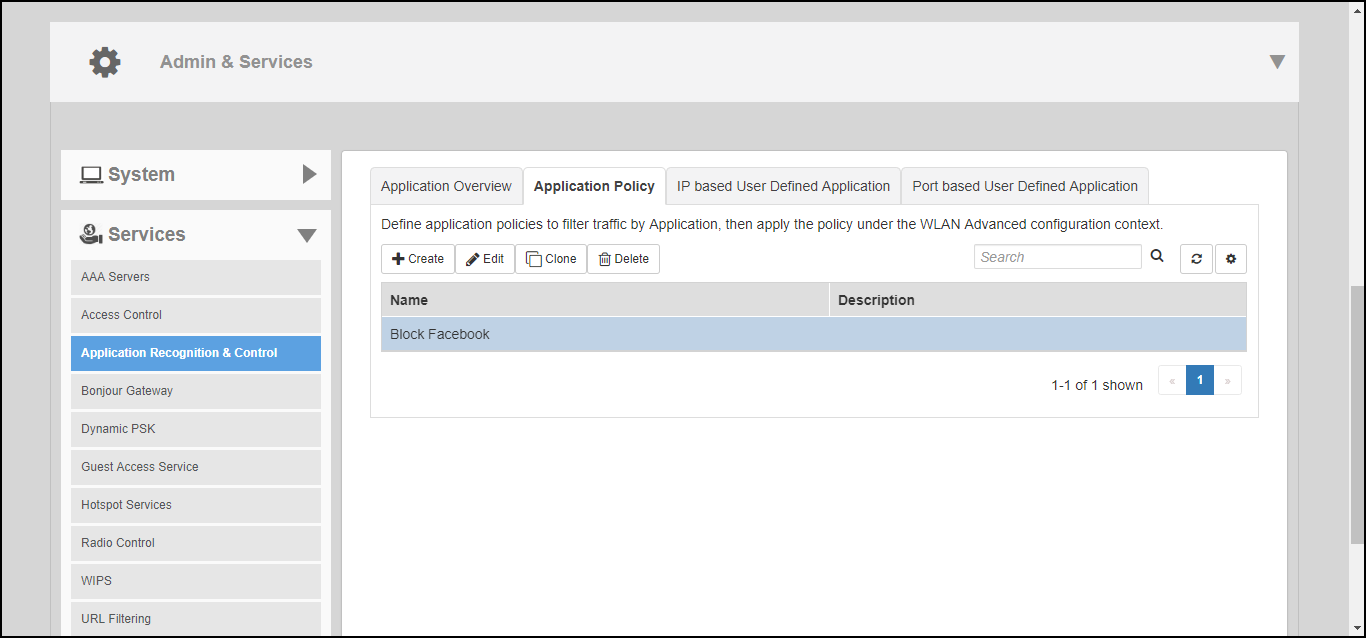
In addition to creating an Application Policy directly from the WLAN advanced options configuration screens, you can also create multiple policies from the Admin & Services > Services > Application Recognition and Control > Application Policy page, and then apply them to your WLANs one by one from the WLAN advanced options.
To create an Application Policy:
- Go to Admin & Services > Services > Application Recognition and Control, and click the Application Policy tab.
- Click Create New to create a new policy.
- Enter a Name and optionally a Description for the policy.
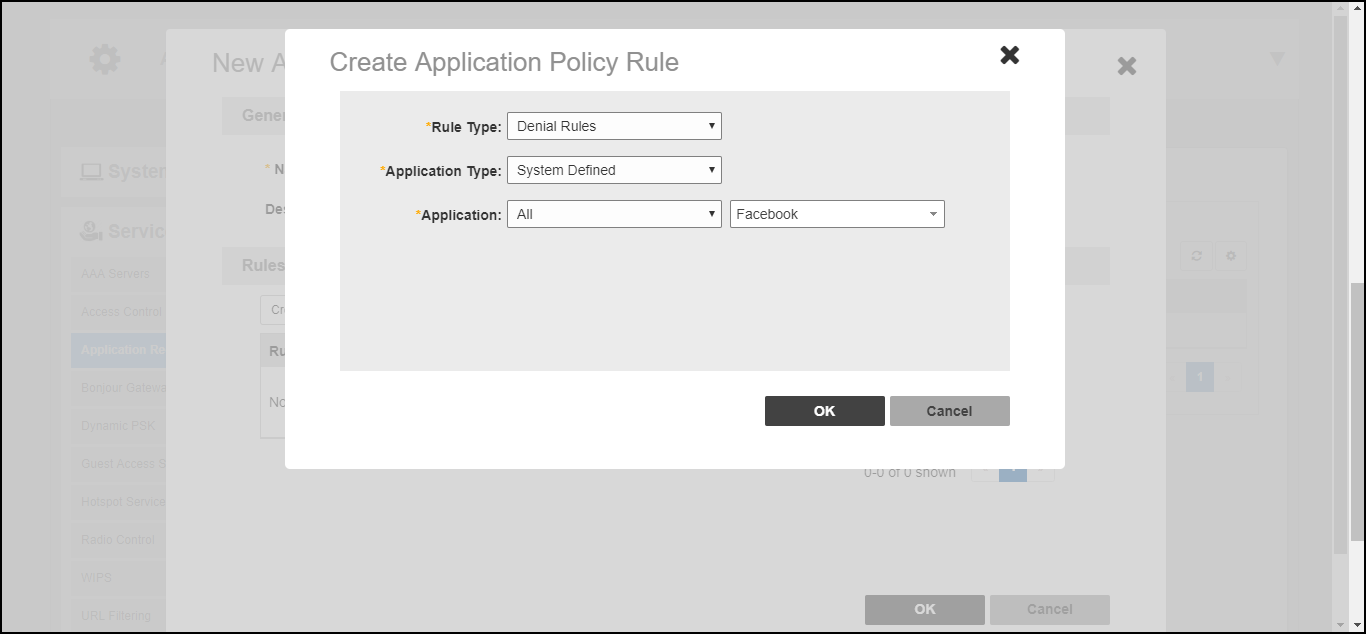
- In Rules, click Create New to create a new rule for this policy.
- In Rule Type, select the type of application control policy to enforce:
- In Application Type, Select HTTP Domain Name or Port.
- Select an application to control from the Select an application field.
- If Rate Limiting or QoS rule type is selected, configure the uplink and downlink speeds for rate limiting or the QoS marking and priority rules for QoS rules.
- Click Save to save the rule, and click OK to save the policy.