Client Connection Troubleshooting
The client connectivity trace feature is designed to help customers diagnose wireless
client connection issues to determine why a client fails to connect to the wireless
network.
- Open the
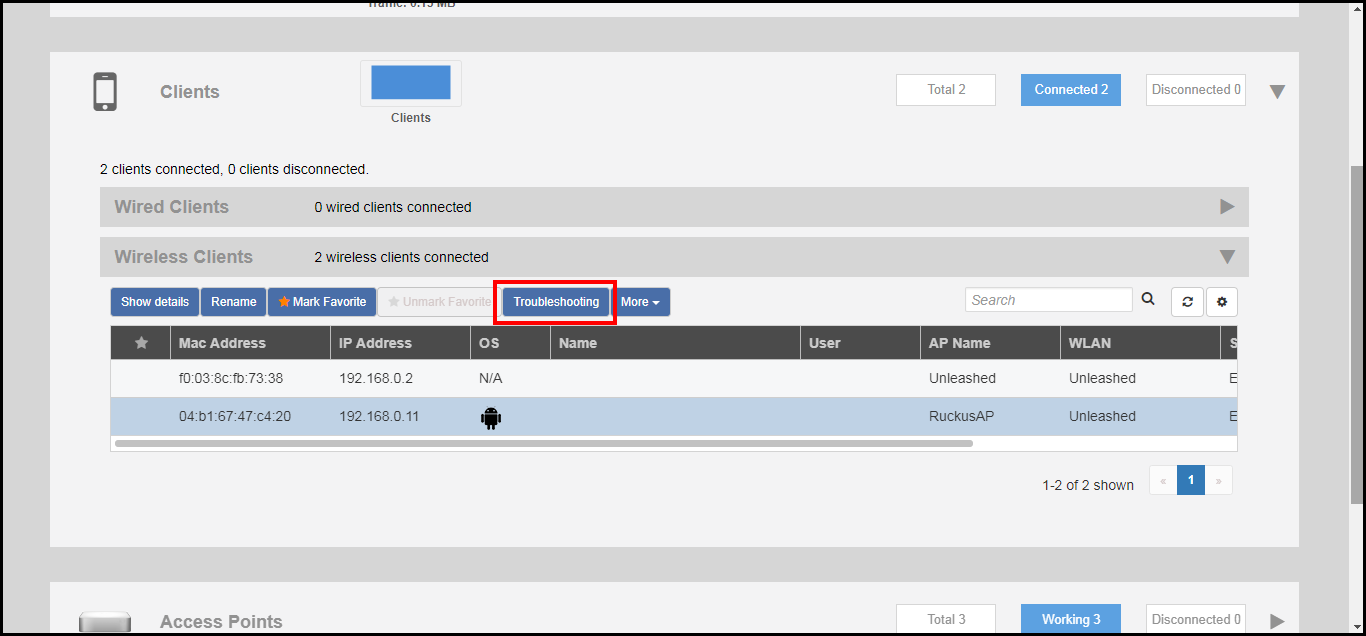
Clients section, and select the problematic client from the list.
- Click Troubleshooting.
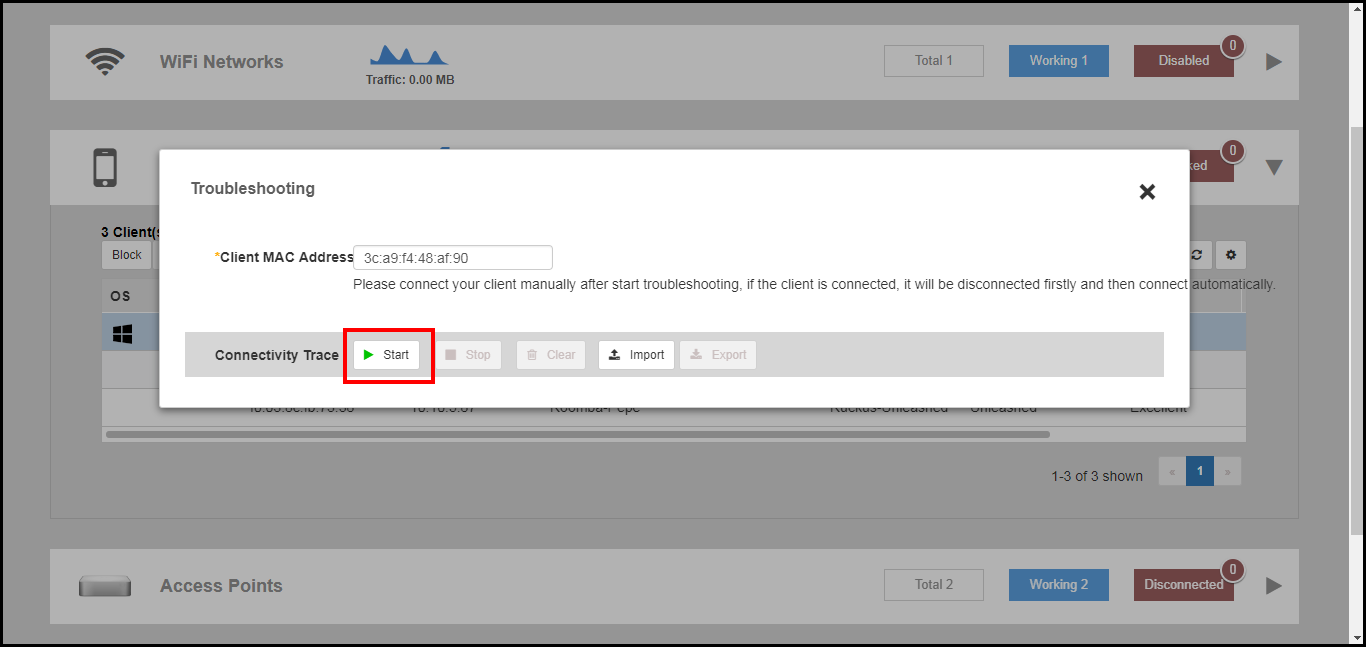
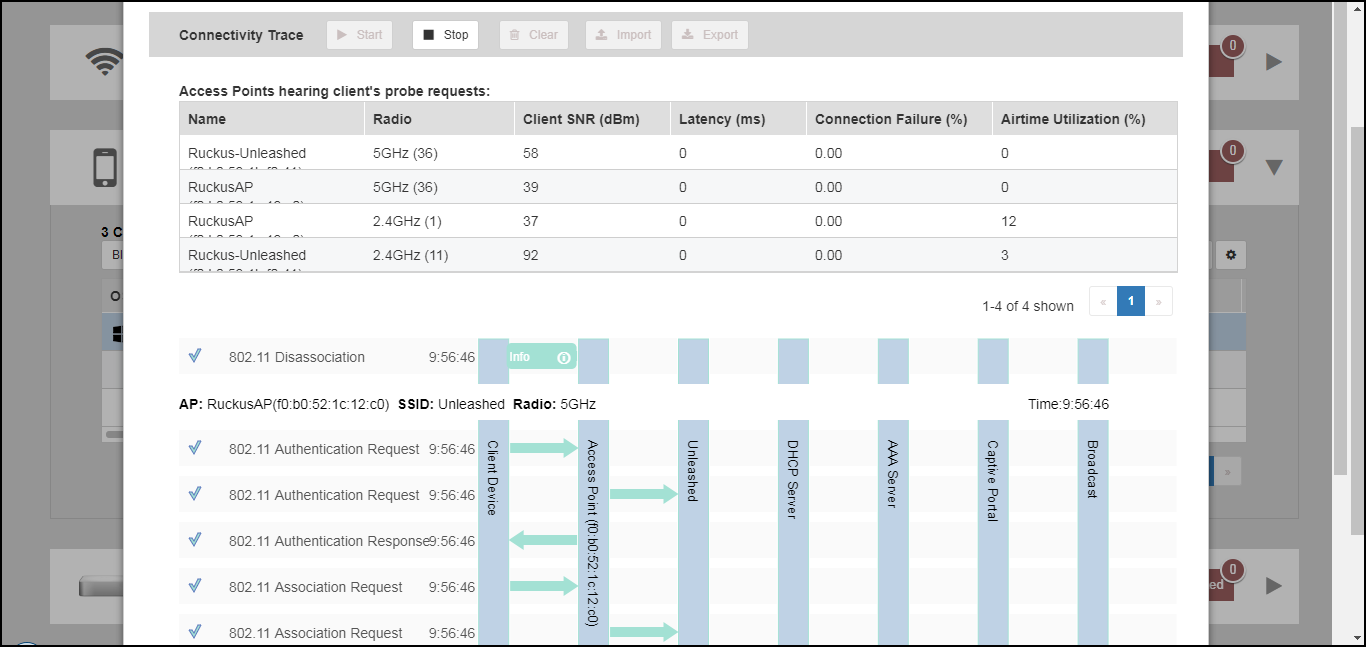
- In Connectivity Trace, click the Start button to begin. The association trace begins. The page refreshes to display detailed results.
- Examine the results to isolate the problematic step in the process.
- If needed, you can download the client connectivity data to a file, which can later be imported for analysis. Click Export to download the data file and save it to your local computer. Click Import to import a previously exported file back into Unleashed.