Managing Rogue Devices
The Rogue Devices screen displays all currently active rogue APs that have been detected
by any of the Unleashed APs on the network.
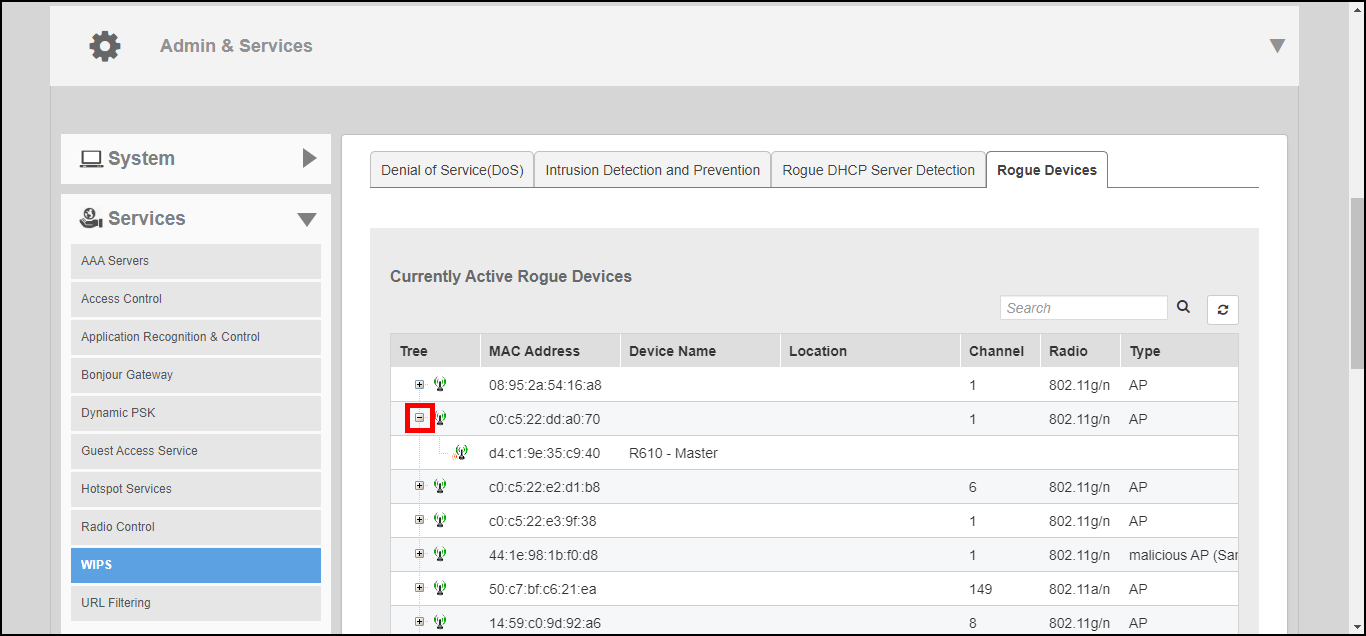
- Go to Admin & Services > Services > WIPS > Rogue Devices.
- View the list of Currently Active Rogue Devices and take note of any rogues marked as "malicious."
- To view which Unleashed APs are detecting this rogue AP, click the + icon next to the rogue AP to expand the display. Use this information to help investigate where the rogue device is located in your site for removing it.
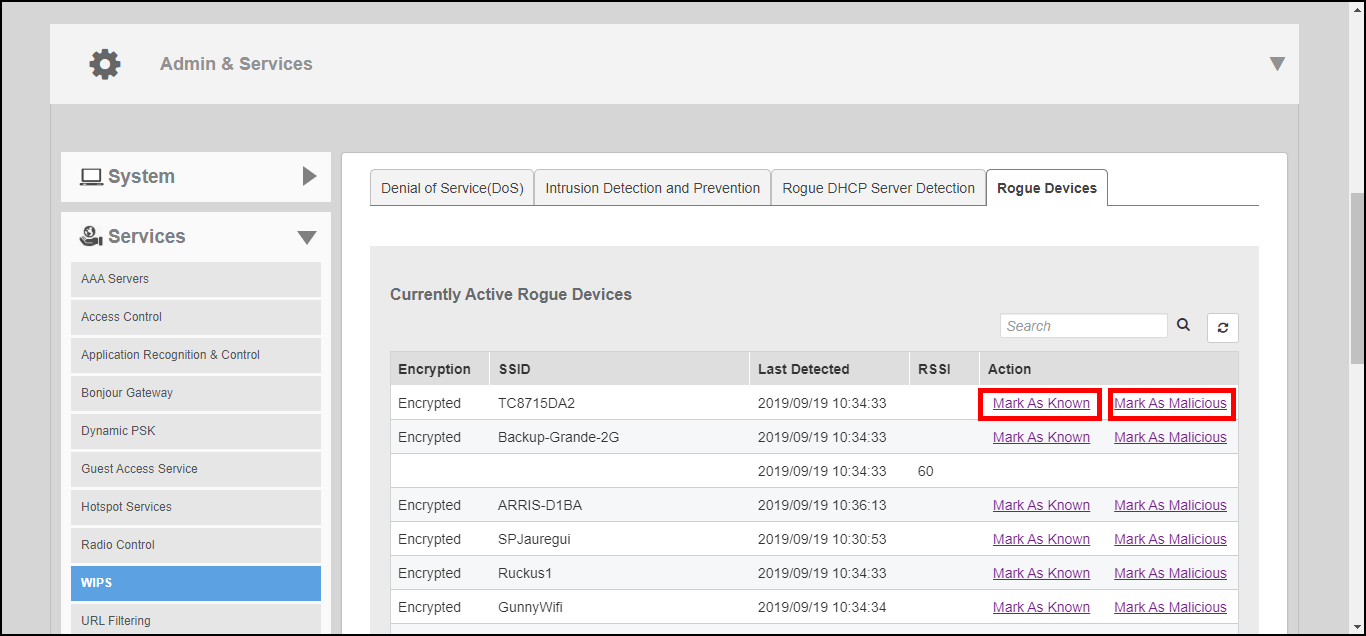
- To mark a rogue device as a "Known" device (for example, a nearby neighbor's network), click Mark As Known. This device will no longer trigger rogue device detection alarm events on the Administration > Diagnostics pages.
- To mark a rogue device as "Malicious" rogue (with the goal of physically locating and removing the offending device), click Mark as Malicious.
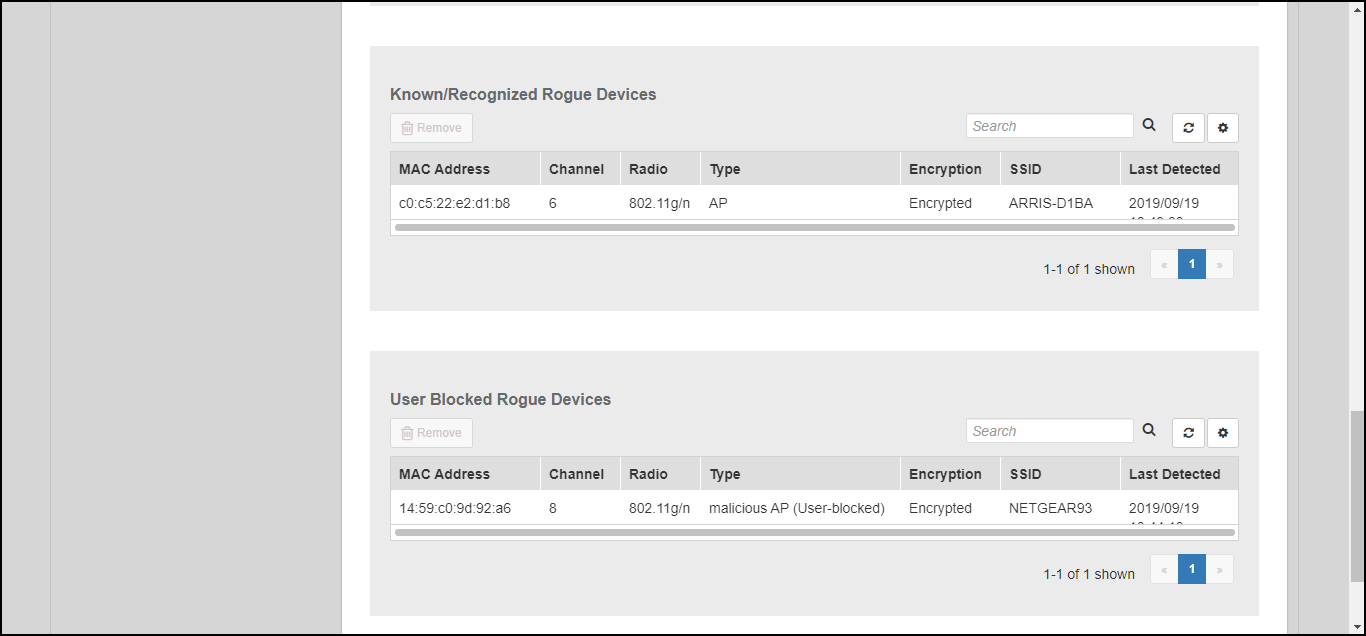
- You can monitor and manage the lists of known/recognized and user-blocked rogue devices using the two tables below.