Managing Switch Ports
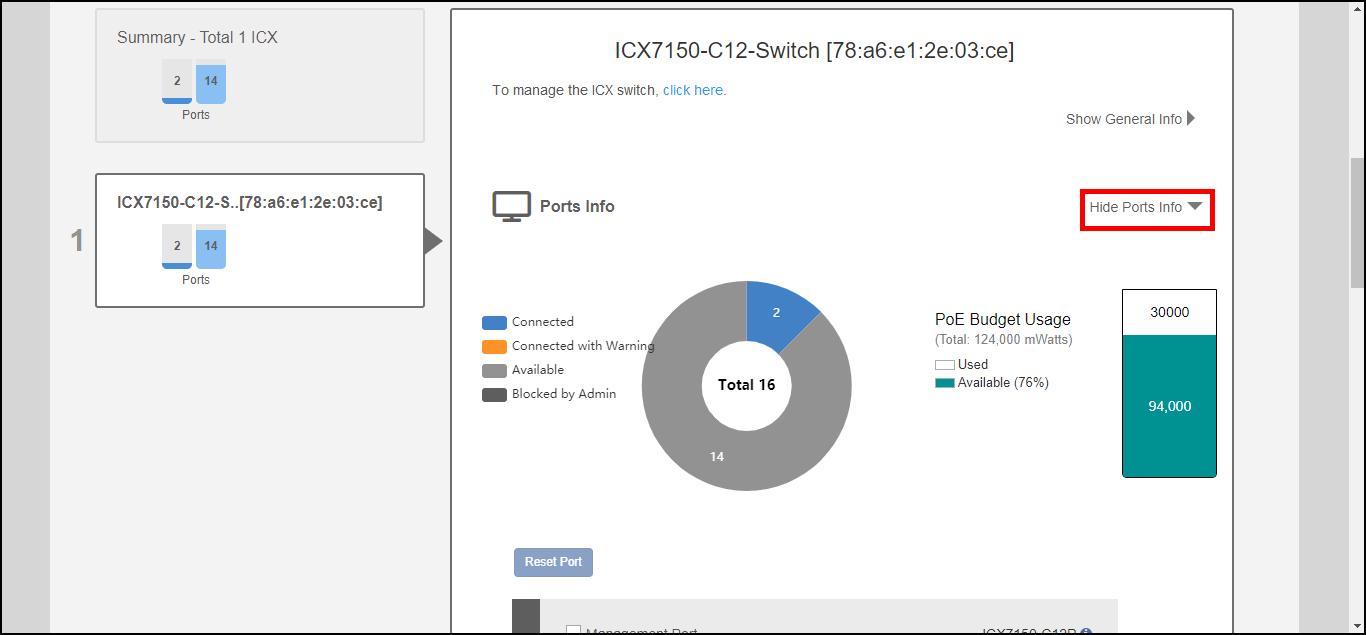
The "Ports Info" link expands to display information on overall switch status such
as the number of ports used and available and PoE power budget usage. Individual switch
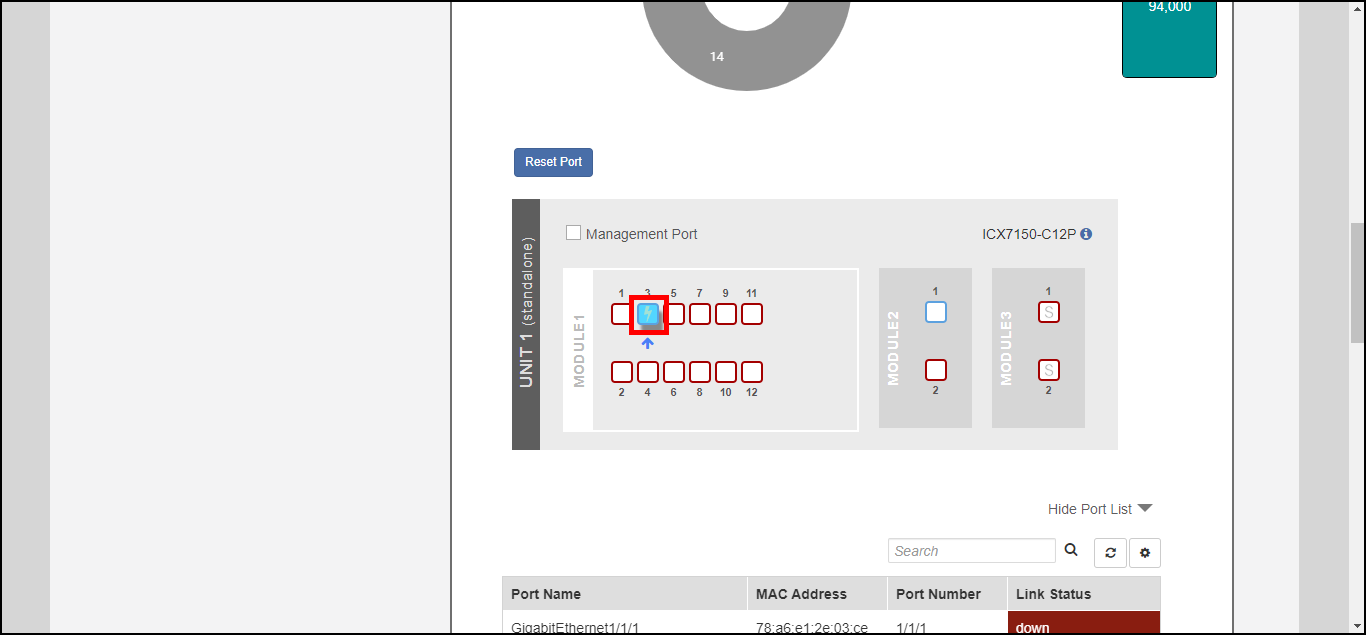
ports can be managed by selecting the specific port from the switch port diagram or
from the port list table below.
- Expand the Switches dashboard component, and select a connected switch from the list on the left.
- Click Show Ports Info to expand the port details view.
- Select an individual port from the port diagram or port list table.
- Review the details in the switch port list for the port selected.
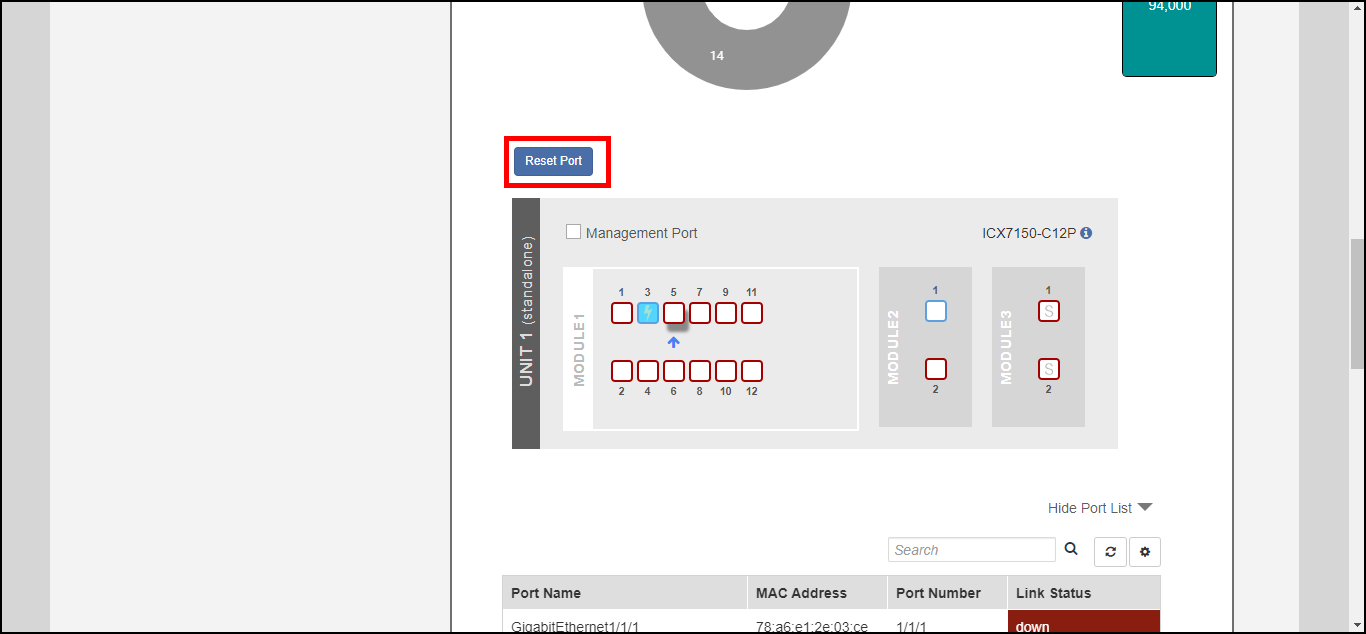
- To reboot a device connected to a PoE switch port, click the Reset Port button. The port reset button can be used to power cycle a connected device by powering down and back up a PoE port.
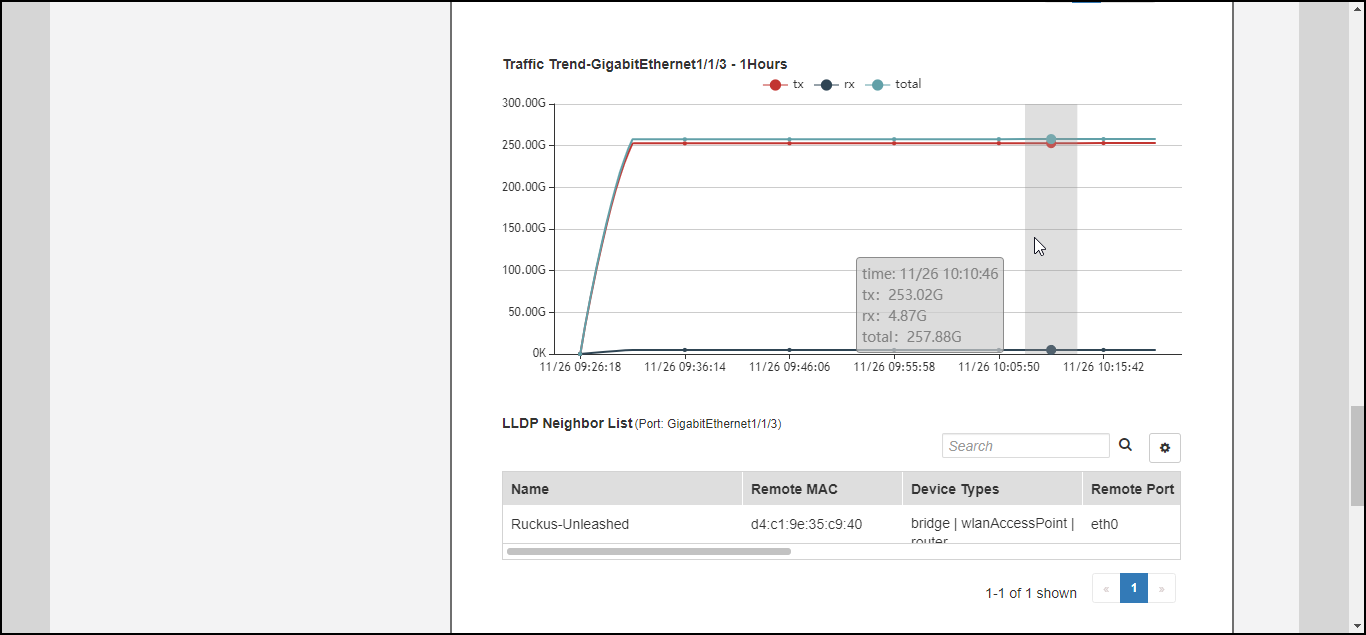
- Scroll down to view the traffic trend chart and LLDP neighbor list for a port.