Dynamic PSK
Only a DPSK-enabled WLAN can generate DPSKs. Refer to Enabling DPSK for a WLAN.
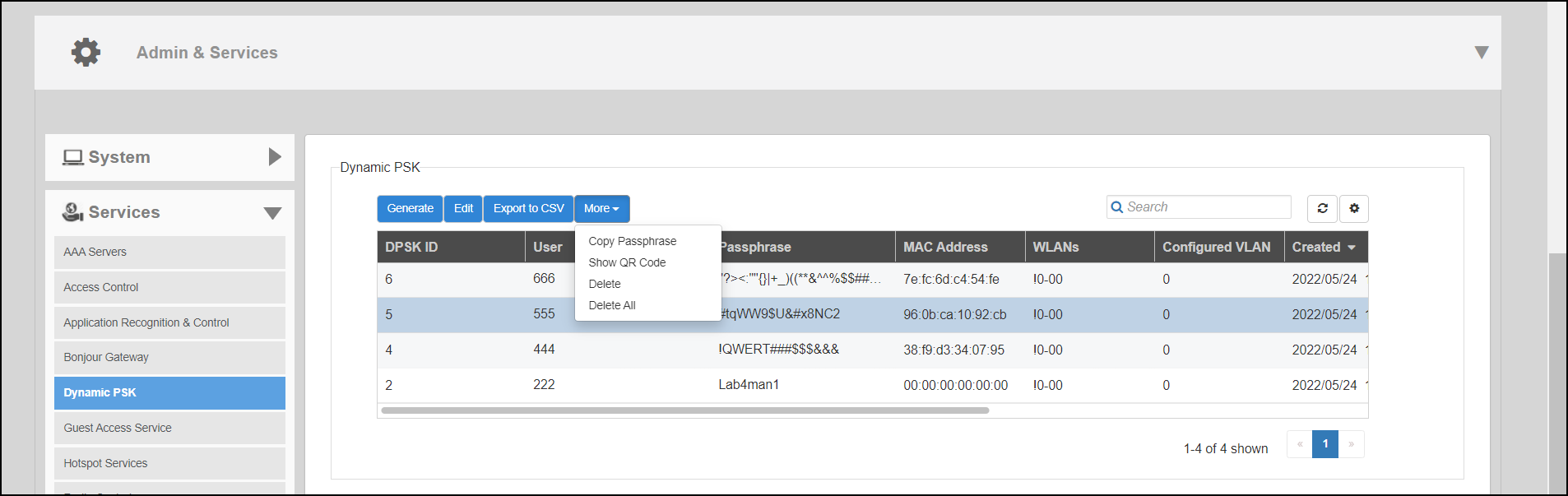
The following options are available from the Dynamic PSK page:
Generate: You can create DPSKs in one batch. For more information, refer to Generating DPSKs in Batch.
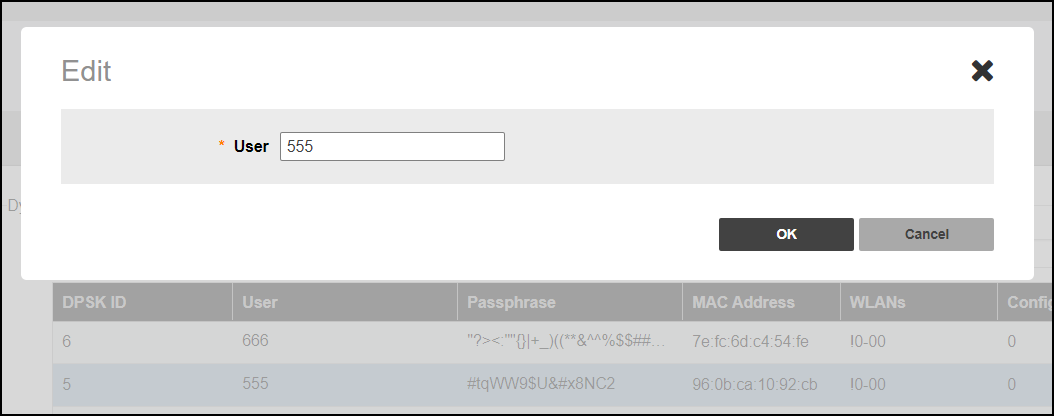
Edit: You can edit the DPSK user name using the Edit option.
- From the DPSK table, select a DPSK entry and click Edit.
- In the Edit dialog box, enter the new DPSK user name, and click OK.
Export to CSV: Click Export to CSV to export all the generated DPSKs to a CSV file.
More: Click More to use the following options:
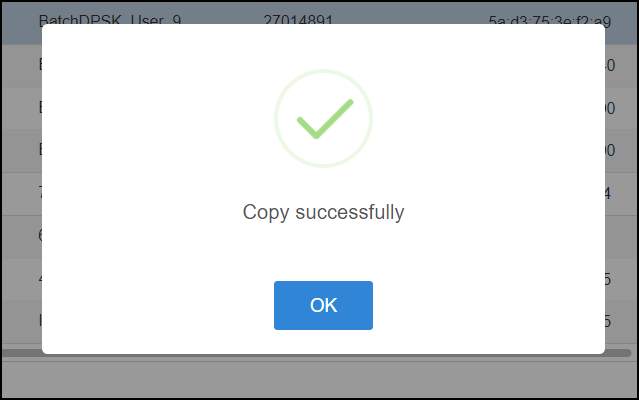
- Copy Passphrase: From the DPSK table, select a DPSK entry and click to copy a passphrase. When the confirmation message is displayed, click OK.
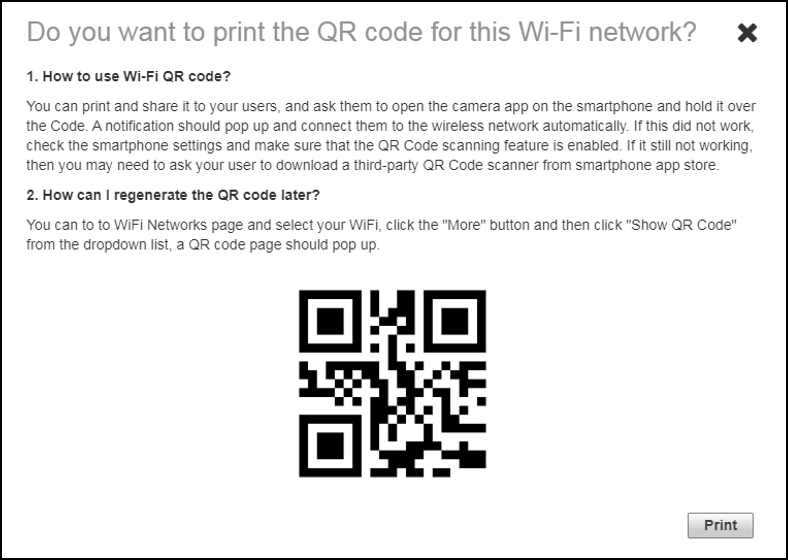
- Show QR Code: A WLAN-supported DPSK has the Show QR Code option to join a Wi-Fi network. From the DPSK table, select a DPSK entry and, click to display the QR Code. Click Print to print the QR code or scan the QR code using a smartphone camera.