Using WPA
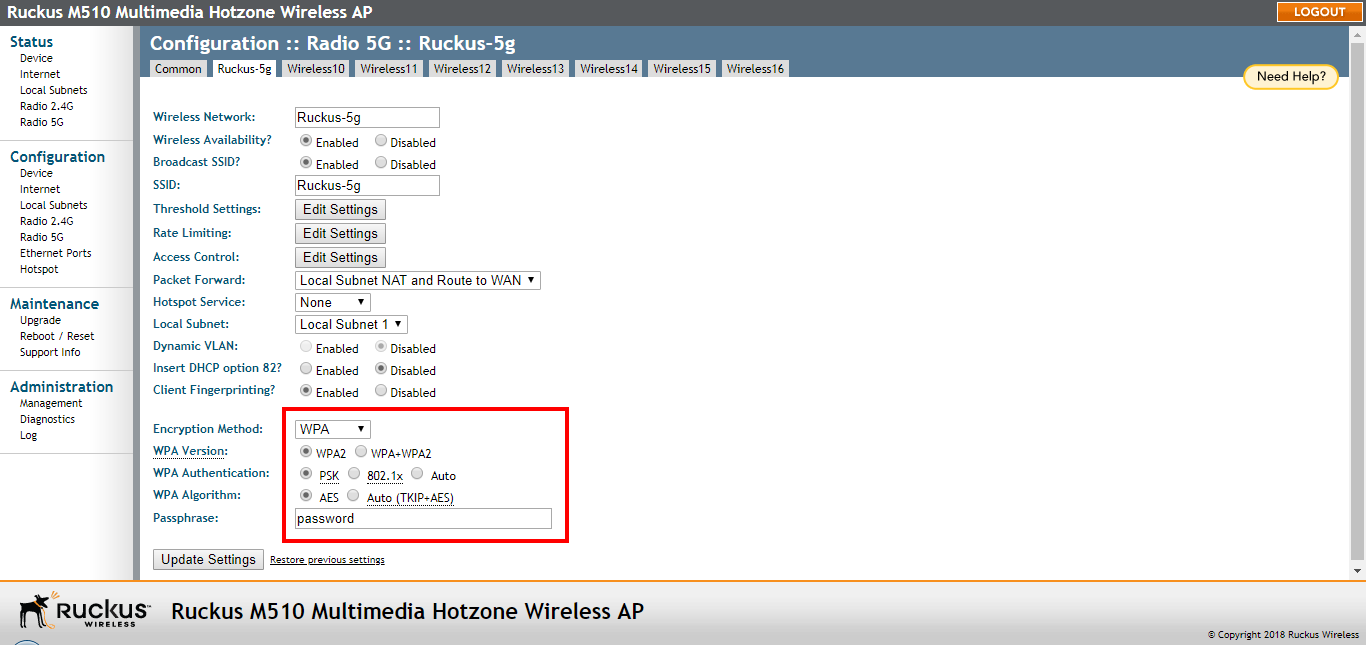
Selecting WPA as the Encryption Method allows you to choose WPA version, WPA Authentication and WPA Algorithm. This section discusses WPA-PSK (pre-shared key). For information on WPA-Enterprise (WPA-802.1X), refer to Customizing 802.1X Settings.
Use of WPA-PSK (also known as WPA-Personal) allows automatic key generation based on a single passphrase. WPA-PSK provides strong security for small and medium organizations and does not require a RADIUS server.
If you configure the WLAN with WPA-PSK, wireless users can only connect to your WLAN if their devices support WPA-PSK and are configured with the matching passphrase.
- Go to Configuration > Wireless or Configuration > Radio 2.4G or Configuration > Radio 5G. The Configuration > Wireless > Common page appears.
- Click the Wireless # tab that you want to configure. The Configuration > Wireless > Wireless[#] page appears.
- Select WPA from the Encryption Method menu. An additional set of WPA-specific options appear on this page.
- Review the encryption settings listed in the following table, and then make changes
as preferred.
Encryption settings
Encryption Setting Description WPA Version Your options are WPA2 and WPA + WPA2. - WPA (Wi-Fi Protected Access - deprecated) was the replacement security standard adopted by the Wi-Fi Alliance in response to the security weaknesses of WEP. WPA was developed as an interim measure before ratification of the 802.11i standard, which introduced WPA2.
- WPA2 provides stronger wireless security than WPA and is the recommended option.
- WPA+WPA2 allows both WPA and WPA2 devices to operate on the same WLAN.
WPA Authentication - PSK (Pre-Shared Key) mode is suitable for home or office use.
- 802.1X mode uses a RADIUS server to verify user identity.
- WPA-Auto mode offers both options for the wireless client to choose from.
For more information on how to configure 802.1X authentication, refer to Customizing 802.1X Settings.
WPA Algorithm - TKIP: (Deprecated) Temporal Key Integrity Protocol is an older encryption algorithm that provides stronger security than a shared WEP key, but not as strong as the newer AES algorithm.
- AES: AES (Advanced Encryption Standard) replaces TKIP as the default (and recommended) encryption algorithm for modern wireless LANs.
- Auto: Auto allows both AES and TKIP encryption algorithms to be used on the same WLAN. When Auto is selected, the wireless client decides whether TKIP or AES is used. Note however that allowing TKIP reduces the performance of the WLAN (as broadcast packets are limited to slower transfer rates), and is therefore not recommended.
Passphrase Enter a new passphrase between 8 and 32 characters, using any combination of printable characters (letters, numbers, hyphens and underscores). - Click Update Settings to save and apply the changes. A confirmation message appears at the top of the page.
- Click Go back to Wireless Configuration to reopen the previous page.